You can spend 20 minutes writing the main points for a presentation and then lose another two hours turning them into usable slides. The problem is rarely the lack of information. It is deciding what to keep, what to cut, how to structure each slide, and how to make the whole deck feel clear instead of crowded.
In our work at Code Creators with Microsoft 365 environments, we regularly come across teams facing this exact problem, especially when presentations need to be created quickly from reports, meeting notes, or existing business content. That experience makes it easier to see where Copilot in PowerPoint is genuinely useful: it can help turn rough content into slides, tighten wording, improve structure, add visuals, and make presentation review faster.
In this article, you will learn how Copilot in PowerPoint helps you create better presentations, where to find it, how to use it, and which presentation tasks it can handle.
How Can Copilot Help in PowerPoint?
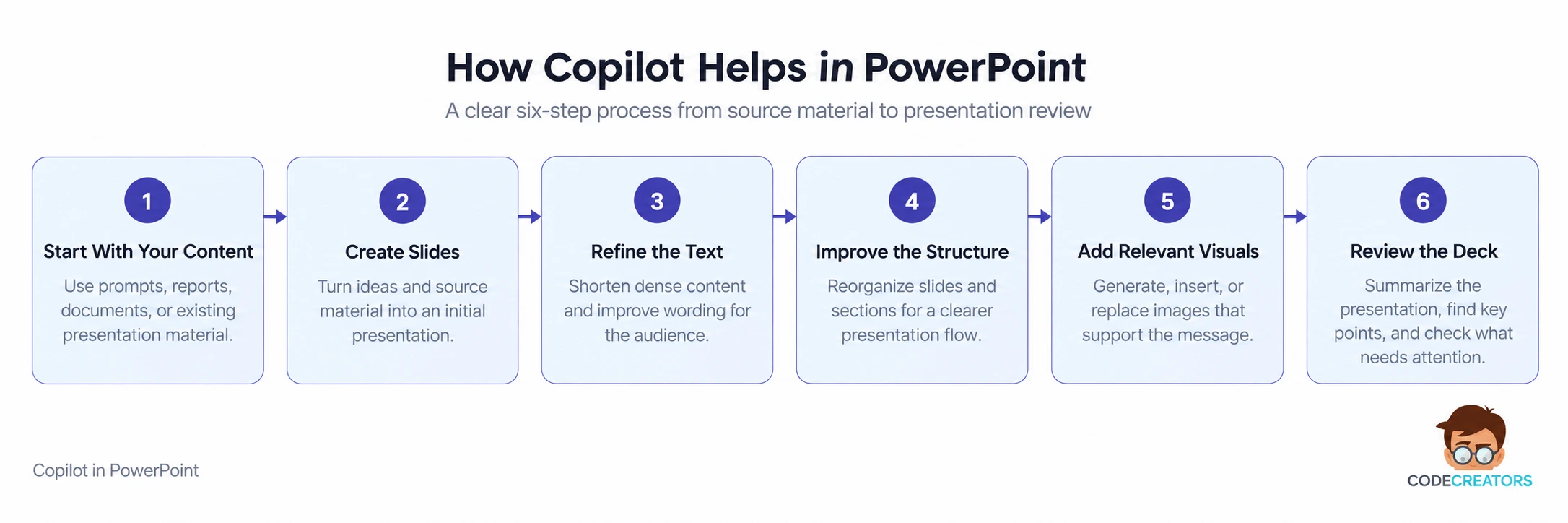
Copilot in PowerPoint works as an assistant inside the presentation. You can ask it to create a deck, add slides, rewrite content, reorganize sections, generate or replace images, summarize the presentation, and answer questions about what is already in the file.
That means you can handle more of the presentation workflow without moving between separate tools. However, Copilot works best when you give it clear instructions about the audience, purpose, topic, and expected outcome.
 Create a Presentation From a Prompt
One of the most useful ways to use Copilot in PowerPoint is to start a presentation from a written prompt.
You can describe the topic, audience, purpose, and main points you want to cover. Copilot can build an outline and generate slides from those instructions. It may also ask follow-up questions about the audience, presentation style, or image preferences before creating the deck.
In presentation work, we often see users begin with the content already mapped out but still spend time deciding how to divide it across slides. Copilot can use those existing points to build an initial slide structure, which users can then review and refine. You can then refine the outline before Copilot generates the slides.
Turn Existing Content Into Slides
Copilot can also create a presentation from existing content. Depending on your Microsoft 365 Copilot license, you may be able to reference a Word document or PDF and use it as the source.
This is useful when the information already exists in a report, proposal, project document, or briefing. Instead of copying sections into slides manually, Copilot can identify key points and turn them into a draft presentation.
A well-structured source file helps. Clear headings in a Word document make it easier for Copilot to understand how the content should be divided across slides. Still, review the wording, slide order, facts, and level of detail before using the deck.
Improve Slide Structure and Flow
A presentation can contain accurate information and still feel difficult to follow. This often happens when the slide order is weak, sections do not connect well, or several slides repeat the same point.
Copilot can reorganize presentation content, add new slides, update existing slides, and improve the flow of the deck. You can ask it to add a summary slide, create a missing section, or adjust the structure so the presentation moves more clearly from one point to the next.
Rewrite and Condense Slide Text
Slides become difficult to read when they contain long paragraphs or unclear wording. Copilot can help refine text without making you rewrite every section manually.
PowerPoint includes Copilot rewrite options that can improve wording, condense text, or make the tone more professional. This helps when a slide contains the right information but the copy feels too long, repetitive, or informal.
One issue we regularly come across is slides carrying too much text because content has been taken directly from reports or internal documents. Copilot can help reduce that text while keeping the main message intact and adjust the wording when the audience needs a simpler explanation.
Add Visuals That Support the Message
Copilot can help with visual content by generating or inserting relevant images and replacing visuals that no longer fit the slide.
This can speed up the design process when you know what a slide should communicate but do not have a suitable image ready. You can describe the visual you need, and Copilot can help create or suggest one.
Review each visual to make sure it supports the message and fits the presentation tone.
Summarize and Review Presentations Faster
Copilot is also useful when you receive a presentation rather than create one.
You can ask it to summarize the deck, identify key slides, show action items, or answer questions about the presentation. Microsoft also provides references in Copilot responses so you can see where information came from in the deck.
This helps when you need to understand a long presentation before a meeting. Instead of reading every slide first, you can ask for the main points and then review the slides that need closer attention.
Where Is Copilot in PowerPoint?
If you are wondering where is Copilot in PowerPoint, look at the bottom-right corner of the slide editing area. In current Microsoft 365 versions, Copilot appears there as the Copilot Dynamic Action Button. Select it to open the Copilot pane on the right side of PowerPoint.
If you prefer accessing Copilot from the ribbon, right-click the Copilot Dynamic Action Button and select Move to ribbon. PowerPoint remembers this choice across sessions on supported Windows and macOS versions.
If you do not see Copilot in PowerPoint, check these things in order:
1. Confirm that you are signed in with the correct account and have Copilot access. The Copilot button only appears when the account has access through an eligible Microsoft 365 subscription or Microsoft 365 Copilot license.
2. Update PowerPoint. Install the latest Microsoft 365 updates and restart the app before checking again.
3. Refresh your Copilot license.
a. Windows: Go to File > Account > Update License, then restart your Microsoft 365 apps.
b. Mac: Go to PowerPoint > About PowerPoint > More Info > Refresh License, then restart your Microsoft 365 apps.
4. If you use a personal Microsoft account, confirm that Copilot is enabled.
a. Windows: Go to File > Options > Copilot and make sure Enable Copilot is selected.
b. Mac: Go to PowerPoint > Preferences > Authoring and Proofing Tools > Copilot and make sure Enable Copilot is selected.
The Enable Copilot setting applies to personal Microsoft accounts. It is not available in the same way for managed work or school accounts.
5. Check your connected-experience and privacy settings.
a. Windows: Go to File > Account > Account Privacy > Manage Settings. Under Connected experiences, make sure Turn on experiences that analyze your content is enabled.
b. Mac: Go to PowerPoint > Preferences > Personal Settings > Privacy > Connected Experiences > Manage Connected Experiences and make sure Turn on experiences that analyze your content is enabled.
6. If you use a work or school account, contact your IT administrator if Copilot is still missing. Organizational licensing, privacy policies, and Microsoft 365 update settings can affect whether Copilot is available in PowerPoint.
Following these checks in order helps narrow down whether the missing Copilot button is caused by the account, license, PowerPoint version, privacy settings, or organizational configuration.
How to Use Copilot in PowerPoint Effectively
Knowing how to use Copilot in PowerPoint is less about learning commands and more about giving clear instructions.
Start by telling Copilot what you want it to do. Then add useful context. A strong prompt usually includes the task, topic, audience, and any important limits.
We have found that Copilot responds better when the request includes clear details about the audience, presentation length, subject, and expected outcome. Giving it that context usually produces a more useful starting point than a broad request to simply create a presentation.
Users often get better results by refining the presentation in smaller steps instead of trying to perfect everything in the first prompt. Once the initial deck is ready, Copilot can be used to shorten individual slides, add missing sections, or adjust the wording for the intended audience.
If you are asking how can Copilot be utilized in PowerPoint, this back-and-forth process is important. You do not need to get the entire deck right in one prompt. Start with a clear request, review the result, and improve it step by step.
What You Should Still Review Yourself
Copilot can reduce presentation work, but it should not replace your judgment.
Review facts, numbers, names, claims, and source information before presenting the deck. Also check whether the slide order makes sense for the audience and whether the tone suits the situation.
Microsoft recommends reviewing generated content because Copilot output can contain errors or miss important context. Your own subject knowledge remains important, especially for business, technical, customer, or financial presentations.
Get More From Copilot in PowerPoint With Code Creators
Having Copilot available in PowerPoint does not automatically mean teams know where it is worth using. Some presentation tasks benefit from a quick first draft, while others need more control over the source material, structure, or final wording.
That distinction matters when Copilot becomes part of a wider Microsoft 365 environment. At Code Creators, our work in this space focuses on helping businesses understand where Copilot can genuinely support existing processes and where human review still carries the most weight. Our Microsoft Copilot services cover the practical side of adoption, from understanding available capabilities to helping teams use them in a way that makes sense for their Microsoft 365 environment.
Bring us the Copilot challenges your team is running into, and we can help you work out a more practical way to use it across PowerPoint and Microsoft 365.
Conclusion
Copilot in PowerPoint is most useful when the presentation already has a clear purpose and Copilot is used to speed up the work around it. It can help turn source material into slides, tighten lengthy content, improve structure, add visuals, and make an existing deck easier to review. Still, the final presentation needs human judgment to make sure the message, facts, and level of detail are right for the audience.
The better the instructions and source material you give Copilot, the more useful its output becomes. Instead of treating it as a replacement for presentation planning, it works better as a tool for getting from raw information to a stronger draft with less manual effort.
If your business is considering a broader use of Copilot across Microsoft 365, book a consultation with Code Creators to identify where it can add the most value before you roll it out to your teams.