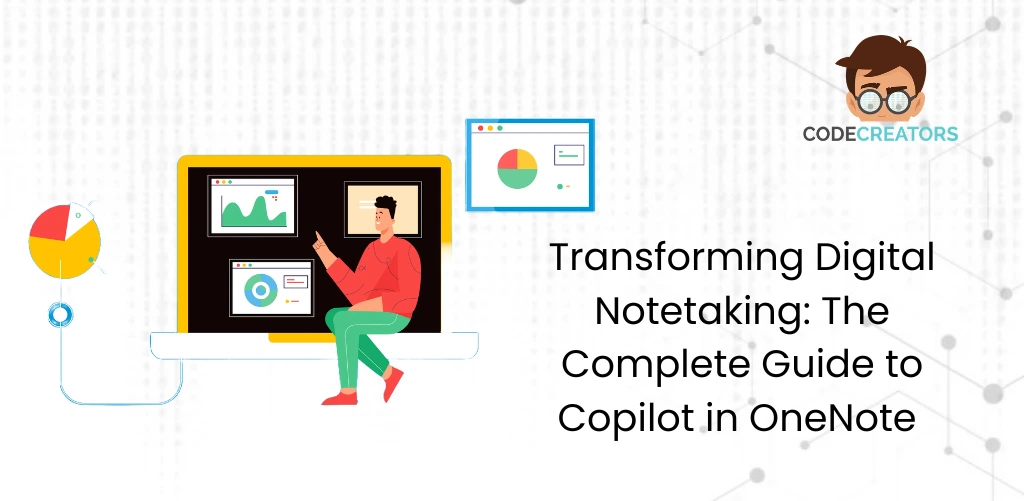
Copilot in OneNote reads the notes already on your page and, through prompts you type into a side pane, summarizes meetings, extracts action items into a table, and rewrites rough text into something presentable, all without you retyping a word. At Code Creators, the detail people run into most often isn’t a prompting problem, it’s licensing: not every Microsoft 365 Copilot plan actually includes OneNote access, and Copilot Chat Basic specifically doesn’t unlock it, which is a common source of “why can’t I see the button” tickets.
This guide covers how to activate Copilot in your notebooks, the everyday prompt patterns worth learning, formatting raw notes into action plans, and the governance steps that matter once real corporate data is involved.
What Does “Copilot in OneNote” Actually Mean?
Before setting up your workspace, it helps to clear up a common point of confusion: there’s no separately branded “Copilot Notebook” product inside OneNote. What people usually mean by that phrase is simply a regular OneNote notebook with Copilot active on it, since Copilot works directly against whatever notebook and page you already have open, rather than requiring a distinct file type.
A standard notebook holds static text on a canvas, with manual tagging and search across isolated local pages. Once Copilot is active, the same notebook gains real-time AI text generation, instant meeting summaries, automated task extraction, and cross-page context insights, layered on top of your existing notes rather than replacing them.
The underlying AI reads your page text, processes your typed prompts, and generates structured content directly inside your notebook sections. It summarizes lengthy discussions, extracts explicit action items, and rewrites text for tone and clarity, all while keeping your corporate information inside your enterprise Microsoft 365 tenant.
How to Activate Copilot in OneNote
Unlocking AI features in your notebook requires meeting a few licensing and configuration requirements, and this is where most setup problems actually happen.
Step 1: Verify the Right Copilot License
For work or school accounts, your organization needs to assign you the Microsoft 365 Copilot (Basic) or (Premium) access label specifically. This distinction matters: a Copilot Chat (Basic) license does not include Copilot access inside OneNote, so if you have some form of Copilot but the icon still won’t appear, checking exactly which license label you hold is the first thing to verify, not the last. For personal accounts, you need a qualifying Microsoft 365 Personal, Family, or Premium subscription with Copilot, and in a shared Family plan, only the subscription owner gets desktop Copilot access, not every family member on the plan.
Step 2: Connect Work Account and Cloud Storage
Make sure your notebook file lives on cloud storage linked to your organization, either OneDrive for Business or a shared SharePoint Online document library. Notebooks saved only to a personal local drive don’t support cloud AI processing.
Step 3: Launch the OneNote Ribbon Interface
Open OneNote for Microsoft 365 on Windows, Mac, or iPad, and keep it updated to the latest version, since Copilot features roll out through regular app updates. Open the notebook page you want help with, select the Home tab, and click the Copilot icon to open the chat pane. Worth noting, full web browser support for Copilot in OneNote is still rolling out as of this writing, so desktop or the iPad app is currently the more reliable place to expect it to work consistently.
How to Use Copilot in OneNote for Everyday Workflows
Getting good results means writing prompts that specify the exact source text, the target tone, and the output format you want, rather than vague one-line requests.
1. Summarizing Unstructured Meeting Notes
After a long strategy meeting, paste your raw transcript onto a notebook page. Open the AI side pane and enter something like: “Summarize this meeting page into three key executive takeaways and present the core decision points in a simple bulleted list.” The engine scans the open page and delivers a clear summary directly into your side pane, or onto your page canvas if you ask it to.
2. Extracting Clear Task Tables
Converting raw meeting discussion into accountable deliverables takes seconds. Highlight your discussion notes and prompt: “Extract all explicit action items from this page and create a simple table containing Task Name, Assigned Owner, and Target Deadline.” We’ve found this specific structure, naming the exact columns you want, produces a far more usable table than a generic “make a task list” request, which tends to come back inconsistent in format.
3. Drafting Outlines and Project Plans
When planning a new product launch or technical project, use your notebook as an active brainstorming canvas: “Draft a five-step project launch outline for a cloud migration initiative based on the notes on this section page.”
Step-by-Step: Formatting Raw Notes into Action Plans
Turning unorganized meeting notes into structured project documents lets teams execute deliverables without delay.
Step 1: Consolidate Raw Notes on the Page Canvas
Gather raw meeting notes, pasted chat logs, and rough outline ideas onto a single page inside your project section.
Step 2: Trigger Canvas In-Line Prompts
Click directly inside any open text container on your notebook canvas. Select the floating AI icon to open the quick prompt line.
Step 3: Refine and Rewrite Text
Apply quick commands to adjust text clarity and structure. Rewrite rephrases casual sentences into crisper business language. To List converts unstructured paragraphs into numbered steps or bullets. Format applies clean typography and paragraph breaks for executive review.
Step 4: Accept and Insert Outputs
Review the generated draft text. Click Keep It to insert the newly structured block onto your canvas, or Regenerate to adjust your prompt and try again.
Feature Comparison: Standard OneNote vs. AI-Enhanced OneNote
| Workspace Capability | Standard Desktop OneNote | AI-Enhanced OneNote |
| Primary Processing | Local desktop input & keyword indexing | Natural language understanding |
| Information Extraction | Manual reading & search filters | Automated page summaries & key takeaways |
| Task Management | Manual Outlook task flags | Automated action item extraction tables |
| Content Generation | Manual typing | Rapid drafting of outlines, emails, & plans |
| Data Governance | Standard local / cloud file permissions | Enterprise Entra ID & Purview DLP boundaries |
Data Privacy and AI Scope Limits
How does Microsoft protect corporate data privacy when processing notebook pages with artificial intelligence?
Microsoft isolates notebook processing inside your enterprise Microsoft 365 tenant boundary. Prompts, notebook text, and generated responses aren’t used to train public foundation models. The system processes page context using Microsoft Entra ID authentication, so access rights mirror your existing file permissions: if a user lacks permission to view a confidential SharePoint notebook page, the AI engine can’t access or summarize that content. Data transfers use encrypted connections, consistent with Microsoft 365’s broader enterprise compliance certifications.
Best Practices for Enterprise AI Note Governance
Rolling out AI tools across team notebooks needs clear governance to keep data integrity, policy compliance, and documentation clean.
Review AI Outputs Before Sharing
Always review generated content before distributing notes to external clients or leadership. Check extracted dates, task assignments, and numerical values against the original raw notes, since Microsoft itself notes that Copilot responses can contain inaccuracies.
Standardize Section and Page Hierarchies
Maintain clean notebook structures by grouping pages logically under clear section groups. Assign distinct titles to meeting pages, such as YYYY-MM-DD_Project_Kickoff, to improve accuracy when running multi-page summaries. We’ve seen summary quality drop noticeably on notebooks full of pages titled “Notes” or “Meeting” with no distinguishing detail, since Copilot has less to work with when everything looks the same.
Enforce Sensitivity Labels Across Shared Notebooks
Apply Microsoft Purview sensitivity labels to notebooks containing confidential financial, HR, or legal data. Configuring sensitivity rules prevents unauthorized export, copying, or improper automated processing of sensitive corporate information.
Modernize Your Digital Workplace With Code Creators
Integrating AI into daily note-taking workflows, configuring secure cloud storage, and establishing enterprise Microsoft 365 governance require specialized platform expertise. Without structured configuration and adoption planning, organizations risk underutilizing these features or creating scattered data silos.
At Code Creators, our certified Microsoft solution architects help enterprises modernize digital workspaces and deploy secure productivity tools, and we’ve walked more than one client through exactly the licensing confusion this guide describes before they realized which Copilot label they actually needed. We help your team turn static notes into active organizational intelligence.
Schedule a Consultation for Microsoft Copilot Services for Business at Code Creators to get your Copilot rollout, licensing included, right the first time.