You open Microsoft Word expecting to use Copilot, but the button is missing—or it appears, and you are not sure what to do next. This often leaves users wondering whether their Microsoft 365 plan includes Copilot, whether they need to enable something first, or whether the problem is linked to their account or Word settings. Through our work at Code Creators with Microsoft 365 setup, configuration, and user support, we regularly come across these access issues. In many cases, Copilot itself is not the problem. The cause is usually the account signed into Word, the Microsoft 365 subscription, the app version, privacy settings, or an organization-level policy.
In this article, you will learn what Copilot in Word is, whether you can use it, how to get Copilot in Word, how to enable it when it does not appear, and how to use it for drafting, rewriting, summarizing, and working with document content.
Can I Use Copilot in Microsoft Word?
Yes, you can use Copilot in Microsoft Word if your account has access through an eligible Microsoft 365 plan or Microsoft Copilot license and the feature is available for your account and device.
For personal users, Microsoft 365 Personal, Family, and Premium include Copilot features in Microsoft 365 apps. Microsoft states that AI benefits in Family plans apply to the subscription owner, not every person sharing the plan. Usage limits also vary by plan.
For work or school accounts, access can depend on the Microsoft 365 plan, the Copilot license assigned to the account, and settings controlled by the organization. So, simply having Word installed does not guarantee that Copilot will appear.
What Is Copilot in Word?
Copilot in Word is Microsoft’s AI assistant inside Word. It can work with the document you have open to help you create, revise, and understand content without moving your work to another tool.
You can ask it to create a first draft, rewrite selected text, shorten a paragraph, change the tone, summarize a document, or answer questions about information already in the file. Depending on your access, Copilot can also use relevant files, emails, or meetings as context.
How to Get Copilot in Word
If you are trying to find out how to get Copilot in Word, start with the Microsoft account you use in Word.
Personal users need an eligible Microsoft 365 subscription that includes Copilot. Microsoft currently includes app-based features such as Draft, Rewrite, and Summarize with Microsoft 365 Personal, Family, and Premium, although usage differs between plans.
For a work or school account, your organization may need to assign the required Copilot access. If you are unsure, open File > Account in Word and check which account is signed in.
Next, update Word to the latest available version. Microsoft has also changed where Copilot appears. In current versions, the Copilot Dynamic Action Button normally appears in the lower-right corner of the document, so users who only look at the ribbon may think the feature is missing.
How to Enable Copilot in Word
In most cases, Copilot does not need a separate installation. If your account has access and Word is correctly configured, it should appear automatically.
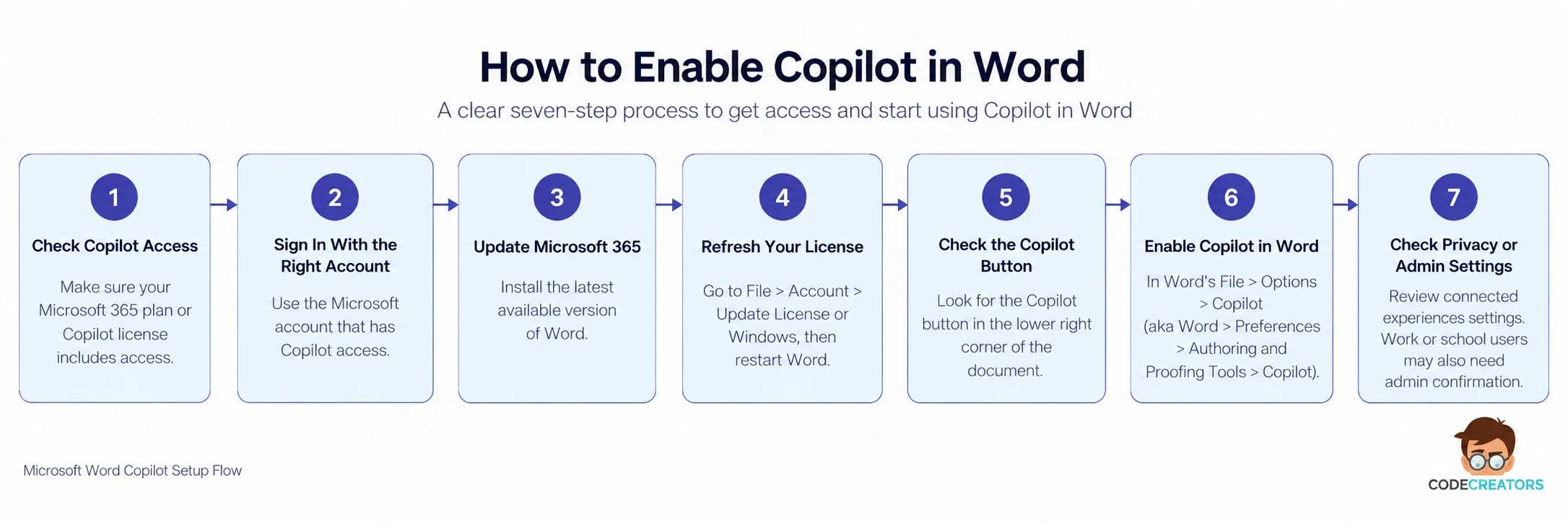
If it does not, check these points in order:
1. Confirm that Word is signed in with the Microsoft account that has Copilot access.
2. Update Microsoft 365 to a current version.
3. On Windows, go to File > Account > Update License, then restart your Microsoft 365 apps.
4. Check the lower-right corner of the document for the Copilot button.
5. On Windows, go to File > Options > Copilot and make sure Enable Copilot is selected. On Mac, go to Word > Preferences > Authoring and Proofing Tools > Copilot.
6. Check your connected-experience settings. On Windows, go to File > Account > Account Privacy > Manage Settings and make sure experiences that analyze your content and connected experiences are allowed.
7. If you use a managed work or school account, contact your IT administrator because the organization may control Copilot availability.
Business users should also check the Microsoft 365 update channel. Microsoft says Copilot features are not available in desktop apps on the Semi-Annual Enterprise Channel, so an organization may need Current Channel or Monthly Enterprise Channel.
How to Use Copilot in Word
Once Copilot appears, open a Word document and select the Copilot button. Word opens the Copilot pane, where you can type a request about the document or ask it to create content.
From the Word and Microsoft 365 use cases we work with, clearer prompts consistently give better results. Adding the topic, audience, tone, and key points gives Copilot more context to produce a useful first draft. You can then ask Copilot to shorten the result, change the tone, or rewrite a specific part.
Draft With Copilot in Word
To draft with Copilot in Word, start on a blank line or in a new document and open the Copilot drafting option. Then describe what you want.
In the Microsoft 365 workflows we support, clearer prompts usually produce more useful drafts when users include the audience, purpose, tone, and key points instead of giving Copilot a short, general instruction.
With eligible access, you can also reference a document, email, or meeting and ask Copilot to use that material in the draft. Microsoft recommends checking generated content before using it because the draft may still contain incorrect or unsuitable details.
Rewrite Existing Text With Copilot
If you already have a draft, select the text you want to change and open the Copilot option in the margin. Copilot can suggest another version while keeping the main idea.
This works well when a paragraph feels too long, too formal, unclear, or repetitive. You can compare the suggestion with your original and choose whether to replace it or keep your own version.
Summarize and Ask Questions About a Document
Copilot in Word can also help you understand a long file. Ask it to summarize the document, identify key points, find a detail, or answer a question based on the content.
When Copilot answers questions about a document, Word can show references to the parts of the file it used. That gives you a way to check the original wording instead of relying only on the AI response.
What If Copilot in Word Still Does Not Appear?
If you have checked the account, subscription, updates, Copilot setting, and connected experiences but still cannot access it, the next step depends on your account.
For a personal account, make sure the subscription owner is the account signed into Word. For a work or school account, contact the Microsoft 365 administrator because licensing, update channels, and organization policies can limit access. Some newer Copilot features also roll out gradually, so two users may not always see the same options at the same time.
Get More From Copilot in Word With Code Creators
When Copilot does not appear or work properly in Word, the cause is often tied to licensing, account settings, privacy controls, or Microsoft 365 policies. We regularly come across these issues while working with Microsoft 365 environments, particularly when users already have Copilot access but still cannot use it as expected.
Through our Microsoft Copilot services, Code Creators helps businesses trace these setup issues, review the relevant Microsoft 365 settings, and make sure users have the access they need.
If your team is still having trouble with Copilot in Word, contact us to get the setup reviewed and the issue resolved.
Conclusion
To use Copilot in Word, you need the right Microsoft 365 or Copilot access, the correct account signed in, and a supported version of Word. Once everything is set up correctly, you can use Copilot to draft content, rewrite text, summarize documents, and find information in the file you are working on.
A missing Copilot button usually means something in the setup needs attention. Start by checking the lower-right corner, then refresh your license, update Word, and review the Copilot and connected-experience settings. Work or school accounts may also require your Microsoft 365 administrator to check the assigned access.
Copilot can make everyday work in Word faster, but its output still needs a final review. Before using or sharing anything it creates, check important details such as names, dates, facts, and tone.
Ready to get more out of Copilot in Microsoft 365? Book a consultation with Code Creators and find practical ways to use it across your team’s daily work.