Using Copilot to search SharePoint means replacing keyword-based search with natural language prompts, Copilot uses Microsoft Graph to understand your intent, filters results to what you’re already permitted to see, and returns a summarized answer instead of a list of links. In our SharePoint search rollouts at Code Creators, we consistently see employees keep typing keyword-style queries out of habit for the first few weeks, which is usually the biggest barrier to adoption, not the technology itself.
This guide covers how to search with Copilot across SharePoint, how the SharePoint Copilot agent works, and what your IT team needs to configure before rollout.
The AI Upgrade: Copilot SharePoint Integration Explained
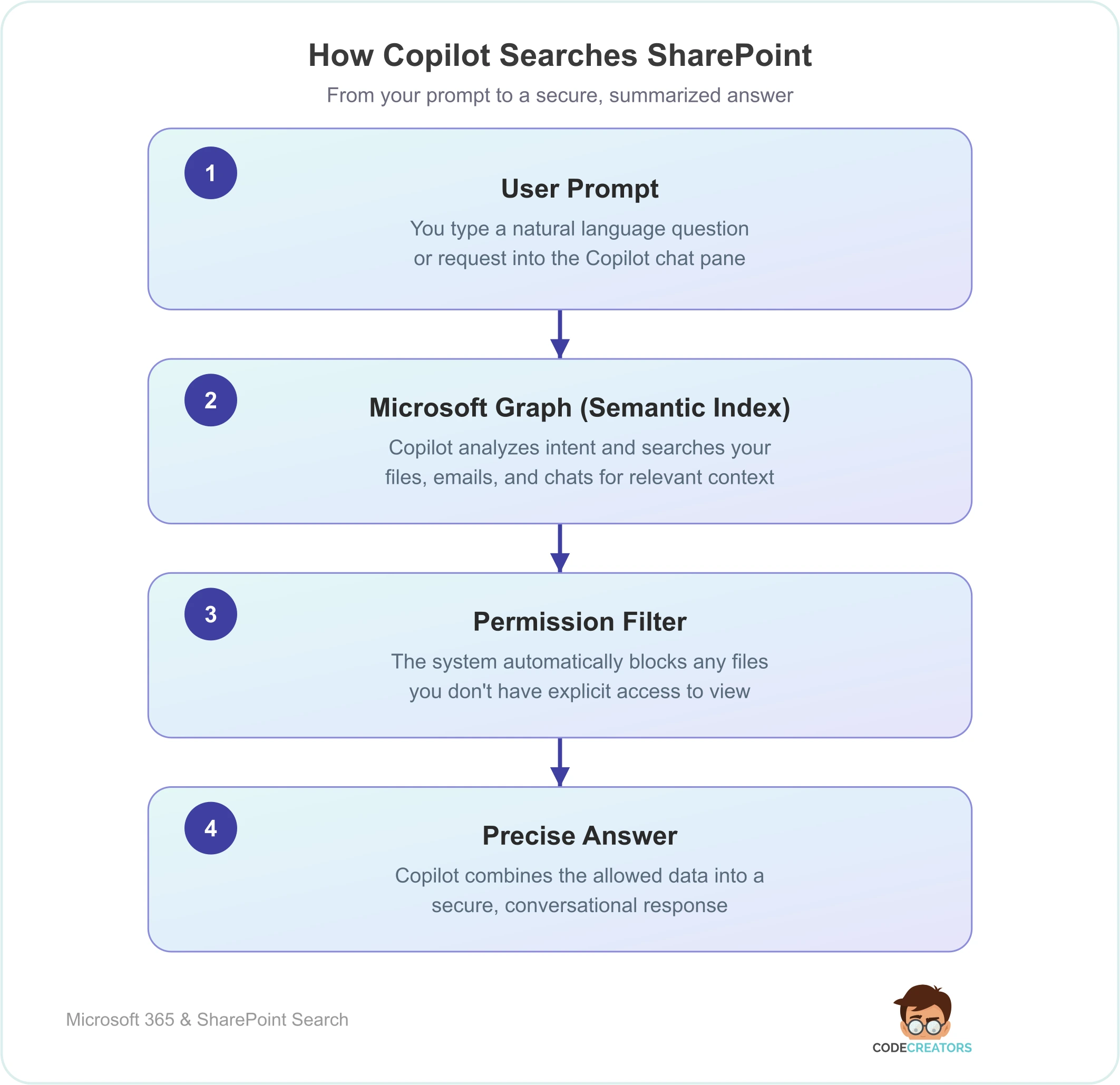
To maximize your productivity, you need to first understand the backend mechanism that powers this technology. The deep Copilot SharePoint integration shifts your search experience from basic text-matching to intelligent semantic understanding.
Step
Component
Core Function
1
User Prompt
You type a natural language question or request into the Copilot chat pane.
2
Microsoft Graph (Semantic Index)
Copilot analyzes your intent and searches your company’s files, emails, and chats for relevant context.
3
Permission Filter
The system automatically blocks any files you don’t have explicit access to view, keeping sensitive data locked.
4
Precise Answer
Copilot combines the allowed data to deliver a secure, customized, and conversational response.
Instead of simply looking for exact words in a document title, the AI assistant uses Microsoft Graph to index data and analyze user intent, contextual relationships, and document meaning across your cloud environment. This process, known as grounding, lets the assistant pull information from your corporate files, emails, chats, and calendars to deliver tailored, summarized answers instead of just a basic list of links.
How to Use Copilot to Search SharePoint
Retrieving your information using an intelligent assistant requires a shift in how you phrase your requests. You don’t need to type rigid, technical commands. Instead, you talk to the assistant exactly like you would talk to a human colleague.
You can execute your searches across several access points:
1. Searching via the Global Copilot App
When using the main Microsoft 365 Copilot app on your desktop or browser, you can query your entire tenant’s SharePoint infrastructure using targeted prompts.
- Use the slash command. Type / in the chat box to trigger the file attachment menu. This lets you select a specific document library, folder, or file URL to focus your search.
- Write descriptive prompts. Instead of typing “Q3 Marketing,” type a clear statement: “Summarize the Q3 marketing strategy document that Sarah uploaded to the project folder last week.”
2. Searching Directly Inside Document Libraries
The tool is built directly into modern SharePoint document libraries. You can open the chat pane on the right side of your screen to look for answers inside the current library view without navigating away from your active page.
Deploying Your Dedicated Assistant: The SharePoint Copilot Agent
For highly complex project folders, a general search query can sometimes pull in too much noise from other departments. To fix this, you can build or use a specialized SharePoint Copilot agent to narrow your focus.
Every modern SharePoint site features a built-in agent that automatically limits its knowledge source to the boundaries of that specific site. If you’re looking for specific onboarding data, you can open the agent on your HR site, and it will only scan files hosted on that site.
For custom needs, site editors can open the settings panel and build a custom agent through Microsoft 365 Copilot Agent Builder. Per Microsoft’s current documentation, a custom agent built this way supports up to 100 SharePoint files, folders, or sites as knowledge sources, and can be shared across Microsoft Teams channels for seamless collaboration.
Licensing Prerequisites: Gaining System Access
To deploy these conversational search capabilities across your business network, your organization needs to secure the proper cloud alignment.
First, users require a valid SharePoint Online license, which is routinely bundled with standard enterprise cloud packages like Microsoft 365 E3, E5, Business Standard, or Business Premium. Second, your IT department must assign a premium Microsoft 365 Copilot license to each target user. Without this add-on license, your intranet search bar relies entirely on traditional keyword matching rather than generative AI summarization.
Why does Copilot say “No results found” for files I know exist?
When the assistant fails to locate a file you know is stored on your intranet, it’s usually caused by one of three issues:
- Permission gaps. The assistant relies strictly on user-scoped permissions. If your account lacks at least “Read” access to that specific folder, the AI will completely ignore the file and state that it can’t find any information.
- Indexing lag. Newly uploaded files or recently renamed document libraries need time to process through the Microsoft Graph semantic index. Wait a short period for the cloud indexing cycle to complete before prompting the AI again.
- Restricted content discovery. Your IT administrators may have enabled a security block on that specific site to keep it hidden from all automated AI features.
We’ve seen this last one trip up more than one client, a site was deliberately excluded from AI indexing months earlier for an unrelated reason, and nobody remembered until a user asked why their search kept coming up empty.
Data Security: Permission Boundaries and Compliance
A major concern for security teams is data exposure. Fortunately, the AI engine is built with strict compliance guardrails:
- No cross-tenant leaks. The system isolates your queries entirely within your corporate data boundary. Prompts, responses, and data accessed through Microsoft Graph aren’t used to train Microsoft’s foundation AI models.
- Strict access control. The tool can’t bypass your existing file security. If a standard employee prompts the tool to look for payroll spreadsheets, the assistant will show zero results unless that specific employee already has manual access to those private files.
If your company needs assistance setting up secure access lines or resolving permissions before an AI rollout, our technical team can help you build an optimized repository through our SharePoint Consulting Services.
Practical Blueprint: Writing Better Search Prompts
To get the most accurate search results out of your intranet, train your staff to write structured prompts that include three core components: context, source, and output. Review these optimization examples:
Poor Search Prompt
Highly Optimized AI Prompt
Expected Output
Find the vendor contract.
Search the Legal site for the 2026 Acme vendor contract and list the main renewal dates.
A bulleted list of key dates pulled strictly from the verified ACME document.
What are our travel policies?
Using the HR document library, summarize our corporate flight and hotel reimbursement limits.
A concise summary detailing exact dollar limits for travel expenses.
Project status updates.
Review the project tracking list from the Alpha site and extract all tasks marked as delayed.
A structured table showing overdue tasks, assigned owners, and due dates.
This is close to the exact framework we train pilot users on during rollout, most people just need one or two real examples from their own department before the pattern clicks.
Action Steps for IT Teams Before Enabling AI Search
To prevent data leaks and ensure a successful rollout, your IT department should follow this deployment checklist:
- Run a security audit. Clean up “permission sprawl” by removing old “Share with everyone” links so users don’t accidentally find sensitive files via the AI search bar.
- Use sensitivity labels. Set up clear data classification tags via Microsoft Purview to automatically block the AI from summarizing highly confidential files for unauthorized staff.
- Educate your team. Provide clear prompting examples to your employees so they know how to properly target their queries toward specific site paths and document libraries.
Managing cloud security configurations while maintaining a fast-paced business can be difficult. If your team needs expert guidance to deploy custom AI workflows safely, establish clear governance rules, and connect your systems efficiently, our team can guide you forward through our targeted Microsoft Teams Consulting Services.
Connect with an AI Specialist
Ready to clean up your file sharing permissions, build custom intranet assistants, and implement advanced AI search capabilities across your business safely? Schedule a Consultation with Code Creators today to build an automated workspace designed with enterprise-grade protection!