Microsoft Copilot in Teams uses your live meeting transcript, chat history, and shared files to generate real-time answers, automatic meeting recaps, and speaker-attributed action items, all grounded securely in the Microsoft Graph and limited to content you already have permission to see. In the Copilot rollouts we’ve run for clients at Code Creators, the technical setup is rarely what trips people up, it’s almost always the transcription policy decision, since that single setting determines what Copilot can and can’t do after a meeting ends.
This guide covers how to configure, deploy, and use native Microsoft AI across your organization’s Teams environment, so your workforce reclaims productive hours while maintaining strict tenant security.
The Strategic Advantage of AI-Powered Collaboration
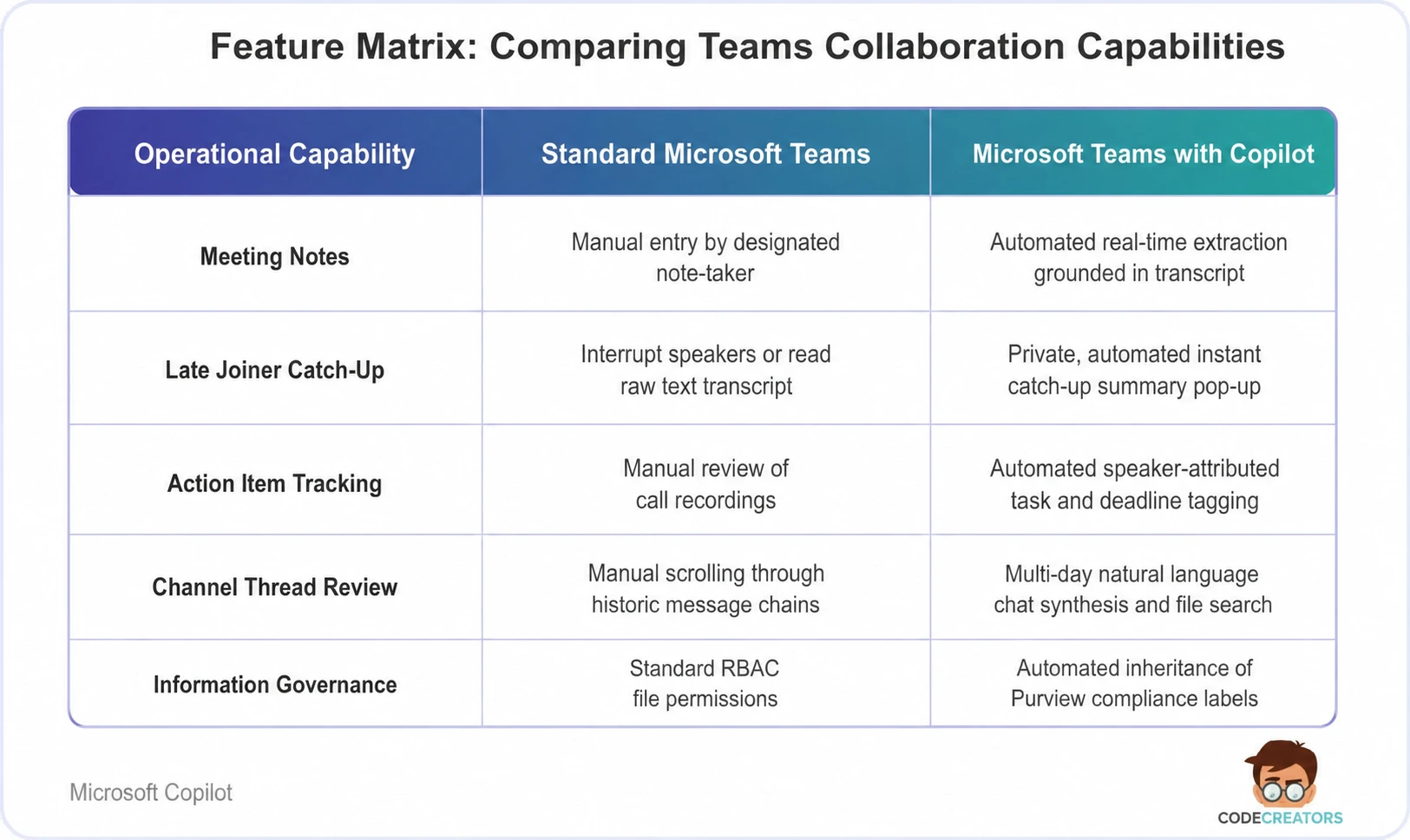
Traditional virtual meetings often result in misaligned expectations, incomplete follow-through, and wasted time spent re-reading transcripts. Implementing native AI tools directly inside your unified communications platform provides immediate operational improvements:
- Elimination of manual note-taking. Meeting organizers and participants remain fully engaged in discussions rather than typing manual notes or tracking attendance lists.
- Instant onboarding for late arrivals. When joining a call mid-session, employees can immediately catch up without interrupting the speaker or the meeting flow.
- Rapid information retrieval. Project leads can query months of chat history or complex multi-party discussions using natural language prompts.
- Accountability and task execution. Automated action-item extraction ensures specific assignments, owners, and deadlines are recorded instantly.
Phase 1: Preparation and Configuration Requirements
Before deploying AI capabilities across your organization, your IT leadership and Microsoft 365 administrators need to complete essential technical and licensing setup steps. At a high level, this means confirming your Microsoft 365 base licensing, assigning the Copilot add-on license, setting the right Teams admin policy, and aligning your Purview data governance rules, all before a single end user sees the Copilot icon.
Licensing Prerequisites
Every user requiring AI features within Teams needs a valid Microsoft 365 base license (such as Enterprise E3, Enterprise E5, Business Premium, or Business Standard) along with an active Microsoft 365 Copilot add-on license assigned through the Microsoft 365 Admin Center.
Infrastructure Policies
Tenant administrators need to ensure that meeting policies inside the Microsoft Teams Admin Center explicitly permit transcription. Because Copilot relies on real-time speech-to-text processing to analyze live spoken dialogue, transcription must be active during the session for Copilot to have anything to work from.
This is the step we see cause the most confusion during rollout, licensing gets assigned correctly, but the transcription policy doesn’t get updated to match, so users see a greyed-out or missing Copilot button and assume the license didn’t take effect.
How to Enable Copilot in Microsoft Teams
Activating AI capabilities across your organization involves a combination of global admin configuration and user-level profile management. Follow this step-by-step process to complete the rollout:
Step 1: Assign User Licenses
- Sign in to the Microsoft 365 Admin Center as a Global or Billing Administrator.
- Go to Billing > Licenses and select Microsoft 365 Copilot.
- Select Assign licenses and designate the target users or security groups within your tenant.
Step 2: Configure Teams Meeting Policies
- Access the Microsoft Teams Admin Center.
- In the left navigation menu, expand Meetings and select Meeting Policies.
- Choose your organization-wide Global (Org-wide default) policy or edit a specific custom policy assigned to your user group.
- Go to the Recording & Transcription section and find the Copilot setting. Choose one of four values: On, On with saved transcript required, On with transcript saved by default, or Off. Pick based on your compliance needs, “On with saved transcript required” is a common choice when meeting recap persistence matters and your compliance policy allows retained transcripts, while “Only during the meeting” behavior (available at the meeting-organizer level, not this admin dropdown) suits highly sensitive discussions where you don’t want retention at all.
- Ensure Transcription is enabled, since Copilot in meetings requires transcription to be turned on first.
- Save your policy changes. Policy updates can take some time to propagate across client devices, if users don’t see the Copilot icon immediately after saving, give it time before troubleshooting further rather than assuming the configuration failed.
One detail worth knowing before you roll this out broadly: Copilot isn’t available in end-to-end encrypted meetings, regardless of how your policy is configured. If your organization uses E2EE for sensitive calls, plan around that gap now rather than fielding confused tickets later.
If your rollout plan needs to account for different transcript-retention requirements across departments, legal and HR often need very different settings than sales or marketing, that’s exactly the kind of policy segmentation our Microsoft Copilot Consulting Services team helps clients think through before licenses go out, not after.
How to Use Copilot in Microsoft Teams Meetings
Once configured, Copilot serves as an interactive, real-time meeting assistant accessible directly from the meeting control bar inside any scheduled video or audio call.
The lifecycle runs simply: you start the meeting, open the Copilot pane, and prompt the AI in real time during the call. Once the meeting ends, you navigate to the Recap tab and export the generated action items.
During the Live Meeting
Participants can launch the private side panel at any point during an active call by selecting the Copilot icon on the top meeting toolbar.
Because this panel is completely private to each user, individuals can query the AI assistant without broadcasting their prompts to the rest of the call:
- Click the Copilot icon on the top action bar inside the Teams window.
- Choose from pre-formatted prompt suggestions or type custom instructions into the prompt compose box.
- Use natural language commands such as “What key points were made so far?” or “What questions remain unanswered?”
- If you join a call late, click the automated notification pop-up to receive an instant catch-up summary of the preceding discussion.
Post-Meeting Analysis
When a call concludes, Microsoft Teams automatically archives the generated transcript, chat history, and shared files under the meeting details page. Opening the Recap tab provides a complete AI-generated summary, categorized topic chapters, and auto-assigned action items mapped directly to speakers.
How to Use Copilot in Teams for Meeting Notes
Capturing accurate meeting minutes and assigning clear tasks usually requires dedicated administrative effort. Using Copilot in Teams automates the process of generating, structuring, and distributing meeting summaries.
Step-by-Step Note Generation Protocol
- Verify live processing. Ensure transcription is started when your meeting begins by clicking More (…) > Record and transcribe > Start transcription.
- Access the Copilot side pane. Click the Copilot button on the control panel to open the side drawer.
- Issue targeted commands. Rather than relying solely on generic default summaries, submit specific prompts tailored to your team’s operational needs:
- “Create a bulleted table summarizing decisions made regarding the Q3 budget, including who proposed each item.”
- “List all unresolved risks raised during this discussion and assign a follow-up lead for each.”
- “Draft an executive summary email outlining our next steps to share with project stakeholders.”
- Copy and export results. Click the one-click Copy button on the response block to paste structured notes directly into a Microsoft Loop component, OneNote notebook, or Outlook email client.
In our experience, the generic default summary is rarely what a team actually needs for their own workflow, the teams that get the most value from this are the ones who build a small internal library of prompts tailored to their specific meeting types, rather than re-inventing the prompt every time.
Advanced Workspace Features: Chats, Channels, and Business Search
Beyond structured video meetings, Microsoft Teams functions as an asynchronous collaboration hub. Copilot operates across one-on-one direct messages, group chats, and public team channels.
Summarizing Chat Threads
In busy channels where team members share hundreds of messages daily, catching up on project threads can take hours. Opening the Copilot panel within any chat window lets users synthesize recent activity instantly:
- Ask: “Summarize the last 30 days of updates in this channel regarding the server migration.”
- Ask: “What files or links were shared by engineering this week?”
Cross-App Business Intelligence
By leveraging Microsoft Graph, Copilot connects unstructured conversations in Teams with external documents stored in SharePoint, emails in Outlook, and calendar entries. You can submit broad organizational queries directly inside Teams, such as: “Combine the notes from yesterday’s product call with the attached slide deck and summarize our go-to-market strategy.”
Enterprise Security, Compliance, and Data Privacy
Deploying AI inside corporate environments requires strict adherence to corporate governance standards. Microsoft 365 Copilot operates strictly within your established tenant boundary:
- Data isolation. Prompts, responses, and data accessed through Microsoft Graph aren’t shared with third-party vendors or used to train foundational public LLM models.
- Inherited security permissions. Users can only query and retrieve information from meetings, chats, and documents that they already have explicit permission to view under Microsoft Entra ID.
- Purview Information Protection. Sensitivity labels, Data Loss Prevention policies, and retention schedules defined in Microsoft Purview apply automatically to Copilot outputs and transcript storage.
Maximize Your Microsoft 365 Investment with Code Creators
Successfully adopting AI across your organization requires more than simply turning on software licenses. Organizations need to evaluate technical prerequisites, enforce strict permission hygiene across SharePoint and Teams, secure enterprise data, and train users to drive real operational adoption.
At Code Creators, our certified Microsoft consultants specialize in guiding enterprises through end-to-end cloud transformations. Whether you need assistance configuring tenant governance, scoping custom Copilot Studio agents, or securing your environment, our engineering team delivers clear roadmaps and fixed-price implementations.
Schedule a Consultation for Microsoft Copilot consulting services at Code Creators to build a Copilot in Teams rollout that accounts for your real transcription, security, and governance requirements from day one.