Your team has built a Power Automate flow that connects SharePoint with an external application. Everything works until you realize that the flow could transfer sensitive business information to a service your IT department hasn’t approved. Blocking the connector might solve the security concern, but it could also disrupt other workflows that depend on it.
This is where Power Platform DLP policies help. They let administrators control which connectors can work together in Power Apps, Power Automate, and Microsoft Copilot Studio. However, setting up these policies requires careful planning because incorrect connector restrictions can interrupt existing workflows.
In our experience working with businesses on Microsoft Power Platform implementations at Code Creators, connector classification is one of the areas that requires careful attention. Organizations need to understand how their applications exchange data before restricting connectors, as even a small policy change can affect existing automation processes.
In this article, you will learn how to create Power Platform DLP policies, configure connector restrictions, apply policies to environments, and follow best practices to maintain security without disrupting business operations.
What Are Power Platform DLP Policies?
Power Platform Data Loss Prevention (DLP) policies are administrative rules that control how connectors interact within Microsoft Power Platform applications and workflows.
These policies help prevent business information from moving between approved and unapproved services. Administrators configure them through the Power Platform admin center, where Microsoft refers to them as data policies.
When reviewing Power Platform data-sharing requirements, we look closely at how Microsoft 365 services interact with external applications. SharePoint and Microsoft 365 Outlook often support connected business processes, but keeping unapproved social media connectors in a separate DLP group helps prevent business information from moving into those services through the same flow.
DLP policies control connector combinations rather than inspecting every piece of information that passes through them. Therefore, organizations must also use appropriate access permissions and other security controls to protect sensitive data.
How Do Power Platform DLP Policies Work?
Power Platform DLP policies classify connectors into three groups. These classifications determine which services an app or flow can use together.
Business Connectors
The Business group contains connectors that administrators approve for working together with organizational data.
SharePoint, Microsoft Dataverse, and Microsoft 365 Outlook often work together in approval processes, record management, and automated notifications. Keeping these approved connectors in the Business group allows teams to maintain those workflows while following the organization’s data-sharing restrictions.
Non-Business Connectors
The Non-Business group contains connectors that must remain separate from those in the Business group.
We pay particular attention to external connectors that could create unwanted paths for business data. Classifying SharePoint as Business and unapproved social media connectors as Non-Business prevents Power Automate flows from combining them under the same DLP policy.
However, Non-Business does not mean the connector is completely blocked. Connectors within this group can still work together when other applicable restrictions permit it.
Blocked Connectors
The Blocked group prevents users from using specific connectors in apps and flows within the policy’s scope.
Administrators can use this classification for services that do not meet organizational security requirements.
Unlike the other groups, a Blocked connector cannot participate in an app or flow governed by that policy.
| Business | Non-Business | Blocked |
|---|---|---|
| Approved business connectors | Connectors kept separate from Business | Restricted connectors |
| Can work together within the same group | Cannot combine with Business connectors | Cannot be used in governed apps or flows |
| Examples: SharePoint, Dataverse, Outlook | Can work together within their group when permitted | Prevents the use of prohibited services |
How to Create a DLP Policy in Power Platform
You can create Power Platform DLP policies through the Power Platform admin center. Before starting, confirm that your account has the required administrative permissions.
Tenant-wide policies require the Power Platform Administrator role. Environment-level policies require Environment Admin permissions or the System Administrator role for environments with Dataverse.
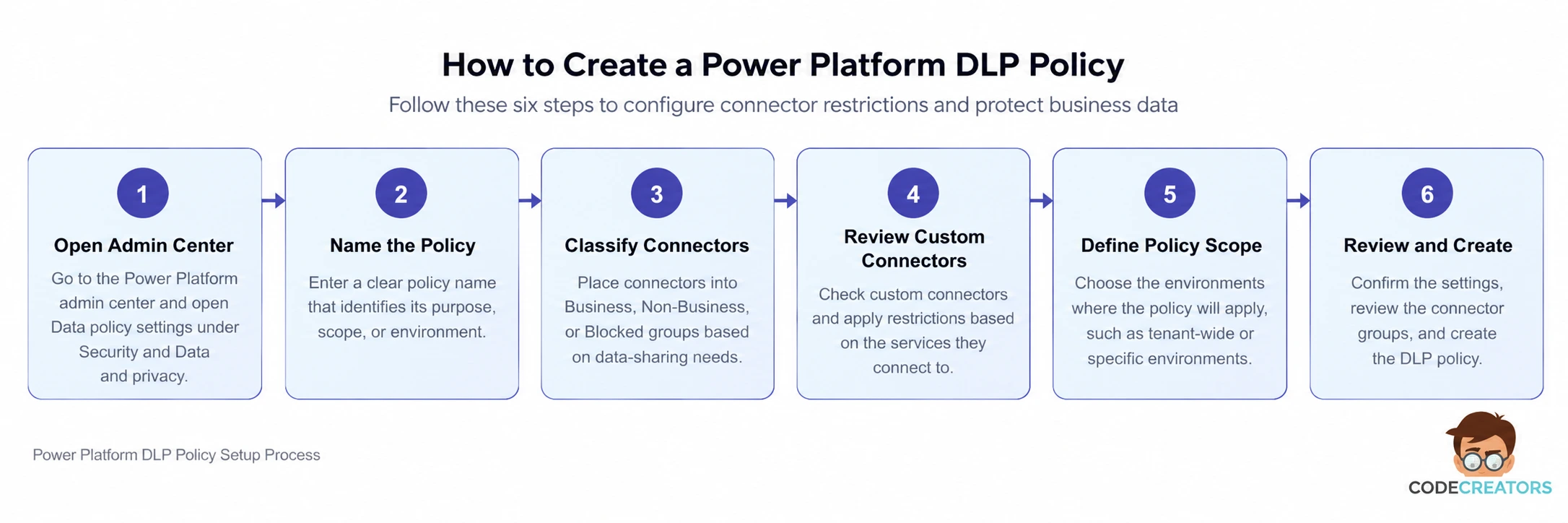
Step 1: Open the Power Platform Admin Center
Visit the Power Platform admin center and sign in using your administrator account.
Navigate to Security → Data and privacy → Data policy.
Select New Policy to begin configuring your DLP policy.
Step 2: Enter a Policy Name
Choose a name that explains the policy’s purpose or scope.
A clear naming convention makes DLP policy reviews easier, especially when administrators manage multiple environments. Names such as “Production Environment – Approved Connectors” help distinguish production restrictions from development and testing policies without opening each policy individually.
Step 3: Classify Your Connectors
The admin center displays available connectors and their classifications.
Review the connectors your organization uses and assign them to the appropriate groups:
- Business: Approved services that can share data within the same group.
- Non-Business: Services that must remain separate from Business connectors.
- Blocked: Services that users must not use within the policy’s scope.
Start with connectors used by existing applications and flows. Then review services that could introduce unwanted data-sharing risks.
You should also configure the default group for newly introduced connectors so your policy doesn’t automatically place unfamiliar services in an overly permissive category.
Step 4: Configure Custom Connector Restrictions
If your organization uses custom connectors, review their classifications separately.
Custom connectors can connect Power Platform applications to internal APIs or external services. As a result, they require the same attention as Microsoft’s prebuilt connectors.
Check which services these connectors access before assigning them to a group.
Step 5: Define the Policy Scope
Next, decide where the policy should apply.
Power Platform supports tenant-level and environment-level data policies.
A tenant-level policy can cover all environments or a selected set of environments. It can also apply to all environments except specified exclusions.
An environment-level policy controls an individual environment.
If your organization maintains separate development, testing, and production environments, consider their different requirements before choosing the scope.
Remember that an environment-level data policy cannot override restrictions from an applicable tenant-level policy.
Step 6: Review and Create the Policy
Review your connector classifications, custom connector settings, and environment selections.
Confirm that the required business applications can still use their approved services.
Finally, select Create Policy to save your configuration.
Microsoft documents this creation process in its official Power Platform data policy guide.
 How to Test Your DLP Policy After Creation
Creating a policy does not guarantee that every existing workflow will continue to work as expected. Therefore, test the restrictions before applying broad changes to production environments.
Start by opening an existing Power App or Power Automate flow that uses the connectors covered by your policy.
Check whether its connector combinations comply with the new classifications. Then test the application or flow to identify any policy violations.
We also review how policy restrictions could affect existing business processes. SharePoint and Microsoft 365 Outlook commonly support approval workflows and automated notifications. Checking their classifications across applicable policies helps identify potential disruptions before deployment.
However, if the flow combines SharePoint with a connector from the Non-Business group, DLP enforcement can prevent it from operating.
Also, review any existing flows that depend on newly blocked connectors. Policy violations can suspend affected flows, so administrators should assess these dependencies before changing production settings.
Power Platform DLP Policy Best Practices
Following Power Platform DLP policy best practices helps administrators maintain security while allowing teams to work with approved applications.
1. Apply Restrictive Policies to Shared Environments
Shared environments often support applications created by multiple employees. Therefore, limit their connector access to approved services and create separate policies for environments with additional business requirements.
This approach reduces unnecessary access without restricting every environment equally.
2. Review Existing Apps Before Changing Policies
Before changing connector classifications, identify applications and flows that depend on them.
A connector that appears unnecessary may support an important approval process or automated notification.
Reviewing these dependencies helps prevent unexpected disruptions.
3. Keep the Number of Policies Manageable
Multiple policies can apply to the same environment. When they do, Power Platform evaluates their combined restrictions.
We also check overlapping DLP policies when reviewing connector restrictions. A connector can appear approved in one policy but remain unavailable because another applicable policy blocks it. Reviewing these policies together helps identify the restriction responsible for the issue without making unnecessary configuration changes.
4. Review Connector Actions When Necessary
Some connectors support action-level controls, allowing administrators to restrict specific operations without blocking the entire connector.
Connector-level reviews often reveal that teams need only a few specific actions rather than unrestricted access to every operation. For supported connectors, allowing necessary read actions while restricting unnecessary modification actions helps maintain workflow functionality without giving users broader access than required.
Use these controls when broad connector classifications are too restrictive for business requirements.
5. Review Policies Regularly
Business requirements change as teams introduce new applications, connectors, and automation processes.
Review your DLP policies after major workflow changes or when your organization approves new services.
Also, document why you allow or restrict each important connector. This makes future policy updates easier to manage.
How Code Creators Helps You Manage Power Platform DLP Policies
Managing Power Platform DLP policies requires a clear understanding of how connectors, environments, and business workflows interact. Without proper planning, even necessary security restrictions can interrupt existing applications and automation processes.
At Code Creators, we help businesses address these challenges through our experience with Microsoft Power Platform implementations. Our approach focuses on reviewing connector dependencies, identifying potential data-sharing risks, and aligning DLP configurations with business requirements. This helps organizations maintain control over sensitive information without placing unnecessary restrictions on everyday operations.
Need help securing your Power Platform environment? Explore our Power Platform services and book a consultation to discuss how your organization can strengthen data protection while keeping essential workflows running.
Conclusion
Power Platform DLP policies help administrators control connector usage and reduce the risk of unwanted data sharing across Power Apps, Power Automate, and Copilot Studio.
An effective policy starts with the correct connector classifications and environment scope. However, administrators must also consider existing workflows, overlapping policies, and restrictions on custom connectors before applying changes.
The most important step is to test policy changes against real application dependencies. This helps identify restrictions that could interrupt essential automation while keeping unwanted connector combinations under control.
As your organization adds new services, review your policies and update connector classifications to reflect changing security requirements.
Not sure whether your current DLP policies provide the right level of protection? Let Code Creators help you review your Power Platform environment, identify gaps in connector restrictions, and strengthen data security without disrupting essential workflows. Get in touch today to discuss your requirements.