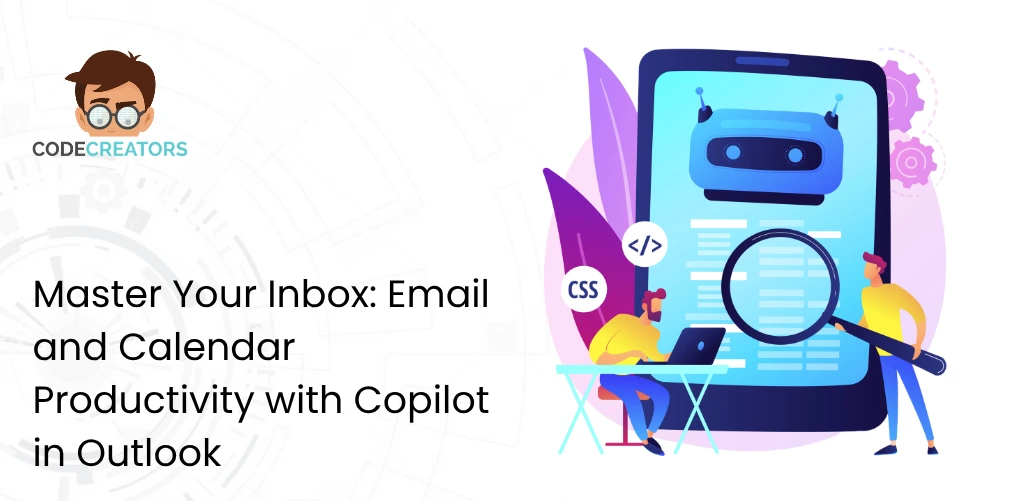
Copilot for Outlook summarizes long email threads, drafts context-aware replies from a short prompt, coaches your tone before you hit send, and manages calendar conflicts, all built directly into the Microsoft 365 environment you already use. In the Copilot deployments we run at Code Creators, the feature almost everyone underuses is the tone coaching step, people learn to draft with Copilot quickly, but skip the review pass that catches an unintentionally curt reply before it goes out.
This guide covers how to configure, prompt, and get the most out of Microsoft AI across your email client, including actionable strategies to reclaim your inbox, automate scheduling, and keep your enterprise data secure.
Why Modern Teams Upgrade to Artificial Intelligence in Outlook
Traditional email management relies on manual sorting, folder rules, and painstaking typing. Artificial intelligence transforms your inbox from a passive storage bin into an active digital assistant.
Using AI in your messaging hub delivers clear business advantages:
- Instant thread summarization: Extract key decisions, action items, and specific questions from multi-page email chains without reading every reply.
- Rapid response drafting: Turn brief bullet points into clear, professional email drafts tailored to your chosen tone and length.
- Proactive schedule management: Spot double-bookings, schedule focus time, and prepare meeting agendas using automated contextual insights.
- Contextual data grounding: Connect your emails directly to live tenant data in SharePoint, OneDrive, and Microsoft Teams to pull accurate file citations.
Key Capabilities of Microsoft 365 Copilot for Outlook
Understanding the core functions inside the Outlook desktop and web client helps you delegate repetitive messaging tasks effectively. The core workflows break down into four areas: summarizing threads, drafting and editing content, AI communication coaching, and calendar coordination.
1. Thread Summarization
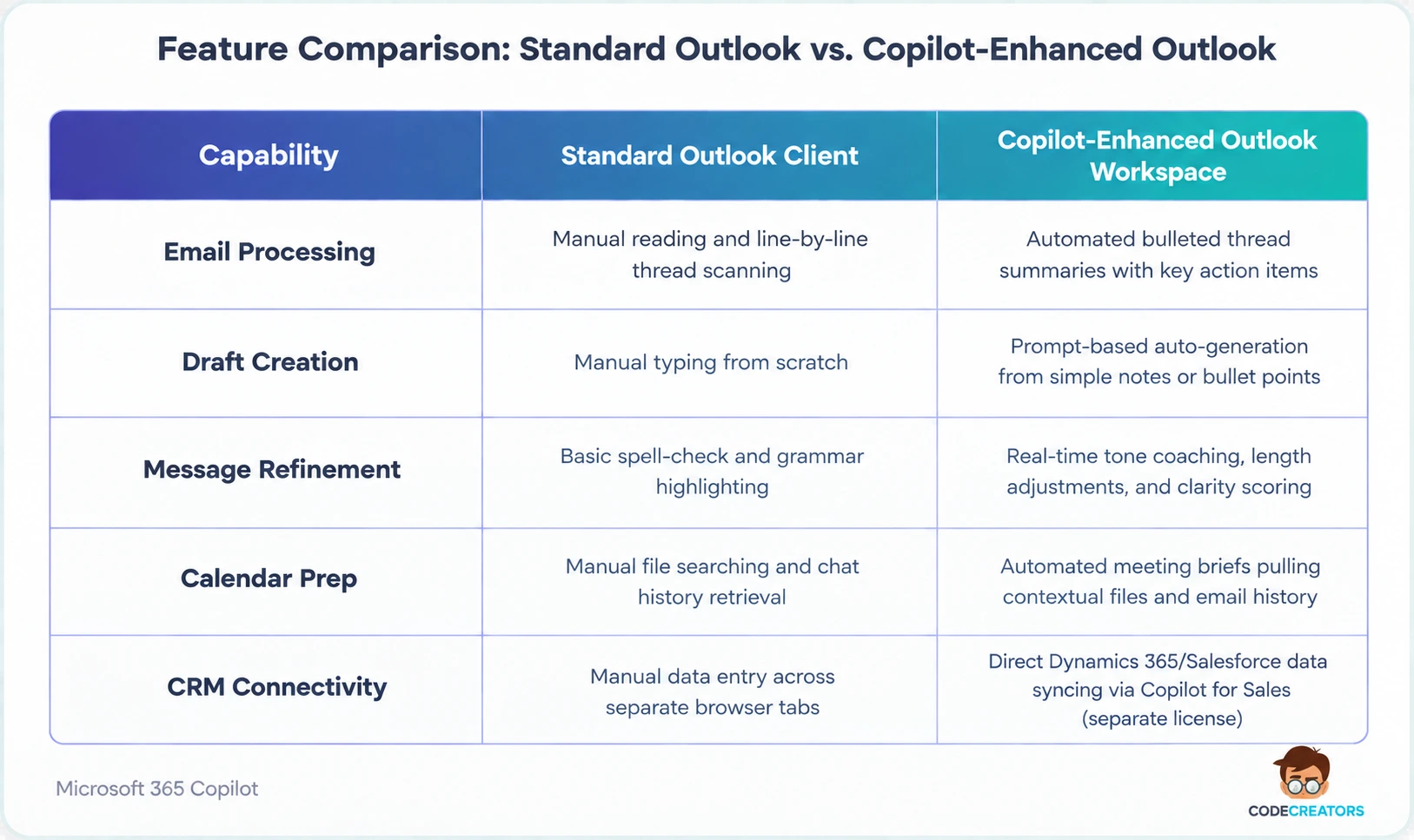
When you open a long email chain, the summary feature scans the conversation history. It presents a bulleted overview highlighting who said what, pending open questions, and agreed-upon action items. This eliminates the need to scroll through dozens of historical replies.
2. Contextual Drafting
When replying to clients or colleagues, you can prompt the system with brief instructions like “Accept the project proposal, but request a revised timeline for Phase 2.” The system generates a complete draft incorporating relevant context from preceding messages.
3. Built-In Coaching
The coaching engine analyzes your written drafts before you hit send. It evaluates tone, clarity, and reader perception, offering suggestions to make your message more concise, persuasive, or professional. We push clients hard to actually build this step into their workflow rather than treating it as optional, it’s the single easiest way to catch a draft that reads more abrupt or ambiguous than intended before a client or colleague ever sees it.
How to Use Copilot for Outlook Email Step-by-Step
Using generative AI features inside your daily workspace requires no complex technical setup. Following this sequence covers the daily workflow: summarize long threads with Copilot, draft new replies with Copilot, refine tone and length using the built-in controls, and run the coaching feature before sending.
Step 1: Catch Up on Message Chains
Open any complex conversation thread in Outlook. Click the “Summarize by Copilot” button in the top right corner of the message window. Review the bulleted summary to grasp key points and action items instantly.
Step 2: Generate Smart Replies
Click Reply or Reply All, then select “Draft with Copilot.” Type a brief prompt explaining your intent. For example: “Thank the team for the update and confirm our review meeting for Thursday at 10 AM.”
Step 3: Refine Length and Tone
Use the built-in slider controls to modify your draft. Choose from several tone presets and adjust the format to short, medium, or long depending on your audience.
Step 4: Validate Data and Send
Review the generated text. Because the AI engine references internal workspace context, verify that dates, names, and key numbers match your intent before sending. This step matters more than people expect, we’ve seen drafts confidently reference the wrong meeting date pulled from an older thread in the same chain, which is exactly the kind of error that’s easy to miss if you’re skimming rather than reading the final draft closely.
Accelerating Revenue Teams with Copilot for Sales in Outlook
Sales professionals and account executives spend significant time managing CRM data and crafting client outreach. It’s worth being precise here: CRM-connected features in Outlook come from Copilot for Sales (recently rebranded as the Sales agent in Microsoft 365 Copilot), which is a distinct, separately licensed product built on top of your base Microsoft 365 Copilot subscription, not something that turns on automatically once you have standard Copilot for Outlook. Setting it up requires an admin to install the app in Outlook and connect it to your Dynamics 365 or Salesforce CRM credentials.
Real-Time CRM Data Synchronization
Once configured, connecting your email client to Microsoft Dynamics 365 Sales or Salesforce lets the assistant pull real-time account data directly into your compose window. The integration architecture differs by CRM: Dynamics 365 gets deeper, native Dataverse-level access, while Salesforce connects through a managed connector with its own authentication and field-mapping setup. When communicating with prospects, the system highlights:
- Open opportunities and deal values.
- Past phone calls, meeting notes, and activity logs.
- Key stakeholders and organizational hierarchy.
Automated Meeting Preparation
Before client calls, the assistant generates meeting prep briefs pulling from recent email exchanges, open CRM records, and shared enterprise files. Account managers enter meetings fully prepared without manually searching multiple databases.
If your sales team is evaluating whether Copilot for Sales is worth the additional license and setup on top of standard Copilot, that’s exactly the kind of licensing and CRM-integration question our Microsoft Copilot Consulting Services team helps clients work through before committing to seats.
Optimizing Your Calendar and Schedule Management
Managing time effectively requires more than just sending emails. Advanced calendar controls help you protect focus time and coordinate group schedules.
Instant Meeting Briefings
Select any upcoming calendar event to view an automated pre-meeting summary. The assistant gathers related email threads, shared file attachments, and relevant Microsoft Teams chats into a unified preview panel.
Resolving Schedule Conflicts
When two meetings overlap, prompt the assistant to analyze priorities. It evaluates attendee lists, meeting agendas, and your calendar preferences to recommend which meeting to attend, drafting a polite decline message for the other event automatically.
Maximize Your Microsoft 365 AI Investment with Code Creators
Deploying enterprise AI tools, configuring security governance, and driving user adoption across your workforce requires technical planning. Without proper security setup, organizations risk over-sharing sensitive information or failing to achieve full return on investment.
At Code Creators, our certified Microsoft technical consultants help businesses deploy and optimize modern cloud tools. From conducting data readiness assessments and configuring Microsoft Purview governance policies to delivering hands-on user training and building custom Power Platform integrations, we ensure your transition to AI-powered productivity stays secure and efficient.
Schedule a Consultation for Microsoft Copilot Consulting Services at Code Creators to modernize your enterprise communication strategy the right way, licensing included.