In Power BI projects, we often see small report changes turn into production issues when teams publish them without proper testing. Failed refreshes, incorrect data source connections, and unvalidated report versions are common problems with manual publishing. If you manage Power BI reports across multiple environments, the difficult part is often not building the report but controlling how changes move from development to testing and production. From our work on Power BI implementations at Code Creators, we have seen how quickly manual publishing can create version, connection, and environment-setting issues as the number of reports and developers grows.
A Power BI deployment pipeline gives you a structured way to manage that movement. It separates environments and creates a controlled path for testing and promoting changes before they reach business users.
In this article, we will discuss how a Power BI deployment pipeline works, how deployment rules handle environment-specific settings, whether you can use a Power BI deployment pipeline without Premium, and the Power BI deployment pipeline best practices that help teams manage releases more reliably.
What Is a Power BI Deployment Pipeline?
A Power BI deployment pipeline is an application lifecycle management feature in Microsoft Fabric that helps you move Power BI content between separate environments in a controlled way.
A pipeline can contain between two and ten stages. Microsoft provides Development, Test, and Production as the standard starting structure, although you can rename and configure the stages around your own release process. Each stage connects to a separate workspace.
A typical setup follows this path:
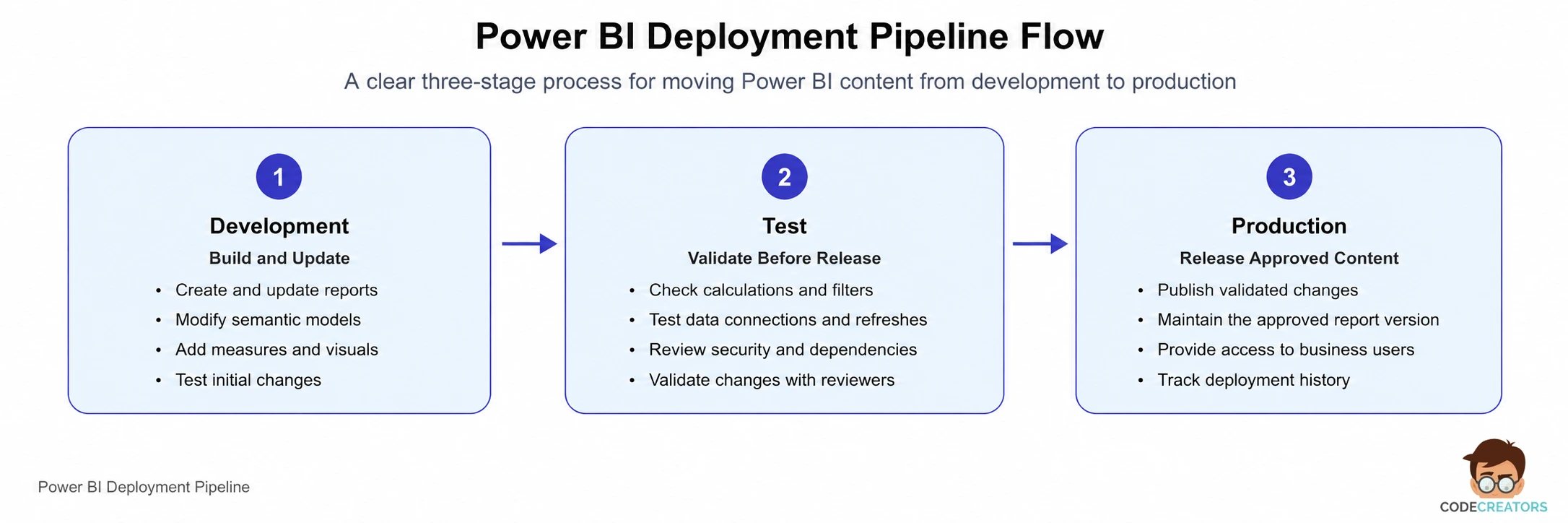
Developers build and update reports in the development environment. Once those changes are ready, they move them to the test stage. Here, the team can verify calculations, filters, data connections, refresh behavior, and the overall report experience without affecting the version that business users already rely on.
After the report passes testing, it moves to production.
This separation keeps unfinished or unapproved changes away from the live environment and gives your team a clearer way to control what reaches users.
How Does a Power BI Deployment Pipeline Work?
A deployment pipeline connects a workspace to each stage and lets you move supported Power BI items from one stage to the next.
When you deploy content, Power BI pairs corresponding items across the stages. In practice, reports are paired with their corresponding versions across Development, Test, and Production, so later deployments update the existing item instead of creating another copy.
Development Stage
Development is where report authors make and test their initial changes.
They may update visuals, create measures, modify semantic models, add report pages, or adjust business logic. Because this workspace remains separate from production, developers can work without exposing unfinished changes to end users.
As a rule, new report changes should begin here. We have seen environments fall out of sync when teams make direct changes in Production and later try to reproduce those same changes in Development.
Test Stage
Once the development work is ready, you can deploy the relevant items to the test workspace.
Testing should go beyond checking whether the report opens correctly. Review calculations, relationships, row-level security, filters, refreshes, data volumes, and connections to dependent items before you move anything further.
The Test stage also gives business reviewers a stable version they can validate before release.
Before deployment, Power BI lets teams compare pipeline stages to see what has changed between the source and target environments. If only certain items are ready, selective deployment allows you to move those items without deploying everything else in the workspace.
Production Stage
Production contains the approved version that business users access.
After the changes pass testing, the team deploys the validated content from Test to Production. Since the content has already gone through an earlier validation stage, you have far more control over what reaches users than you would with direct manual publishing.
The pipeline also keeps a deployment history, so you can review when deployments happened and track activity across the stages.
How Deployment Rules Handle Different Environments
The same report may move through each stage, but that does not mean every environment should use the same settings.
Development and production semantic models often use different data source configurations. Development typically connects to non-production sources, while Production uses approved live data sources.
This is where deployment rules become useful.
You can define environment-specific rules so that the target stage uses the correct configuration after deployment. For semantic models, these rules can change supported data sources or parameter values between environments.
Across Power BI implementations, we commonly see server names, database names, and environment-specific parameters change between pipeline stages. You can configure deployment rules for these values so that Power BI applies the appropriate configuration when content reaches the target stage.
That removes a risky manual step and reduces the chance of publishing a production report that still points to a development environment.
What Happens to Report and Semantic Model Connections?
Reports often depend on semantic models, so those connections also need to remain correct as content moves through the pipeline.
Power BI uses autobinding to maintain supported dependencies. When corresponding reports and semantic models exist across pipeline stages, Power BI can use autobinding to connect the deployed report to the semantic model in the target stage.
The same approach can work across pipelines when dependent items exist in corresponding stages.
However, you should still review those dependencies after deployment. If an expected item is missing or sits in the wrong stage, the deployment can fail or the report may remain connected to an unexpected item.
For larger Power BI environments, checking lineage after deployment is therefore just as important as confirming that the deployment itself completed successfully.
Can You Use a Power BI Deployment Pipeline Without Premium?
A standard Power BI Pro-only setup does not provide the same native deployment pipeline experience.
Native deployment pipelines require an eligible Microsoft Fabric or Power BI licensing and capacity setup. Depending on the environment, this can include supported Fabric capacity or Premium Per User scenarios. Microsoft is also transitioning customers from legacy Power BI Premium P SKUs toward Fabric F SKUs.
However, that does not mean you cannot create a controlled deployment process without Premium capacity.
You can use Azure DevOps or another automation approach with Power BI REST APIs to build your own release process. Microsoft notes that publishing Power BI Desktop files through REST APIs does not require Fabric capacity or Premium licensing.
The difference is how much of the process your team needs to manage. Native deployment pipelines give you built-in stages, comparison capabilities, deployment rules, and lifecycle controls. A custom DevOps approach gives you more flexibility, but your team has to configure and maintain more of the deployment workflow itself.
So, if you are looking for a Power BI deployment pipeline without Premium, think of it as an alternative deployment process rather than a way to unlock the native pipeline feature inside a Pro-only environment.
Power BI Deployment Pipeline Best Practices
A deployment pipeline gives you more control, but the pipeline alone will not prevent release problems. Your team also needs a consistent process for using it.
Keep Development, Test, and Production Separate
Avoid using the same workspace for multiple stages.
Separate workspaces keep unfinished changes away from Production and make it much easier to see which version of a report belongs to each stage. This separation also makes permissions, testing, and troubleshooting easier to manage.
Move Changes in One Direction
Keep the release flow consistent:
Development → Test → Production
Avoid making changes directly in later stages whenever possible. Otherwise, Development and Production can start to drift apart, leaving your team unsure about which environment contains the latest approved version.
Compare Stages Before Deployment
Do not deploy changes without first checking what will move.
Compare the source and target stages and confirm that the differences match the work you actually intend to release. This becomes especially important when several developers work in the same Power BI environment.
Use Deployment Rules for Environment Settings
Avoid manually replacing server names, data source values, or parameters after every deployment.
Use deployment rules for settings that need to change between Development, Test, and Production. This keeps environment configuration separate from report development and removes unnecessary manual steps from the release process.
Test the Data, Not Just the Visuals
A report can look completely normal while still having problems behind it.
Before you deploy to Production, verify semantic model refreshes, data source connections, security rules, calculations, relationships, and important user workflows. Where possible, test with realistic data volumes as well. Performance or refresh issues that do not appear with a small development dataset can become obvious once the report handles production-level data.
Control Who Can Deploy to Production
Not every report author needs permission to push changes into Production.
Keep production deployment access with the people responsible for releases, and review deployment history regularly. This becomes particularly important when several people can work with the same pipeline because the history makes it easier to identify failed, unexpected, or incorrectly timed deployments.
For more mature environments, you can also use deployment pipeline APIs with tools such as Azure DevOps or GitHub Actions to bring Power BI releases into a broader DevOps process.
Build a More Reliable Power BI Deployment Process
As your Power BI environment grows, manual publishing becomes harder to control. More reports, developers, data sources, and workspaces create more opportunities for the wrong change or configuration to reach Production.
Separating development, testing, data connections, permissions, and production releases makes deployments easier to manage. The focus is not simply on moving reports between workspaces, but on making sure each change follows a predictable path before it reaches business users.
A well-structured deployment process gives your team that control while still allowing developers to work efficiently.
Strengthen Your Power BI Deployment Process with Code Creators
A reliable deployment process needs more than separate workspaces. Teams also need the right environment structure, deployment rules, permissions, testing approach, and release controls so that changes move safely from Development to Production.
Code Creators supports organizations with Power BI consulting services that cover deployment planning, workspace structure, semantic model management, environment configuration, governance, and release workflows. The goal is to make deployments easier to control without adding unnecessary complexity for report developers or business users.
If your current Power BI deployment process still depends heavily on manual publishing or inconsistent release steps, contact us to build a more controlled and reliable deployment workflow.
Conclusion
A Power BI deployment pipeline gives teams a controlled way to move reports and semantic models from Development through Test and into Production. By separating environments, comparing stages, maintaining supported dependencies, and using deployment rules for environment-specific settings, teams can reduce the risks that come with manual publishing.
However, the pipeline works best when the process around it stays consistent. Report changes should begin in Development, testing should cover data connections and semantic models as well as visuals, and Production access should remain limited to the people responsible for releases.
For organizations with an eligible Fabric or Power BI licensing setup, native deployment pipelines provide these lifecycle controls directly within the platform. Teams working without Premium capacity can still create a structured release process with Power BI REST APIs and DevOps tooling, although that approach requires more configuration and ongoing management.
Ultimately, every Power BI release should be traceable, tested, and predictable before it reaches business users. If your current deployment process still involves too many manual steps or leaves uncertainty around what is ready for Production, Code Creators can help you review and strengthen your Power BI release process so it remains easier to manage as your reporting environment grows.