It’s the end of the month and a vendor invoice sits in the shared AP inbox for three days before anyone opens it. Once someone does, they retype the vendor name, line items, and total into the ERP by hand, dig through a spreadsheet to find the matching purchase order, and then email a manager who’s traveling and won’t approve it for another week. By the time the payment finally goes out, the early payment discount is gone and the vendor is calling to ask what happened. Multiply that by a few hundred invoices a month and it’s easy to see why accounts payable becomes a bottleneck for the whole finance team.Power automate invoice processing fixes that by combining a Power Automate cloud flow with the AI Builder invoice-extraction model: an incoming invoice email or upload triggers the flow, AI Builder pulls out vendor, total, and line-item data, Power Automate checks that data against your purchase order records, and the validated invoice is routed to a manager for approval before it’s posted to your accounting system. The result is an invoice that goes from inbox to approved payment in minutes instead of days.
The rest of this guide walks through how we’ve built that workflow for finance teams, where the AI Builder ai builder invoice processing model gets it right, where it needs a confidence threshold and a human backstop, and how to keep the whole pipeline auditable.
The Operational Cost of Manual Accounts Payable
Relying on paper invoices or manual email processing slows down accounts payable operations and exposes your business to unnecessary risk.
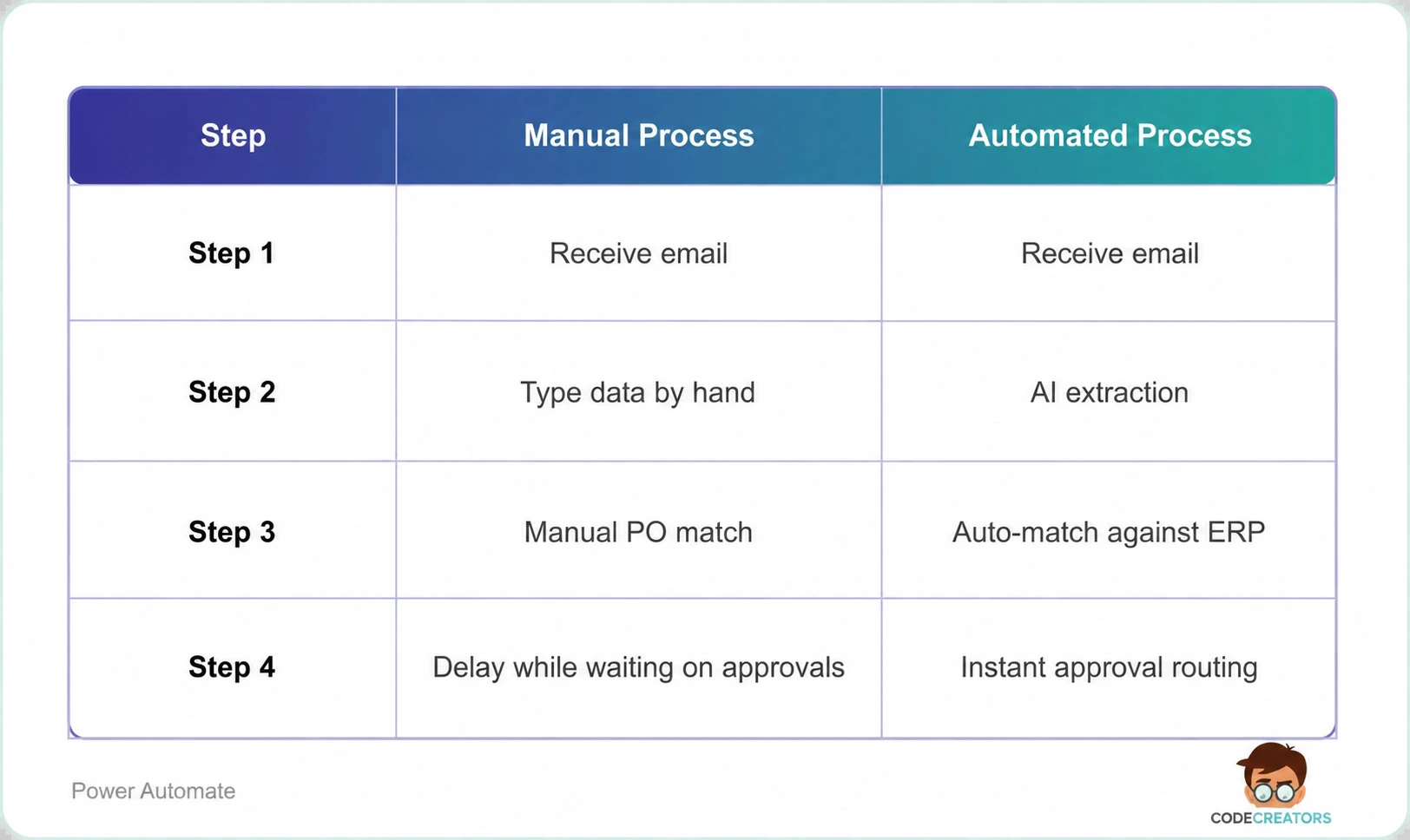
Modern finance departments automate document workflows to eliminate key operational bottlenecks:
- Eliminating Manual Data Entry: Staff no longer spend hours retyping vendor names, line items, tax totals, and due dates into ERP systems.
- Accelerating Approval Cycles: Automated notification flows send instant approval cards to management via Microsoft Teams or Outlook, cutting approval times from weeks to hours.
- Capturing Early Payment Discounts: Faster processing lets finance teams take advantage of early payment discounts offered by key vendors.
- Preventing Fraud and Duplicate Payments: Automated database checks flag duplicate invoice numbers or mismatched payment details before money leaves the account.
Phase 1: Pre-Automation Requirements and Architecture Setup
Before configuring software workflows, finance and IT leaders need to establish proper data structures and administrative access across the Microsoft tenant.
1. Centralize Document Intake
Establish a dedicated, monitored intake channel for incoming vendor files, a shared mailbox or a secure SharePoint document library reserved solely for raw vendor submissions.
2. Standardize Purchase Order Data Structure
To validate incoming invoices automatically, your ERP, Dynamics 365, or SharePoint list needs clean purchase order records that track three core data points for every order:
- Unique Purchase Order Number
- Approved Vendor Name
- Expected Line-Item Amounts and Quantity Limits
3. Configure Microsoft Power Platform Environments
Your IT administrators need to assign proper Power Apps and AI Builder licenses to your accounts payable service accounts. A dedicated environment inside Microsoft Power Platform keeps financial data isolated and secure.
Phase 2: Building Power Automate AI Builder Invoice Processing Workflows
Extracting unstructured text from PDF files or scanned images requires document processing capabilities. Power automate ai builder invoice processing lets your system read and extract financial data instantly without writing complex code.
The pipeline in four stages: Invoice email received → data extracted via the AI model → totals validated against the PO → item routed for approval.
Step 1: Capture Incoming Email Attachments
- Log into the Power Automate portal and create an Automated Cloud Flow.
- Select the trigger When a new email arrives (V2) for your shared accounts payable mailbox.
- Configure the trigger filter to check for attachments and restrict incoming file extensions to .pdf, .png, and .jpg.
Step 2: Extract Invoice Key-Value Pairs
- Add a new action card using the AI Builder connector.
- Select the pre-trained action Extract information from invoices, this is the correct current action name in AI Builder’s prebuilt invoice-processing model, per Microsoft’s own documentation.
- Pass the file content from the email attachment directly into the AI model.
- The pre-trained model automatically extracts critical data points, including:
- Vendor Name and Vendor Address
- Invoice ID and Invoice Date
- Total Amount, Tax Amount, and Due Date
- Individual Line-Item Descriptions and amounts
Step 3: Run Validation and Three-Way Matching
Once the AI model extracts the text data, add condition cards to execute automated three-way matching against your purchase order database:
- Match PO Numbers: Verify the invoice contains a valid purchase order number listed in your active ERP system.
- Validate Total Values: Compare the invoice total against the original purchase order amount; if it matches within an acceptable threshold (such as a 1% margin), pass the item to the next stage.
- Check Duplicate Records: Query your financial records to confirm no previously processed entry shares the same vendor name and invoice number.
Phase 3: Routing Approvals and Updating Accounting Systems
Once the system validates the invoice data, Power Automate routes the information for management sign-off and updates internal databases.
Approval flow: Validated invoice → adaptive card sent to manager → Approved posts to ERP/Dynamics, Rejected notifies AP and the vendor.
1. Send Interactive Approval Requests
Use the native Approvals connector to route requests to the manager:
- Adaptive Cards in Microsoft Teams: Send an interactive card with invoice metadata, line-item totals, and a direct link to the original PDF straight to the manager’s Teams chat.
- Outlook Actionable Messages: Managers can click Approve or Reject and add comments directly inside their Outlook inbox without opening external portals.
2. Export Data to ERP and Financial Systems
After approval, Power Automate moves the parsed data into your primary accounting software:
- Microsoft Dynamics 365 Business Central: Create an unposted purchase invoice journal entry automatically via native connectors.
- SharePoint or SQL Databases: Save the processed metadata, transaction log, and approval audit trail into your central repository.
- ERP Connectors: Pass clean payload data into SAP, QuickBooks, or custom SQL endpoints via REST APIs or premium connectors.
3. Archive Records and Send Vendor Confirmations
Move the original PDF into a secure, permission-controlled SharePoint library organized by year and vendor name, then trigger an automated confirmation email letting the vendor know their payment request is queued for processing.
Need this built for your environment? Our team at Code Creators designs and deploys these AP automation pipelines inside client Microsoft 365 tenants, see how we approach it on our Power Automate development.
Phase 4: Exception Handling and Error Management
Automated financial systems have to handle unexpected errors smoothly to prevent delayed payments and lost invoices.
Managing Low AI Confidence Scores
AI Builder assigns a confidence score (0.00 to 1.00) to every extracted field. If a vendor submits a blurry scan or an unusual layout, the confidence score drops. Across the invoice workflows we’ve deployed for clients, a threshold of 0.80 is a reasonable starting point, but we typically tune it per client, vendors with consistently clean, templated invoices can often run closer to 0.90 before flagging, while clients receiving a lot of scanned or handwritten paperwork are better served by a lower threshold and a heavier reliance on the manual review queue.
To maintain accuracy:
- Add a Condition step following the AI extraction card.
- Check whether the extraction confidence score falls below your threshold (e.g., 0.80 or 80%).
- If it falls below that threshold, route the document to an accounts payable specialist for manual review instead of letting the workflow fail silently.
Configuring Automated Exception Notifications
If an incoming invoice fails validation, such as missing a purchase order number or failing a duplicate check, configure Power Automate to:
- Send an automated email back to the vendor requesting an updated invoice with a valid purchase order.
- Flag the item in a “Requires Attention” accounts payable queue within SharePoint or Microsoft Teams.
Phase 5: Enterprise Security and Governance Standards
Automating accounts payable means handling sensitive corporate financial data and vendor banking details. IT leaders need to enforce strict governance policies across the automation stack.
Enforce Role-Based Access Control (RBAC): Restrict access to accounts payable document libraries, invoice processing flows, and AI models to authorized finance staff and system administrators only.
Implement Data Loss Prevention (DLP) Policies: Configure Power Platform DLP policies to separate business connectors (Office 365 Outlook, SharePoint, AI Builder) from non-business connectors and block unapproved external file-sharing tools from reaching the accounts payable pipeline.
Maintain Audit Logs for Compliance: Every flow execution should log an immutable audit trail, timestamp, extracted values, approval comments, approving manager identity, and payment record creation details, to satisfy internal and external audit requirements.
Transform Your Finance Operations with Code Creators
Designing enterprise financial workflows, connecting AI engines to legacy accounting software, and securing automated data pipelines takes specialized technical capability. Without proper architecture, unmanaged automated workflows cause missed approvals, data sync errors, and security vulnerabilities.
At Code Creators, our certified Microsoft solution architects help enterprises modernize their financial operations, from setting up custom document processing pipelines and integrating Power Automate with Microsoft Dynamics 365, to building the governance frameworks that keep an accounts payable pipeline audit-ready.
Explore how our engineers can automate your business processes on our Power Automate development services, or reach out through our Contact Us page to schedule your enterprise automation strategy session.