Modern business teams rely on clear visual tracking to manage daily projects, client deliverables, and software updates. When organizations run separate project boards alongside modern cloud collaboration tools, employees waste valuable work hours switching between disconnected web applications and copying status updates manually. Configuring an office 365 trello integration bridges your visual kanban boards directly with your core cloud productivity tenant. Instead of managing isolated project cards and scattered email threads, team members create Trello cards from Outlook emails, receive automated card notifications inside Microsoft Teams channels, and attach OneDrive business files directly to project boards.
Drawing on proven enterprise implementation experience and Microsoft 365 productivity standards, this operational guide details connector options, setup steps, Power Automate workflow triggers, and governance strategies for modern project tracking.
The Virtual Kanban Bridge Model for Cloud Collaboration
To understand how third-party project boards connect with cloud productivity tools, business leaders must review the structural transition from standalone task apps to unified productivity bridges.
A virtual kanban bridge acts as an intelligent communication pipeline between external Trello boards and your Microsoft 365 cloud environment. On a standalone task board, team members manually drag cards across lists, compose separate email notifications to clients, and upload local file copies. This manual approach creates duplicate file versions and delays status visibility across departments.
In an active virtual kanban bridge architecture, cloud connectors synchronize task updates across platforms dynamically. Key components of this architecture include:
- Bi-Directional Event Triggers: Detects card movements, new attachments, and checklist completions instantly to initiate automated cloud actions.
- Unified Single Sign-On (SSO): Authenticates user credentials securely through Microsoft Entra ID without requiring separate board passwords.
- Automated Channel Notifications: Posts real-time card activity updates directly into dedicated Microsoft Teams chat channels.
- Direct Cloud Storage Attachment: Links live SharePoint document library files directly to Trello cards without duplicating local files.
- Outlook Actionable Cards: Converts incoming business email messages into structured task cards directly from the Outlook interface.
Key Benefits of Unifying Trello with Microsoft 365
Integrating visual kanban boards directly into your enterprise cloud workplace delivers immediate operational advantages for project leads and team members:
- Eliminated Application Switching: View board updates, comment on task cards, and move deliverables across lists without leaving Microsoft Teams.
- Centralized Document Version Control: Attach live OneDrive file links to project cards so team members always review the latest document versions.
- Automated Project Reporting: Generate automated daily status summaries and email digests using Power Automate flows.
- Improved Team Communication: Discuss card deliverables inside Teams channel threads while preserving visual board structures.
- Streamlined Email Task Management: Turn client emails into actionable board cards with set due dates in a single click.
Exploring Connection Methods for Office 365 Trello Integration
When linking visual project boards to Microsoft 365, IT administrators choose from three primary connection frameworks based on operational requirements.
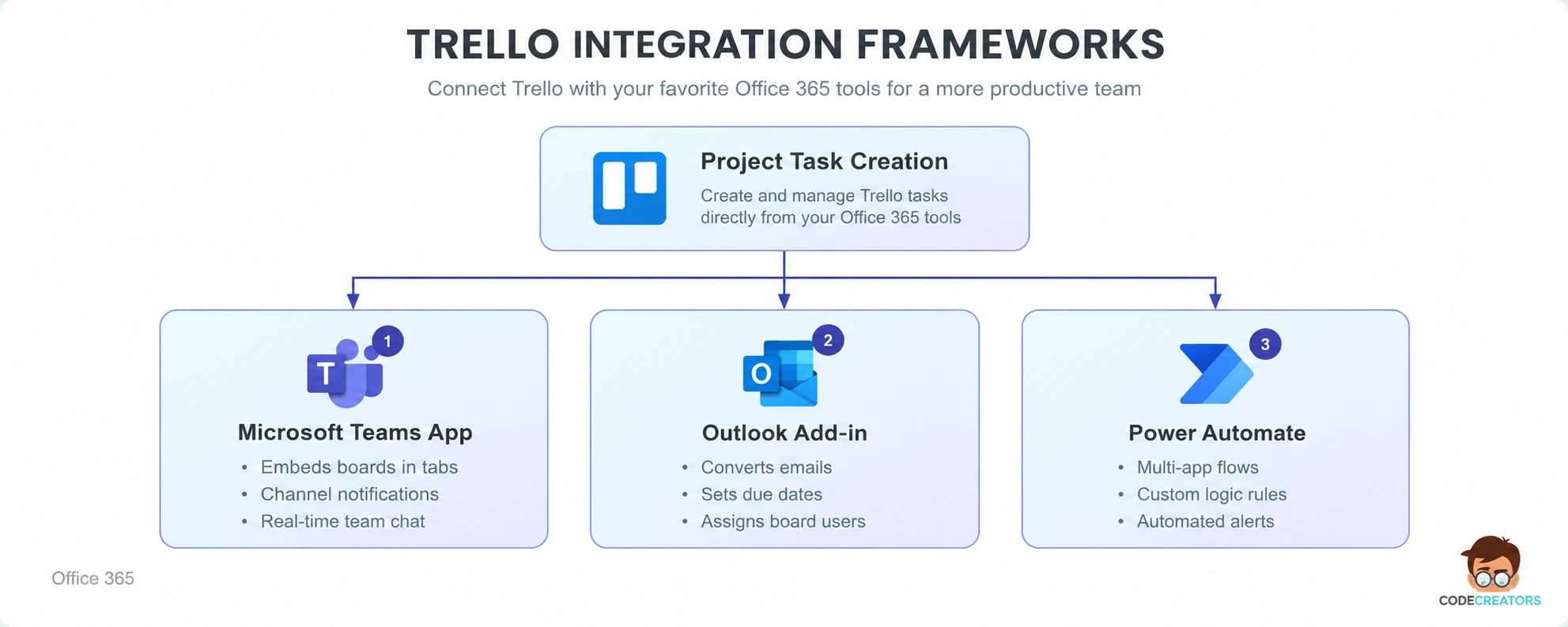
1. Microsoft Teams Trello App Tab
The native Trello app integration for Microsoft Teams allows administrators to pin live project boards as dedicated tabs inside team channels. Channel members view boards, move cards across lists, add subtask checklists, and post comments directly within their primary chat application.
2. Outlook Trello Add-In
The Trello add-in for Outlook transforms email management into active task creation. When project leads receive actionable emails from clients or vendors, they launch the Trello side pane inside Outlook, select the target board and list, assign due dates, and convert the email text into a new card automatically.
3. Microsoft Power Automate Cloud Flows
Microsoft Power Automate provides customizable, code-free connectors to automate complex cross-platform workflows. Organizations build custom cloud flows that trigger specific actions, such as creating a Trello card whenever a customer submits a Microsoft Form or sending an email notification when a card moves to the Done list.
Essential Setup Steps for Linking Trello to Teams and Outlook
Setting up cross-platform project tracking capabilities across your tenant requires a structured deployment sequence:
- Authorize Cloud App Connectors: Enable the Trello application inside the Microsoft Teams Admin Center and allow user add-ins in Outlook.
- Authenticate User Credentials: Log into Trello using single sign-on (SSO) backed by your organization’s Microsoft Entra ID account.
- Add Board Tabs to Teams Channels: Navigate to the target Teams channel, click the plus icon to add a new tab, select Trello, and authorize access to your board.
- Configure Automated Channel Bot Alerts: Subscribe channel bots to specific board lists to receive instant notifications when cards change status or pass due dates.
- Deploy Power Automate Workflows: Build or import standard workflow templates to automate file attachments, email alerts, and calendar entries.
How does integrating third-party project boards with Microsoft 365 affect enterprise data security and compliance policies?
Integrating third-party project boards with Microsoft 365 maintains enterprise data security by leveraging Microsoft Entra ID identity controls and secure OAuth 2.0 API connections.
When users connect Trello to Microsoft 365, authentication flows through Microsoft Entra ID, enforcing conditional access rules and Multi-Factor Authentication (MFA). Instead of storing actual document files inside Trello, cloud attachments embed secure SharePoint or OneDrive links.
This link-based architecture ensures underlying file permissions, Data Loss Prevention (DLP) policies, and Microsoft Purview retention rules remain actively enforced inside your Microsoft 365 tenant boundary. External card viewers cannot open attached business files unless their account holds explicit reading or editing permissions inside the source SharePoint library.
Technical Configuration Matrix: Core Integration Features
| Integration Feature | Primary Operational Role | Deployment Objective |
| Teams Board Tab | Embeds interactive kanban boards in channel views | Eliminates app switching during team meetings |
| Outlook Add-In | Converts emails into structured task cards | Streamlines inbox management and task delegation |
| Power Automate Connector | Triggers automated actions across cloud services | Eliminates manual data entry and status updates |
| OneDrive File Attachment | Links live cloud documents directly to cards | Maintains single-source-of-truth version control |
| Teams Bot Notifications | Posts automated card updates into chat channels | Keeps distributed teams informed on project progress |
Post-Deployment Best Practices for Project Board Governance
Maintaining clean board organization and administrative control across integrated workspace tools requires ongoing operational governance:
1. Standardize Board and List Structures
Establish consistent list naming conventions across departmental boards (such as Backlog, In Progress, Review, and Complete). Standardizing board layouts helps employees navigate different project boards easily and ensures automated Power Automate flows route tasks correctly.
2. Enforce Link-Based File Attachments
Instruct team members to attach documents using live cloud links rather than uploading local file copies to cards. Using cloud links preserves document security, enforces access permissions, and ensures team members always work on the official document version.
3. Review Active App Permissions Periodically
Periodically audit connected third-party applications and active API tokens inside the Microsoft Entra ID admin center. Removing inactive user connections and revoking outdated app permissions maintains a clean security footprint across your cloud tenant.
Streamline Your Digital Workplace with Expert Guidance
Architecting cross-platform integrations, configuring Power Automate workflows, enforcing cloud security governance, and training project teams require deep technical expertise. Without structured planning and proper configuration, connecting external project tools risks duplicated data, fragmented communications, and security gaps.
Our team of certified solution architects helps enterprise organizations modernize business workflows, integrate third-party applications, and deploy secure productivity environments. From building custom cloud automation flows to configuring enterprise tenant settings through our specialized Microsoft 365 integration services, we ensure your business transforms project tracking into a streamlined operational advantage.
Streamline your cloud productivity strategy today by connecting directly with our technology team to schedule your technical consultation.