If your mapped SharePoint drive has vanished, keeps throwing disconnection errors, or the classic “View in File Explorer” button has disappeared from your browser, you’re experiencing a permanent platform shift. Microsoft has dismantled the old WebDAV connections, and ActiveX browser dependencies mapped drives relied on, due to security vulnerabilities and performance lag. In our Microsoft 365 migration projects, we spend a lot of time helping clients replace mapped network drives SharePoint teams have relied on for years with something more stable.
The good news is that you don’t need to give up your familiar local folders. Windows 11 and 10 have a modern replacement built in that swaps fragile network pathways for direct, cloud-native file virtualization.
This guide covers how to set up a SharePoint to File Explorer shortcut, what each sync icon means, and how to go about fixing SharePoint file explorer issues without falling back to legacy workarounds.
Why SharePoint Network Drive Mapping Stopped Working and What Replaced It
Traditional network mapping kept a continuous, synchronous internet pipeline open between your desktop and the SharePoint server. Every folder open, file rename, or scroll sent web requests back and forth just to display those items, which caused three recurring headaches:
- Authentication expiration. Mapped drives relied on temporary cookie tokens. When those expired, the drive instantly disconnected, forcing users to log back in through a browser.
- Severe system latency. Once a library scaled past a few thousand assets, clicking a folder could freeze File Explorer while the cloud transmitted metadata.
- Zero offline capability. A dropped connection, or boarding a plane, made the mapped drive vanish completely.
Modern workspaces avoid this by using the virtualization engine built into the native OneDrive sync client.
SharePoint File Explorer Access: Add Shortcut vs Direct Sync, Which Should You Use?
Microsoft offers two strategies for bringing corporate cloud data into your desktop. Understanding OneDrive sync vs shortcuts up front prevents sync errors later on.
| Add Shortcut to My Files | Direct Sync | |
| Where it appears | Inside your personal OneDrive folder | In a dedicated Corporate Org folder |
| Follows you across devices? | Yes, automatically | No, tied to that specific machine |
| Best for | Every day, cross-device file access | Heavy processing of full site collections, or external guest access to another tenant |
Add Shortcut drops a dynamic folder link into your personal OneDrive path. It follows your identity account, so a shortcut set up on your office desktop automatically appears on your laptop and mobile app too, with no extra configuration.
Direct Sync creates a separate directory tree in your File Explorer sidebar, isolated beneath a corporate building icon node. It’s tied to that one machine, making it a better fit for heavy processing of entire site collections, or collaborating as an external guest inside another firm’s tenant.
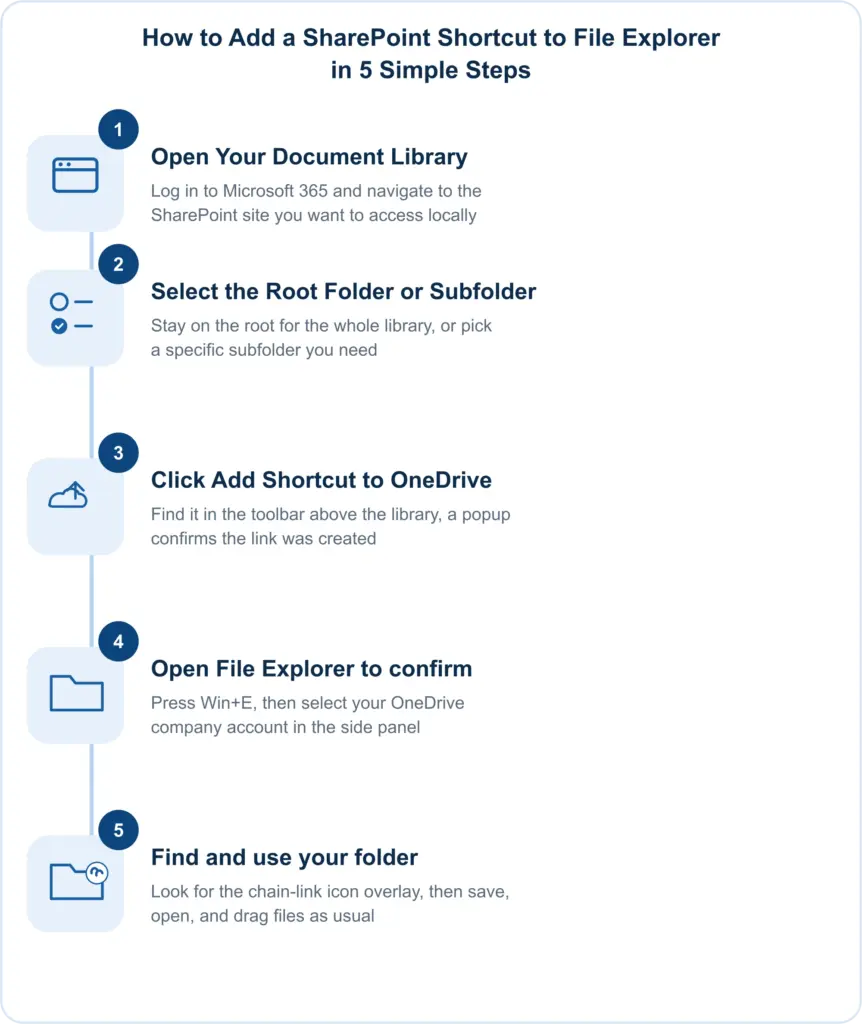
How to Add a SharePoint Shortcut to File Explorer: 5 Simple Steps
For most day-to-day business use, shortcut links give the smoothest end-user experience and avoid the local storage bloat that comes with syncing entire libraries.
- Open your SharePoint document library in a browser. Log in to your company’s Microsoft 365 dashboard and navigate to the specific SharePoint team site and document library you want to access locally.
- Select the root folder or subfolder. Stay on the root directory if you want the whole library available, or click the checklist circle next to a specific subfolder if you only need part of it.
- Click Add Shortcut to OneDrive. Look in the horizontal toolbar at the top of the library (it may read “Add shortcut to My files” depending on your tenant’s configuration). A confirmation popup will let you know the link has been created successfully.
- Open File Explorer to confirm it appeared. Press Win+E and select your primary OneDrive, [Your Company Name] account node in the left-hand navigation panel.
- Find and use your folder. Your newly linked SharePoint folder appears almost instantly alongside your personal cloud folders, marked with a distinctive chain-link icon overlay so you can tell it apart at a glance. From here you can save, open, drag, and drop enterprise files directly within Windows just like any local folder.
If your organization is still leaning on mapped network drives across dozens of teams, rolling this out consistently can get messy fast, and it matters more than ever once Copilot starts pulling from these same libraries. Our Microsoft Copilot Consulting team can help standardize the setup tenant-wide so every user’s files are clean, organized, and Copilot-ready.
SharePoint Files On-Demand: What the Blue, Green and Solid Green Icons Mean
Once your cloud libraries are connected inside File Explorer, Windows displays three icon indicators in the Status column that tell you exactly where a given file physically lives at any moment, which helps you keep an eye on local storage usage.
Blue Cloud Icon (Cloud-Only File):
The file lives entirely in the SharePoint cloud and takes up zero bytes of space on your hard drive. What you see in the folder is just a lightweight pointer placeholder, double-click it and Windows downloads the actual file instantly over the web.
Green Check Circle (Locally Cached File):
Once you’ve opened a cloud-only document, it downloads and is temporarily cached on your machine, shown by a green check circle. This means you can keep working on it, or reopen it, even if your internet connection drops shortly after.
Solid Green Circle (Always Keep on This Device):
Right-click a file or folder and choose this option before travel or when you know you’ll be working somewhere with unreliable internet. It locks the file in a permanently offline-ready state, so it stays available locally at all times while still syncing any changes automatically the moment you reconnect.
How to Fix a SharePoint OneDrive Sync Conflict Loop in File Explorer
The most common mistake we see is clicking both Sync and Add Shortcut to OneDrive on the same repository. Both actions use the same sync engine, so doing both maps two local paths to one cloud destination, creating a conflict loop, spiking fan noise, throwing errors, and sometimes locking files from editing.
If your team hits this, here’s the cleanup sequence we walk clients through:
- Locate the standalone folder under your corporate building icon directory.
- Right-click it and select OneDrive > Settings.
- Under the Account pane, find the duplicated library path and click Stop Sync.
- Delete the lingering local folder and rely on the personal OneDrive shortcut instead.
How Modern SharePoint File Access Feeds Into Enterprise Cloud Analytics
Moving from old-school local data shares to a streamlined, cloud-native file structure pays off beyond day-to-day convenience, standardized libraries connect directly to cloud data platforms, letting teams run live reporting without manually copying records or creating disconnected data silos. If you’re already using shortcuts to bring SharePoint into File Explorer, that same structure is what makes it possible to connect those files into Microsoft Fabric and OneLake for deeper analytics down the line.
As your AI tools expand, it’s also worth comparing Standard SharePoint against SharePoint Advanced Management to govern who can see this data.
Connect with an Expert
If your enterprise is ready to move off-outdated network drives and onto a stable, cloud-native file structure, our Microsoft SharePoint Consulting team can help plan and execute the transition, library by library, without disrupting the work your teams are already doing day to day.