A Google Drive to SharePoint migration moves your My Drive and Shared Drive files into Microsoft 365, converting native Google formats to Office formats and remapping user permissions along the way, done right, it consolidates your file storage, collaboration, and security under one platform instead of two. In our own migration projects at Code Creators, the technical transfer itself is rarely what causes problems, it’s almost always something specific to Google’s file model that catches teams off guard, most often Google Shortcuts.
This guide breaks down every stage of the process: auditing your source files, mapping permissions, choosing the right transfer tool, and avoiding the technical traps that cause data loss.
Why Enterprises Transition from Google Workspace to Microsoft SharePoint
Before moving gigabytes of corporate data, IT leaders need to evaluate why moving off Google Workspace makes long-term sense.
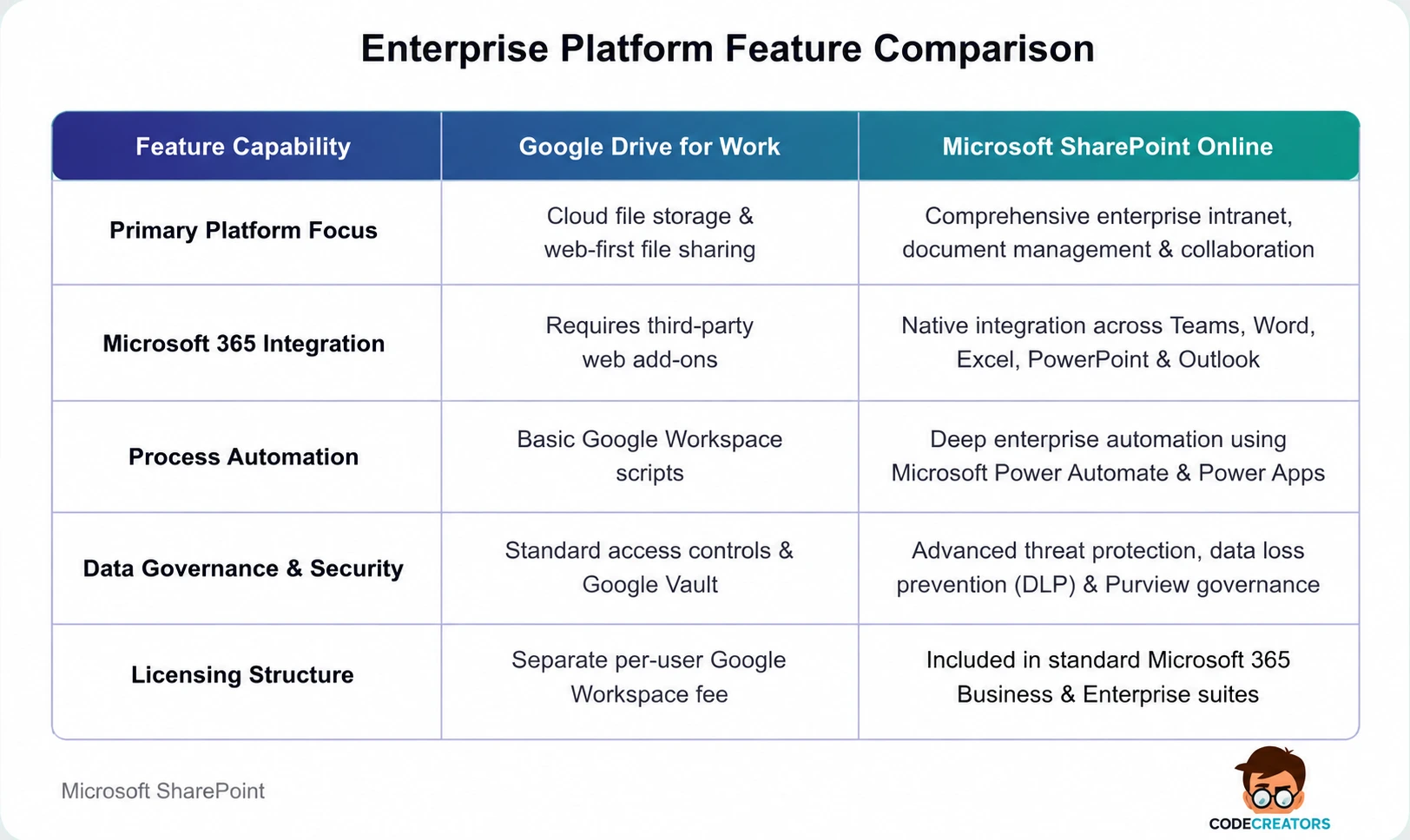
While Google Drive provides basic cloud storage, SharePoint serves as a complete digital workplace platform. Moving your documents into Microsoft 365 delivers major operational benefits:
- Eliminating redundant SaaS spend. If your company already pays for Microsoft 365 Business licenses to access Outlook, Word, and Excel, paying separately for Google Workspace accounts wastes budget.
- Direct Microsoft Teams integration. Users can view, co-author, and edit SharePoint files natively inside Microsoft Teams channels without toggling between separate web apps.
- Centralized data governance. SharePoint leverages Microsoft Purview to enforce automated retention policies, data loss prevention (DLP) guardrails, and conditional access rules across your enterprise directory.
- Workflow automation. Connecting SharePoint document libraries to Microsoft Power Automate lets teams automate invoice routing, document approval workflows, and metadata tagging.
Phase 1: Pre-Migration Planning and Data Auditing
Executing a smooth cloud transition requires thorough preparation. Transferring messy file structures directly into a new cloud tenant causes permission confusion and breaks file paths.
Migration preparation happens in four parallel tracks: auditing and cleaning old files, mapping users and permissions, designing your site architecture, and selecting your transfer tool. We generally recommend running these simultaneously rather than sequentially, since permission mapping and site architecture decisions often inform each other.
1. Audit and Clean Legacy Files
Never move obsolete data. Before launching any migration tool, audit your Google My Drive and Shared Drives. Delete outdated files, remove duplicate versions, and archive closed client projects. Cleaning your file tree reduces overall bandwidth requirements and speeds up migration execution.
2. Standardize File Naming and Path Limits
SharePoint Online enforces specific character limits and naming rules. To prevent file copy errors during execution:
- Keep total file path lengths under 400 characters.
- Remove unsupported special characters from folder and file names (such as ~, “, #, %, &, *, :, <, >, ?, /, , |).
- Flatten deeply nested folder structures.
3. Map Users and Group Identities
Google Workspace and Microsoft 365 manage user identities differently. Create a clear inventory matrix matching every Google account and Shared Drive permission to its corresponding Microsoft Entra ID (Azure AD) user profile and SharePoint site collection.
Phase 2: Selecting the Best Migration Tools
Choosing the right software engine determines how smoothly your IT team moves data without interrupting daily operations.
Option A: Microsoft Migration Manager (Native & Free)
Microsoft includes a built-in migration tool inside the SharePoint Admin Center specifically designed for Google Workspace transfers.
Key benefits:
- Free tool included directly with your Microsoft 365 tenant subscription.
- Connects securely to your Google Workspace admin account via official APIs.
- Automatically scans Google drives to flag file path errors, long names, and size limits before copying data.
- Preserves root folder ownership and permission mappings effectively.
Option B: Third-Party Enterprise Migration Tools
For massive enterprise environments containing complex workflows, custom metadata, or hundreds of terabytes, specialized migration software like ShareGate, AvePoint, or BitTitan offers granular control. These platforms provide advanced job scheduling, bandwidth throttling, and comprehensive post-migration reporting.
If you’re not sure which approach fits your environment’s scale and complexity, that’s exactly the kind of scoping call worth having before you commit to a tool, our SharePoint Consulting Services team can walk through your Drive structure and recommend native vs. third-party based on what we actually find.
Phase 3: Step-by-Step Google Drive to SharePoint Execution
Following a structured, step-by-step procedure prevents data loss and minimizes downtime for staff members. The overall execution sequence runs connect your Google Workspace admin to SharePoint Migration Manager, run pre-migration scans to flag file path and name errors, perform an initial delta copy in the background, execute a final cutover delta sync during off-hours, then revoke Google Workspace access and switch fully to SharePoint.
Step 1: Connect Source and Destination Tenants
Log into the SharePoint Admin Center, navigate to the Migration tab, and select Google Workspace. Authenticate using your Google Workspace Super Admin credentials to grant Microsoft Migration Manager permission to read your source directory.
Step 2: Run an Automated Pre-Migration Scan
Run an automated system scan. The Migration Manager engine analyzes your Google Drive file structures and generates a detailed audit log. Review this report to flag long file paths, invalid characters, or unassigned user licenses before moving forward.
Step 3: Run a Pilot Migration Batch
Do not transfer your entire enterprise file directory at once. Select a small pilot group, such as marketing or HR, and migrate their folders first. Use this pilot run to verify that file formatting, user permission mappings, and folder structures look correct in SharePoint.
Step 4: Execute the Bulk Data Transfer
Once you validate the pilot run, launch the bulk migration for all remaining My Drive and Shared Drive folders. The migration engine copies data in the background while your employees continue working in Google Drive without interruption.
Step 5: Perform the Final Delta Cutover
To complete the transition, schedule a final delta sync during off-peak hours (such as over a weekend). The delta sync scans for files created or modified since the initial copy began and transfers only those updated files. Once finished, set your Google Drive directory to read-only mode to prevent staff from adding new files to the legacy system.
Phase 4: How to Migrate Data from Google Drive to SharePoint Smoothly
Maintaining business continuity requires addressing key technical friction points before they disrupt your workforce.
When you migrate data from Google Drive to SharePoint, pay close attention to three critical considerations:
- Proprietary Google file formats. Native Google formats (Docs, Sheets, Slides, and Drawings) can’t exist natively inside SharePoint. Microsoft Migration Manager converts proprietary Google files into standard Microsoft Office formats (.docx, .xlsx, .pptx) automatically during the transfer.
- Google Shortcuts and file pointer links. Google Drive allows a single file to exist in multiple folder locations using “Shortcuts.” SharePoint doesn’t support Google-style file pointers. This is, by a wide margin, the issue we run into most often, if shortcuts aren’t resolved properly before migration, teams end up with either duplicated files scattered across libraries or, worse, missing content that someone assumed was backed up in a second location. Ensure your migration tool resolves shortcuts into distinct files or centralized document libraries before you run your bulk transfer, not after.
- External sharing permissions. Shared Google Drive links sent to outside clients or contractors will break once you revoke Google Workspace licenses. Audit active external links beforehand and re-issue secure SharePoint sharing links to external partners post-migration.
If your Drive environment relies heavily on shortcuts or has years of accumulated external sharing links, it’s worth having a real audit done rather than discovering the gaps mid-migration, this is one of the most common reasons we get called in after a DIY migration has already gone sideways. Our SharePoint consulting services team can run that audit before you touch a single file.
Phase 5: Post-Migration Optimization and User Adoption
Moving your files represents only half the process. Driving user adoption and establishing strong cloud governance ensures your investment yields operational returns.
Train Employees on SharePoint Collaboration
Employees accustomed to Google Drive web interfaces often need help adjusting to Microsoft 365 file management. Conduct practical training sessions covering:
- Real-time co-authoring in Word, Excel, and PowerPoint inside Microsoft Teams.
- Using SharePoint document version history to restore previous file drafts without IT help.
- Syncing specific SharePoint document libraries to Windows File Explorer using the OneDrive Sync Client.
Establish Automated Administrative Governance
Set up clear administrative guardrails in the SharePoint Admin Center:
- Expiration rules for external links. Configure public sharing links to expire automatically after 30 or 60 days.
- Sensitivity labels. Apply automatic sensitivity labels (e.g., Confidential, Internal Only) to block unauthorized file downloads or external forwards.
- Version limits. Set maximum version limits on document libraries to prevent stale file iterations from consuming tenant cloud storage.
Execute a Flawless Migration with Code Creators
Transferring enterprise data, re-mapping complex user permissions, converting proprietary file formats, and training employees on a new digital workspace requires technical expertise. Without careful planning, cloud file migrations cause accidental data loss, broken sharing permissions, and costly operational downtime.
At Code Creators, our certified Microsoft technical specialists help businesses migrate seamlessly to modern cloud environments. From performing initial data audits and building secure SharePoint architectures to executing automated file migrations and delivering hands-on end-user training, we ensure your transition to Microsoft 365 remains secure, fast, and cost-effective.
Schedule a Consultation with our SharePoint migration services at Code Creators to request a tailored migration plan and modernize your enterprise document management environment.