Many growing companies rely on Dropbox for simple file sharing, but as teams expand, managing permissions across fragmented folders gets difficult, storage costs rise, and collaboration fragments. Transitioning your document ecosystem to Microsoft SharePoint solves these operational bottlenecks by unifying files in Microsoft Teams, strengthening data security, and reducing redundant software expenses.A successful migration transfers your team folders, permissions, and shared links into Microsoft 365 across five phases: auditing and cleaning legacy files, mapping users to your Microsoft directory, running a pilot migration, executing a bulk background transfer while staff keep working, and running a final delta sync during off-hours.
Done properly, most mid-sized teams complete this move in two to six weeks without losing data or breaking sharing links. In this guide, we break down every phase of executing a smooth migration, including the common friction points we encounter when managing these projects for clients.
Why Modern Enterprises Shift to Microsoft SharePoint
Before moving gigabytes of corporate records, IT leaders must evaluate why moving off Dropbox makes financial and operational sense.
Dropbox works well for basic cloud storage, but SharePoint functions as a complete digital workplace platform. Moving your files into Microsoft 365 unlocks significant operational advantages:
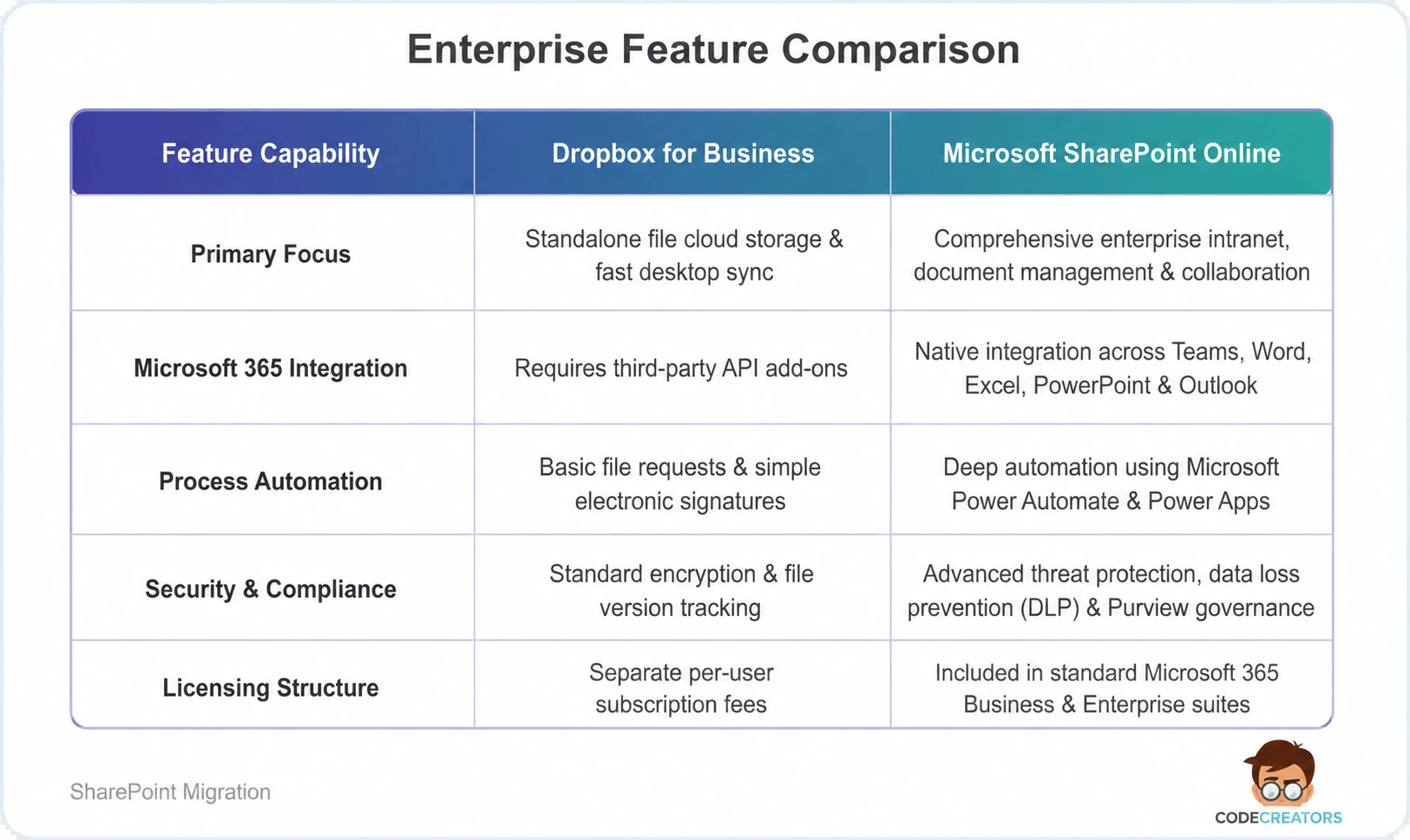
- Eliminating Duplicate SaaS Costs: If your business already pays for Microsoft 365 subscriptions to access Outlook, Word, and Excel, paying separately for Dropbox licenses wastes IT budget.
- Native Microsoft Teams Integration: Users can view, co-author, and edit SharePoint documents directly inside Microsoft Teams channels without toggling between separate apps.
- Advanced Security and Compliance: SharePoint leverages Microsoft Purview to enforce automated retention policies, sensitive data loss prevention (DLP) rules, and conditional access controls across your entire file directory.
- Deep Process Automation: Linking SharePoint document libraries to Microsoft Power Automate lets teams automate invoice approval workflows, contract routing, and metadata tagging.
Phase 1: Pre-Migration Planning and Data Auditing
Executing a smooth migration requires careful preparation. Moving disorganized file structures into a new cloud environment creates confusion and breaks permission links. Preparation generally covers four workstreams:
- Audit and clean old files
- Map users and permissions
- Design your SharePoint site architecture
- Select your transfer tool
In our own client migrations, the step teams skip, and regret skipping, is the audit. Companies move everything “as-is” to save time up front, then spend weeks afterward untangling duplicate folders and orphaned permissions inside SharePoint instead of Dropbox. Auditing first is slower on day one but consistently faster overall.
1. Audit and Clean Legacy Files
Never transfer junk data. Before launching any migration tool, audit your existing Dropbox team folders. Delete obsolete records, remove duplicate file versions, and archive closed client accounts. Cleaning your file tree reduces total transfer volumes, cuts bandwidth usage, and speeds up migration timelines.
2. Standardize File Naming and Path Limits
SharePoint Online enforces specific character limits and naming restrictions. To prevent file transfer errors during execution:
- Keep total file path lengths under 400 characters.
- Remove invalid special characters from file and folder names (such as ~, “, #, %, &, *, :, <, >, ?, /, \, |).
- Shorten deeply nested subfolder hierarchies.
3. Map Users and Security Groups
Dropbox and Microsoft 365 handle user identities differently. Create a complete inventory matrix matching every Dropbox user account and team folder permission to its corresponding Microsoft Entra ID (Azure AD) user profile and SharePoint site collection.
If your team needs help getting this architecture right before you move a single file, our SharePoint site architecture and planning service is built for exactly this phase.
Phase 2: Choosing the Right Migration Tooling
Selecting the right software engine determines how efficiently your IT team moves data without interrupting daily operations.
Option A: Microsoft Migration Manager (Native & Free)
Microsoft provides a built-in migration tool inside the SharePoint Admin Center specifically designed for Dropbox transfers.
Key benefits:
- Free tool included with your Microsoft 365 tenant subscription.
- Connects directly to your Dropbox Team admin account via secure API.
- Automatically scans Dropbox folders to detect path errors, invalid characters, and file sizes before copying data.
- Preserves root folder ownership and permission mappings efficiently.
Option B: Third-Party Enterprise Tools
For massive enterprise environments containing complex workflows, custom metadata, or hundreds of terabytes, specialized migration software like ShareGate, AvePoint, or BitTitan offers granular control. These platforms provide advanced scheduling, real-time bandwidth throttling, and detailed post-migration audit reporting.
Need a hand deciding which tool fits your environment? Our team runs both native and third-party migration tooling daily, see our Dropbox-to-SharePoint migration service for a scoped recommendation before you commit to a platform.
Phase 3: How to Migrate Dropbox to SharePoint Step-by-Step
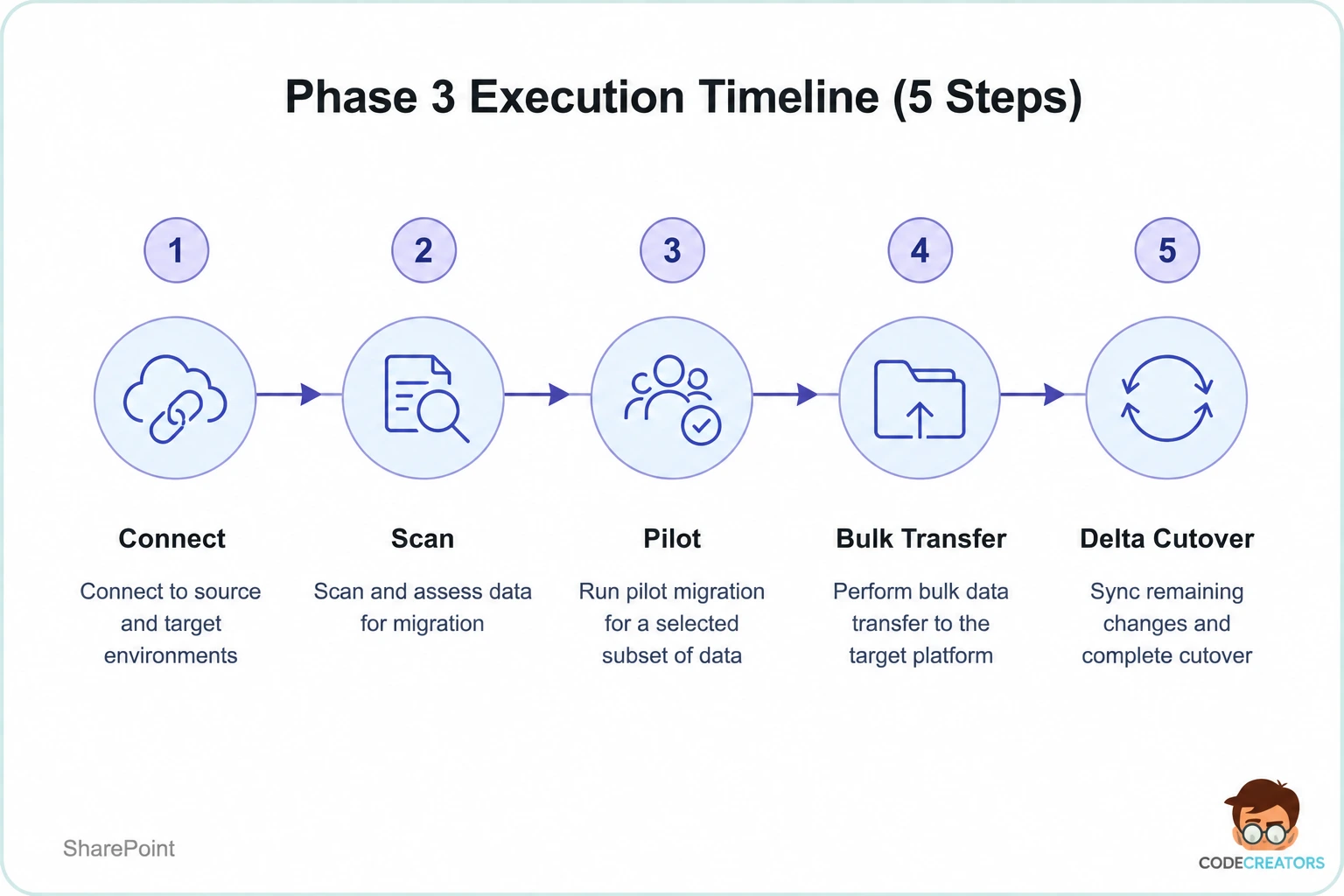
Following a structured, step-by-step procedure prevents data loss and minimizes downtime for staff members. At a high level, the execution timeline looks like this:
- Connect your Dropbox admin account to SharePoint Migration Manager.
- Run pre-migration scans to flag file path errors.
- Perform the initial delta copy (bulk background data transfer).
- Execute the final cutover delta sync during off-hours.
- Revoke Dropbox access and enable the SharePoint production environment.
Step 1: Connect Your Source and Destination
Log into the SharePoint Admin Center, navigate to the Migration tab, and select Dropbox. Authenticate using your Dropbox Team Administrator credentials to grant Microsoft Migration Manager permission to read your source directory.
Step 2: Run a Complete Pre-Migration Assessment
Run an automated system scan. The Migration Manager tool analyzes your Dropbox file structure and generates a detailed audit report. Review this report to flag long file paths, unsupported file extensions, or unassigned user licenses before moving forward.
Step 3: Perform a Trial Migration Batch
Do not transfer your entire company directory at once. Select a small pilot group, such as your marketing or HR team, and migrate their folders first. Use this pilot run to verify that file formatting, user permission mappings, and folder structures look correct in SharePoint.
Step 4: Execute the Bulk Data Transfer
Once you validate the pilot run, initiate the bulk migration for all remaining team folders. The migration engine copies data in the background while your employees continue working in Dropbox without interruption.
Step 5: Run the Final Delta Cutover
To complete the transition, schedule a final delta sync during off-peak hours (such as over a weekend). The delta sync scans for files created or modified since the initial copy began and transfers only those updated files. Once finished, set your Dropbox directory to read-only mode to prevent staff from adding new files to the old location.
Phase 4: How to Migrate Data from Dropbox to SharePoint Without Data Loss
Maintaining business continuity requires addressing key technical challenges before they disrupt your workforce.
When you migrate data from dropbox to sharepoint, pay close attention to three common friction points:
- Dropbox Paper Documents: Standard Dropbox files (like .docx or .pdf) transfer easily. However, native Dropbox Paper files must convert to standard Microsoft Word (.docx) format during export, or they will become unreadable in SharePoint.
- External Sharing Links: Shared Dropbox links sent to outside clients or contractors will break once you revoke Dropbox licenses. Audit all active external links and re-issue secure SharePoint sharing links to external partners.
- Selective Sync Configurations: Ensure users do not store company files exclusively on local desktop drives via selective sync. Verify that all corporate records sync fully to the cloud before starting the migration engine.
The friction point we hit most often in practice is #2, external sharing links. Almost every client underestimates how many active client- or vendor-facing Dropbox links exist outside of IT’s visibility, since they’re often created ad hoc by individual employees rather than tracked centrally. We now treat a full external-link audit as a mandatory pre-cutover step, not an optional one, because it’s the single most common cause of a broken client relationship right after go-live.
Phase 5: Post-Migration Optimization and User Adoption
Moving your files represents only half the battle. Driving user adoption and maintaining strong cloud governance ensures your investment pays off.
Train Staff on Modern SharePoint Features
Employees accustomed to local desktop sync folders often struggle with browser-based file management. Conduct short training sessions covering:
- Co-authoring documents in real time alongside team members.
- Using SharePoint document version history to restore previous file drafts without IT support.
- Syncing specific SharePoint document libraries to Windows File Explorer using the OneDrive Sync Client.
Establish Automated Governance
Set up clear administrative guardrails in the SharePoint Admin Center:
- Expiration Rules for External Links: Set anonymous sharing links to expire automatically after 30 or 60 days.
- Sensitivity Labels: Apply automatic sensitivity labels (e.g., Confidential, Internal Only) to block unauthorized file downloads or external forwards.
- Version Limits: Set maximum version limits on document libraries to prevent stale file iterations from consuming cloud storage capacity.
Looking for ongoing SharePoint governance and user training after go-live? See our Microsoft 365 governance and adoption service.
Execute a Flawless Migration with Code Creators
Transferring enterprise data, re-mapping complex user permissions, and training employees on a new digital workspace requires technical expertise. Without careful planning, file migrations cause accidental data loss, broken sharing permissions, and costly employee downtime.
At Code Creators, our certified Microsoft technical specialists help businesses migrate seamlessly to modern cloud environments. From performing initial data audits and building secure SharePoint architectures to executing automated file migrations and delivering hands-on end-user training, we ensure your transition to Microsoft 365 remains secure, fast, and cost-effective.
Contact the enterprise cloud team at Code Creators today to request a tailored migration consultation and modernize your enterprise document management environment.