Copilot in Excel reads your structured tables, writes and explains formulas in plain English, cleans messy text data, runs native Python analysis, and generates charts, all from simple prompts in a chat pane, without you needing to know exact formula syntax. In the Copilot rollouts we support at Code Creators, the tool itself is genuinely capable, the more common issue we see is people expecting it to work on files that don’t meet its cloud-storage requirements, then assuming the feature is broken. This guide breaks down what Copilot in Excel actually does, how to set it up, and how to use its advanced data features while avoiding the setup mistakes that cause the most confusion.
Core Capabilities: What Can Copilot Do in Excel?
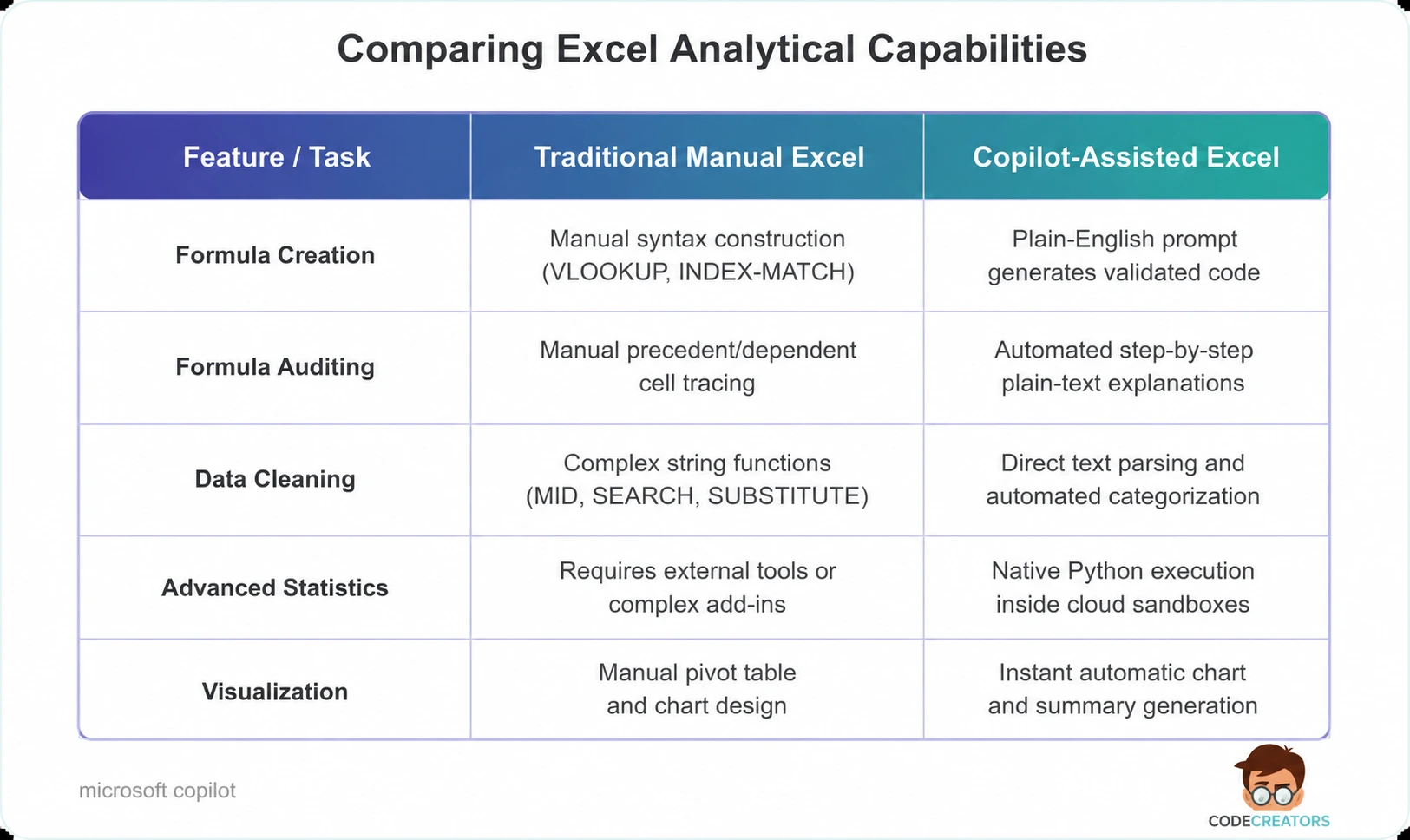
Understanding what Copilot can do in Excel helps teams focus on high-impact analytical tasks rather than manual data entry. The tool works across four core capability areas: generating formulas from plain language, explaining existing formulas, cleaning and categorizing text data, and running advanced Python-based analysis, all triggered from the same chat pane.
1. Generating Complex Formulas from Natural Language
Instead of memorizing exact syntax for XLOOKUP, INDEX-MATCH, or nested IF-AND statements, you state your objective in plain English. Copilot generates the required formula, previews the proposed column, and explains its underlying calculation logic step-by-step before inserting it into your grid.
2. Explaining Legacy Formulas
Inheriting spreadsheets built by former colleagues often requires hours of tedious formula tracing. Copilot offers inline formula explanations right next to your cells. Clicking “Explain Formula” generates a detailed plain-text breakdown of every reference, logical operator, and dynamic array calculation.
3. Cleaning Data and Text Processing
Unstructured text strings, inconsistent product descriptions, and messy customer survey logs slow down reporting. Copilot automates text manipulation tasks:
- Extracting specific text substrings without writing complex formulas.
- Categorizing product feedback or support tickets into standard buckets using prompts.
- Spotting formatting discrepancies across large data ranges automatically.
4. Running Advanced Analysis with Native Python
For complex statistical modeling and forecasting, Copilot interfaces directly with Python in Excel. Without setting up local Python runtimes, you can prompt Copilot to run advanced regression models, identify missing values across thousands of rows, or run predictive analytics. Copilot generates, inserts, and executes the Python code in a sandboxed cloud container automatically.
Setup Guide: How to Get Copilot in Excel
Deploying AI tools across your organization requires meeting specific licensing and file environment prerequisites. To get Copilot working in Excel, verify that your environment satisfies these technical requirements: a Microsoft 365 base license, a Microsoft 365 Copilot add-on license, files stored in OneDrive or SharePoint Online with AutoSave active, and data formatted as an official Excel Table.
Step 1: Secure Prerequisites and Licenses
Copilot requires a valid base subscription (such as Microsoft 365 Business Premium, M365 E3, or M365 E5) combined with an active Microsoft 365 Copilot add-on seat.
Step 2: Save Files to the Cloud
This is the requirement that trips up the most people we work with. Copilot operates on real-time cloud data streams, and AutoSave is a service provided specifically by OneDrive and SharePoint servers, it genuinely cannot work with files saved to a local hard drive or a network share, regardless of how the file is otherwise configured. Ensure your target Excel workbook resides in OneDrive for Business or a SharePoint Online document library with AutoSave toggled on. The file also needs to be saved in the modern .xlsx or .xlsm format, legacy .xls and .csv files will keep the Copilot panel disabled even once the file is in the cloud.
Step 3: Format Your Data as an Official Table
Copilot requires clear structural boundaries to interpret rows, columns, and headers correctly. Highlight your dataset, press Ctrl+T (or click Format as Table on the Home tab), and assign clear, descriptive column headers.
Step 4: Launch Copilot
Click the Copilot icon located on the far-right side of the Home tab ribbon. The Copilot chat pane opens on the right side of your worksheet, ready to take prompts.
If your organization is rolling this out across multiple departments, it’s worth budgeting time for exactly this kind of file-migration and formatting cleanup before launch, that’s the step our Microsoft Copilot Consulting Services team spends the most time on with clients, since it’s rarely the licensing that causes delays.
Hands-On Workflows: How to Use Copilot in Excel Effectively
Maximizing value from your AI assistant requires crafting precise, clear prompts. Follow these practical examples to use Copilot in Excel during daily tasks.
Scenario A: Financial Trend Analysis and Forecasting
When reviewing quarterly sales numbers, open the Copilot pane and prompt:
“Analyze this table and add a new column calculating the percentage growth year-over-year. Then, create a line chart showing overall monthly revenue trends.”
Copilot writes the exact formula, populates the table, builds the line chart, and drops it into your active sheet.
A Note on In-Cell AI Formulas
Excel briefly offered an experimental =COPILOT() worksheet function that let you call Copilot directly from a cell formula, for example, =COPILOT(“Classify this feedback as Positive, Neutral, or Negative”, A2). It’s worth knowing that Microsoft has since cancelled this feature: the function was only ever available to Beta Channel and Frontier program users with a qualifying Copilot license, and Microsoft confirmed via its Message Center in August 2026 that it’s retiring the function entirely on September 14, 2026, rather than bringing it to general availability. If you or your team saw references to this function, don’t build workflows around it, Microsoft is directing users to the standard Copilot side pane instead, which covers similar tasks like summarization, classification, and content generation, just not as an in-cell formula.
Optimize Your Enterprise Microsoft AI Strategy with Code Creators
Integrating AI into your daily spreadsheets, establishing enterprise permission guardrails, and training staff to build reliable financial models requires technical governance. Without proper data architecture, AI assistants can surface over-shared enterprise files or produce inaccurate outputs based on unstructured source data.
At Code Creators, our certified Microsoft specialists help businesses configure, secure, and adopt Microsoft 365 environments safely. From performing data permission reviews and building custom Copilot Studio agents to configuring secure cloud architectures, we ensure your organization achieves maximum ROI from its technology investments.
Schedule a Consultation for Microsoft Copilot Consulting Services at Code Creators to roll out Copilot in Excel the right way the first time, including the file and licensing prep most teams miss.