When your team is large or your organization is complex, managing content and communication can quickly become chaotic. Microsoft SharePoint is a powerful tool that offers a central, secure space for teamwork. But simply creating many SharePoint sites without a plan leads to “site sprawl” a confusing mess where employees can’t find what they need.
For large teams, a well-planned SharePoint site architecture is necessary for clarity, governance, and user adoption. It is not just about where documents are stored; it is about how people find information and work together efficiently. This article shows you the best ways to design, manage, and scale your SharePoint sites to support large, busy teams.
Understanding the SharePoint Site Structure Basics
Before you start building, you must understand how modern SharePoint is structured.
1. The Hub Site Model
In modern SharePoint, you should build your architecture around the Hub Site Model.
- Hub Site: This is the main, high-level site that works as a central point for navigation and company branding. You should create one Hub Site for a major division (like “Marketing” or “HR”).
- Associate Sites: These are individual sites (Team Sites or Communication Sites) that link to the Hub. They share the Hub’s main navigation but keep their own specific permissions and content.
This model creates a clear structure where information groups logically, but different teams keep their own separate work areas.
2. Communication vs. Team Sites
When you create a SharePoint site, you must choose the correct type:
- Team Site: You use this for active teamwork among a specific group (e.g., the “Product Launch Team”). It connects to a Microsoft 365 Group, giving you a shared mailbox, calendar, and Teams channel. It is used for working on documents.
- Communication Site: You use this to share information widely with a large audience (e.g., the “Company News Portal” or “HR Policy Guide”). It is used for publishing finished content.
You need to teach your users which type of site to choose to avoid confusion.
Best Practices for Designing Your SharePoint Site Architecture
Effective design focuses on the user experience and ease of maintaining the site over time.
1. Plan for Navigation First
You must define your main navigation structure before creating any sites.
- Global Navigation: The top navigation on the Hub Site should list the main areas of the business, for example, Departments, Major Projects. This way the employees know where to start looking.
- Local Navigation: Each site should have prominent links to its internal sections (e.g., “Project Plans,” “Budgets,” “Meeting Notes”).
2. Standardize Your SharePoint Site Design
When you create a new site, you should always use a consistent SharePoint site design (template) to ensure every site looks and works the same way.
- Branding: All sites should use the same company colors, logos, and fonts.
- Layout: Define standard page layouts. For example, all project sites should have the “Documents” library in the same spot.
Consistency makes it easier for employees to move between different teams or projects.
3. Avoid Deep Site Hierarchies
You must avoid putting sites inside other sites (subsites). Modern architecture uses the flat Hub Site Model instead.
- Flat Structure: Create all sites at the top level and link them to a Hub. This makes permissions easier to manage and improves search results.
Governance: Permissions and Management
For large teams, strong rules (governance) are necessary. You must set clear rules for who can do what.
1. Plan Your Information Architecture Before Creating Sites
Before creating SharePoint sites, it’s worth taking some time to plan how information will be organized. A clear structure from the beginning makes it easier for teams to work together and helps employees know exactly where documents, updates, and other resources belong.
Start by deciding how your departments, teams, and projects will be arranged. Identify which teams need their own Team Sites, where company-wide information should be shared through Communication Sites, and how related sites will connect using Hub Sites. It’s also a good idea to plan your document libraries, metadata, navigation, and content ownership before any sites are created.
Don’t just plan for today’s requirements. As your organization grows, you’ll likely add new teams, projects, and departments. A well-planned information architecture makes it much easier to expand your SharePoint environment without having to reorganize everything later.
2. Establish Clear Naming Conventions
As your SharePoint environment grows, finding the right site should be quick and straightforward. A consistent naming convention helps employees identify sites more easily and makes SharePoint search more effective.
One approach that works well for large organizations is using a consistent naming format across all SharePoint sites. A site name that includes the department, project, or business function gives employees a clear idea of its purpose and makes it easier to find through SharePoint search.
If your organization has multiple offices or business units, you can also include a location or department name where needed. The most important thing is to use the same naming format across all new sites. This creates a more consistent experience for users and makes it easier to recognize and locate sites as your SharePoint environment continues to grow.
3. Build a Scalable Permission Model
A scalable permission model should clearly define who manages access, what level of access they can control, and when permissions should be handled centrally. This is especially important in large organizations where users may work across multiple departments, projects, and SharePoint sites.
Use group-based access whenever multiple users need the same permissions. Microsoft 365 Groups, security groups, and SharePoint Groups make it easier to manage access without assigning permissions to each user individually. For example, all Finance employees can be added to a Finance security group and given access to the department’s sites. When someone joins or leaves the department, administrators only need to update the group membership.
Site Owners should manage day-to-day access within their own sites. They can add members, give visitors read-only access, and remove users who no longer need access. For example, a Project Site Owner can give a contractor temporary access to project documents and remove that access when the contract ends.
SharePoint Administrators should manage settings that affect multiple sites or the entire organization. This includes Hub Site configuration, tenant-wide access controls, external sharing rules, and organization-level security policies. For example, if an organization wants to restrict external sharing across all Finance sites, a SharePoint Administrator should apply that rule centrally instead of asking each Site Owner to configure it separately.
A simple decision framework can help:
- Use Site Owners for access changes that affect one specific site.
- Use SharePoint Administrators for Hub-level, tenant-wide, security, or compliance settings.
- Use group-based access when multiple users need the same permissions across one or more sites.
- Use individual permissions only for exceptional or temporary access needs.
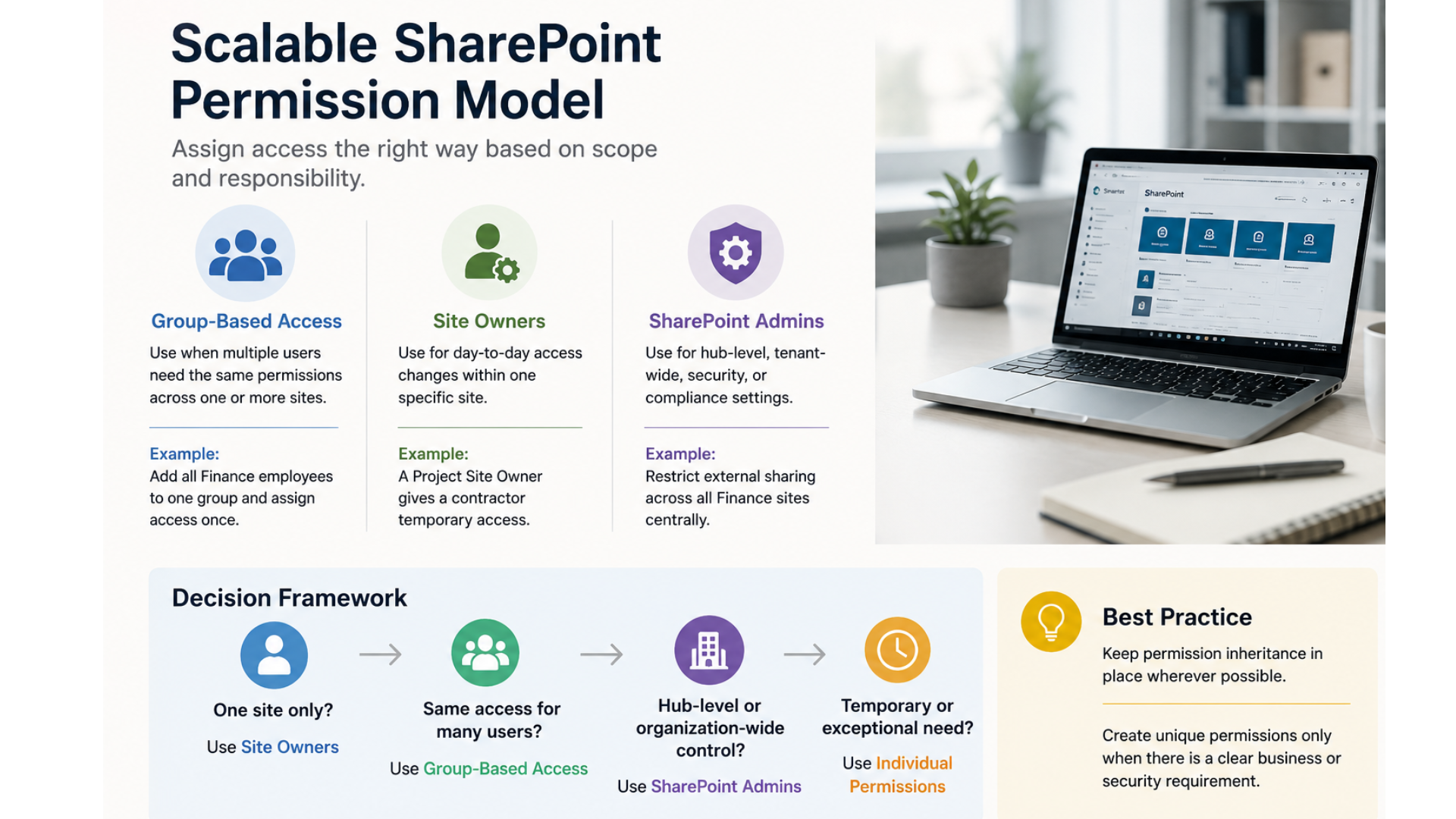
Keep permission inheritance in place wherever possible. Only create unique permissions when there is a clear business or security requirement, as too many exceptions make access harder to review and maintain.
4. Plan for Site Lifecycle and Retention
Site lifecycle and retention should be planned at both the Hub level and the individual site level. The Hub level provides a consistent framework for a department or business function, while site-level rules address the specific type of content stored within each site.
At the Hub level, define the overall retention, ownership, and review standards that all associated sites should follow. For example, an HR Hub may require every associated site to have a named owner, complete regular access reviews, and follow approved rules for storing employee information. A Finance Hub may require stronger access controls and longer retention periods for financial records.
At the site level, apply retention rules based on the site’s purpose and the type of documents it contains. Different sites within the same Hub may still have different retention needs. For example:
- An HR Employee Records Site may need to retain employment contracts and personnel records for several years after an employee leaves.
- A Recruitment Site may keep unsuccessful candidate applications for a shorter period based on company policy and applicable legal requirements.
- A Finance Site may need to retain invoices, tax records, and audit documents for a longer period.
- A Legal Site may need to preserve contracts and case-related documents until a legal matter has fully closed.
- A Marketing Campaign Site may only need to keep working files for a limited period after the campaign ends.
- A Project Site can be archived once the project is complete, while final reports and approved deliverables are moved to a permanent records location.
Retention periods should not be based only on the site name. They should reflect the document type, business value, legal obligations, and regulatory requirements. Microsoft Purview retention labels and policies can help apply these rules consistently across SharePoint content.
Site lifecycle rules should also define what happens when a site becomes inactive. Department sites may remain active for ongoing work, while temporary project sites should have a review or closure date. Site Owners should confirm whether their sites are still needed, while SharePoint Administrators or governance teams should oversee organization-wide reviews, archiving, and deletion standards.
Before deleting an inactive site, review its content to identify documents that must still be retained. Move or archive required records first, remove unnecessary content, and delete the site only after business, legal, and compliance requirements have been confirmed.
5. Control Site Creation
Creating a new SharePoint site should follow a clear process, especially in large organizations. Without proper control, new sites can be created for work that already has an existing workspace, making the SharePoint environment harder to manage over time.
Instead of allowing everyone to create sites, limit this responsibility to SharePoint administrators, IT teams, or trained department owners. This gives someone the opportunity to review each request and confirm that a new site is actually needed before it’s created.
If your organization allows self-service site creation, consider adding a simple approval process. You should also provide approved SharePoint site templates so every new site starts with the same layout, navigation, and essential components. This creates a more consistent experience for users and reduces the time needed to set up new sites.
It’s also a good idea to review newly created sites from time to time. This helps identify sites that are no longer being used or were created by mistake, making it easier to keep your SharePoint environment focused on active workspaces.
Managing Change: Names and Pages
Teams and projects change over time, and your SharePoint sites must change too.
1. How to Change the Name of a SharePoint Site
If a department’s name changes, you must update the site name immediately for clarity.
- Change the Title: This is easy and instantly updates the visible name of the site.
- Change the URL: While possible, changing the URL of a SharePoint site can break links. You should do this carefully and only when necessary, using the SharePoint Admin Center tools to manage the redirection.
2. SharePoint Site vs Page
You must understand the difference between an entire site and a page within it.
- Site: A site is a container with its own permissions, document areas, and apps.
- Page: A page is a single piece of content within a site (e.g., a news post, a project summary).
You must train users to create a new page for new content, not a new site for every piece of information. How to create a SharePoint site is a much larger step than simply creating a page.
Restructuring an Existing Messy SharePoint Environment
As organizations grow, SharePoint environments often become harder to manage. New departments, projects, and teams create more sites over time. Without consistent governance, the original structure slowly becomes disorganized. Instead of rebuilding everything from scratch, you can use a planned restructuring process to improve navigation, simplify administration, and create a better user experience while keeping existing content safe.
1. Signs Your Current SharePoint Structure Needs Fixing
A SharePoint environment usually shows clear warning signs when its structure no longer supports the organization’s needs. One common issue is too many randomly created sites with overlapping purposes. Different teams may create separate sites for similar projects, which creates duplicate content and makes it difficult for employees to know which information is current.
Broken or inconsistent navigation is another common sign. If users need to visit multiple sites before finding the information they need, or if each department uses a different navigation style, the overall user experience starts to suffer. Other signs include inactive project sites that stay online long after the work ends, inconsistent branding and page layouts, and permissions that become difficult to manage because too many sites use unique access settings.
When employees ask colleagues for documents instead of using SharePoint search, it often shows that the site architecture needs review and cleanup.
2. How to Restructure Without Breaking Existing Links and Permissions
Always start restructuring with a complete assessment of the existing SharePoint environment. Identify active sites, inactive sites, duplicate content, and outdated workspaces before making structural changes. This helps you create a clear migration plan and reduce unnecessary disruption.
Where possible, avoid changing site URLs unless you have a valid business reason. Existing bookmarks, shared links, workflows, and integrated applications may depend on those URLs. If you need to change URLs, plan the changes carefully, inform users in advance, and test important links after the migration.
Review permissions before moving content. Check permission inheritance, identify unique permission settings, and confirm that users still have the right access after migration. Test permissions during each phase to prevent access issues and reduce the risk of exposing sensitive information.
Instead of restructuring the entire environment at once, move sites in manageable phases. After each phase, test navigation, search, permissions, and user access before making more changes. This phased approach reduces risk and helps you resolve issues early.
3. Migration Considerations for Moving from a Flat Structure to the Hub Site Model
Organizations with a flat SharePoint structure can modernize their environment by grouping related Team Sites and Communication Sites under the right Hub Sites. Before starting the migration, identify logical business groups, such as departments, business units, or major functions, that can act as Hub Sites.
Instead of recreating existing sites, connect them to the appropriate Hub Site whenever possible. This keeps existing content in place while giving users consistent navigation, branding, and a more connected experience. During the migration, review permissions, remove duplicate or outdated content, archive inactive sites, and standardize site templates where needed.
After the migration, test navigation, search results, and user access to make sure everything works as expected. You should also guide users through the new site structure and navigation so they can understand the changes and adopt the Hub Site Model more easily.
Conclusion:
For large teams, successful SharePoint usage depends completely on a strong SharePoint site architecture. You must organize your content using the Hub Site Model, standardize your site designs, and strictly manage permissions and the site lifecycle. By following these best practices, your organization will avoid site sprawl and create a secure, easy-to-use system that boosts productivity. Start planning your architecture today so your SharePoint environment can grow with your business.