Power Apps SharePoint Integration Connects 2 Apps for a Multi-Physician Anesthesia Group
Executive Summary
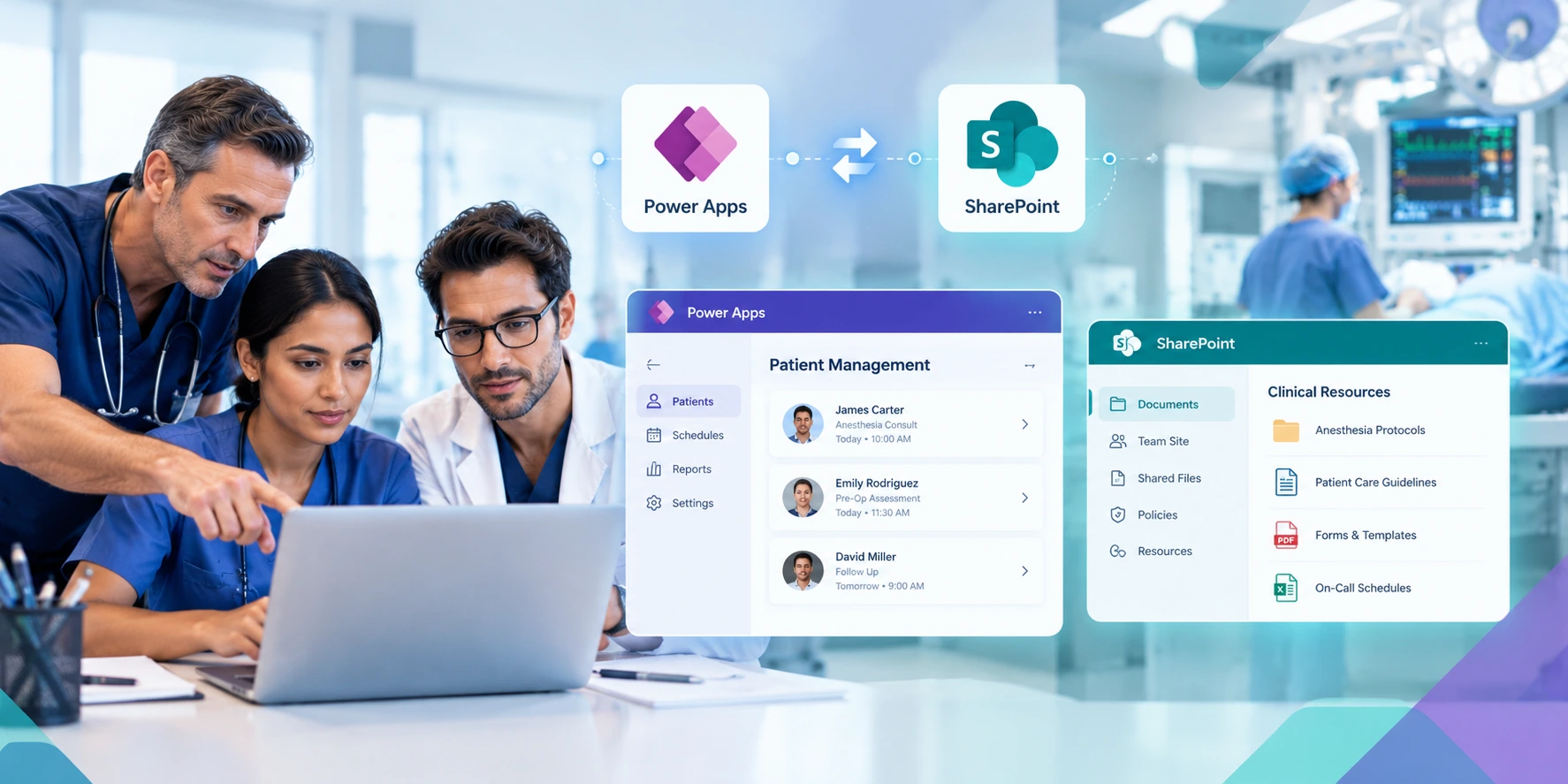
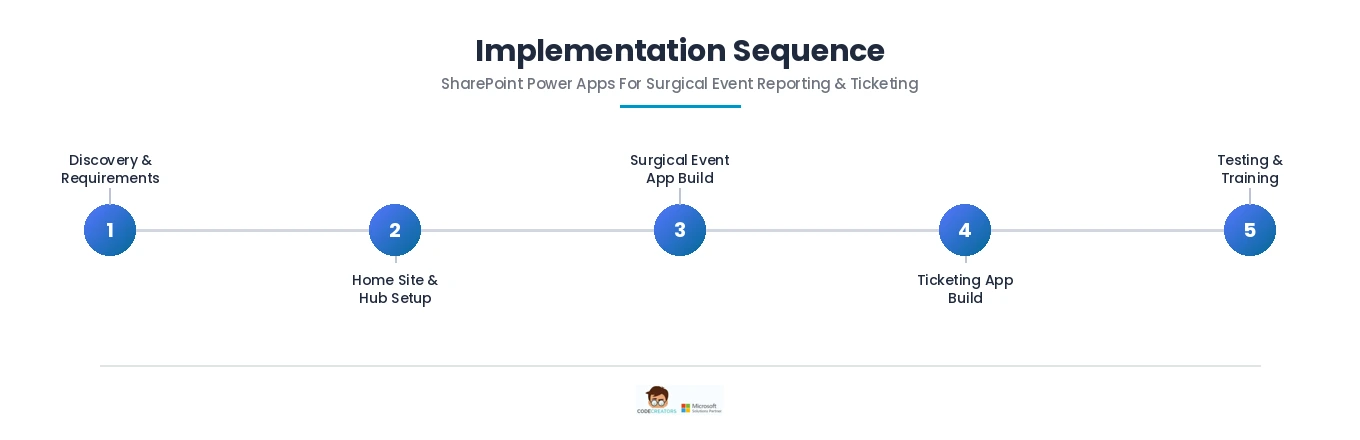
A multi-physician anesthesia group needed a mobile-friendly way to log surgical events at the point of care and a structured way for staff to raise HR, benefits, and payroll requests. Code Creators delivered a Power Apps SharePoint integration that connects two purpose-built apps, a Surgical Event App and a New Ticketing App, to one SharePoint home site registered as the hub. This case study documents the design and scope of that build. The SOW contains no before-and-after measurements, so it reports no outcome figures.
About the Client
The client is a multi-physician group providing anesthesia services, with staff working across surgical settings where timely, accurate documentation of events during a procedure matters both for patient care records and for organizational review. Alongside its clinical operations, the group manages routine internal requests across HR, benefits, and payroll.
Anesthesia staff needed to log what happens during a surgical event quickly, from a phone or tablet, without a laptop or a paper form after the fact. The administrative teams needed a straightforward way for staff to submit and track HR, benefits, and payroll issues without those requests getting lost in individual inboxes.
Code Creators was engaged to design and build both systems as a Power Apps SharePoint integration on a new SharePoint home site, giving the group a single hub for clinical event reporting and internal ticketing. Each app uses Power Apps responsive design so it works the same way on a phone, tablet, or desktop.
The Problem
Surgical events need to be documented accurately and promptly, and some need to reach the right people right away. Without a fast, mobile-accessible way to log them, staff had to choose between pausing clinical work to use a desktop system and delaying the entry until details were harder to recall. The group needed a Power Apps SharePoint integration that put a short, six-field form on the device staff already carry, and that separated urgent notifications from routine confirmations.
On the administrative side, HR, benefits, and payroll requests had no single, structured intake point. A staff member with a payroll question had no consistent way to know who would receive it, what information was needed, or how to check its status. Requests routed only by email had no visibility into whether they were open, in progress, or resolved, and nobody automatically told the requester when the issue closed.
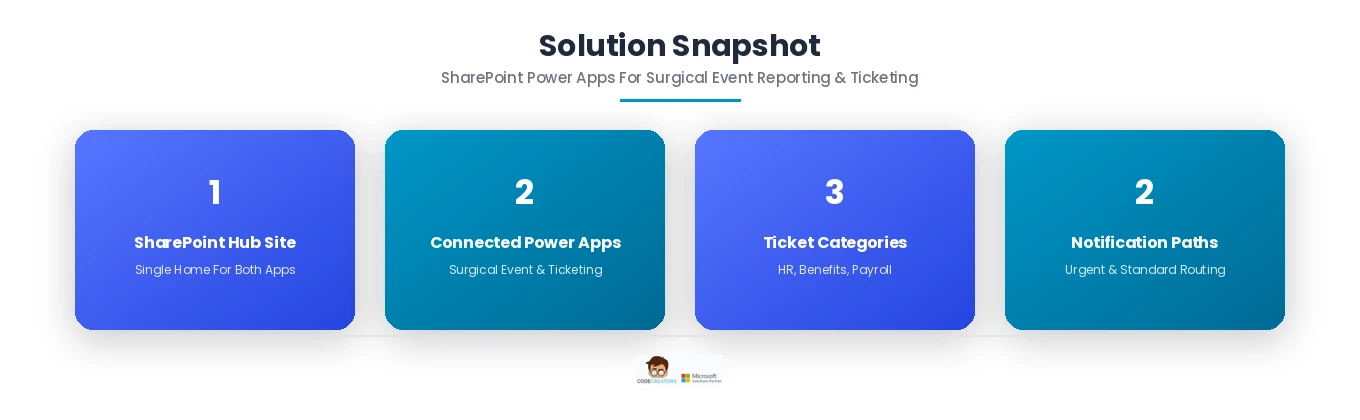
The group needed both processes solved with equal priority: fast mobile entry for surgical events, and trackable routing across 3 ticket categories, without introducing separate systems on top of its existing SharePoint environment.
What We Discovered
During discovery, Code Creators found that the Surgical Event process had requirements distinct from a typical form. Because entries happen in the moments around a procedure, the 6-field form had to be built for speed on a phone or tablet: a surgery date defaulting to the current date but editable to a past date, a dropdown of predefined surgery locations, short patient initials, a multi-select list of predefined notable event types, a Priority Event dropdown, and an open comments field.
The routing logic needed two separate triggers. First, marking an event as Urgent, or selecting a Notable Event categorized as urgent, needed to fire an email notification to specified recipients, separate from the confirmation sent to the submitter. Second, standard notifications needed to follow the Surgery Location selected on the form, since different locations have different teams who need visibility. The client also needed the SharePoint list structured for monthly, yearly, and year-over-year review, plus a weekly scheduled Power Automate flow that compiles the week’s entries into an Excel file and emails it to recipients the client defines.
The New Ticketing App carried a simpler structure: a Ticketing Type dropdown covering HR, Benefits, and Payroll, a subtype for more specific routing, a subject and issue description, requester contact details, and an attachment field. The workflow needed a clear owner at every stage, a Task Assignee notified on submission who updates status through 3 states (open, in progress, closed) directly from the list, and automatic notification to the requester when a ticket closes.
The Solution
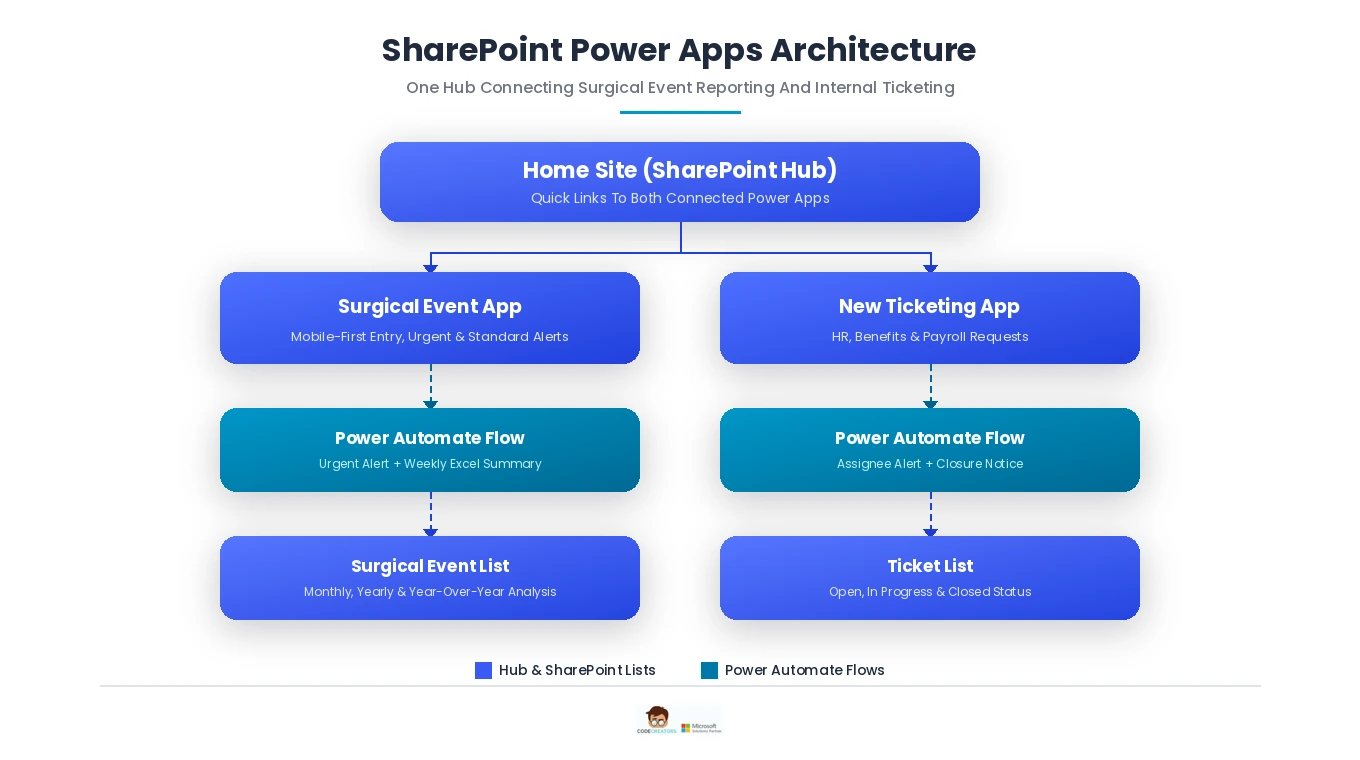
Code Creators designed a SharePoint home site configured as a hub site, with a dynamic menu bar, a responsive banner, a quick links section that gives staff one-click access to both apps, and a Ticket List section showing ticket records with their metadata columns. The Surgical Event list and the Ticket List are two separate SharePoint lists. The home site does not merge them into a combined reporting list, so clinical event data is not surfaced in the general home site view.
Surgical Event App
Built mobile-first with Power Apps responsive design, this app captures surgery date, location, patient initials, notable events, and priority level, then writes the submission to a SharePoint list designed for monthly, yearly, and year-over-year analysis. A confirmation email goes to the submitter. When an event is marked Urgent, or an urgent Notable Event type is selected, a separate email notification goes to specified recipients, and standard notifications route to the email groups tied to the selected Surgery Location. A Power Automate scheduled flow runs weekly, compiles the week’s entries into an Excel file, and emails it to recipients the client defines.
New Ticketing App
Staff submit HR, Benefits, or Payroll issues through a structured form capturing ticket type, subtype, subject, requester details, and attachments. Functioning as a lightweight Power Apps help desk, it works as a simple Power Apps case management system: each submission emails the assigned Task Assignee and creates an entry in the SharePoint-backed Ticket List. The Task Assignee updates status from the list, and an automated email goes to the requester when the ticket is marked closed.
Overall, this Power Apps SharePoint integration captures each request quickly, routes it to whoever needs to act, and keeps a permanent, searchable record in SharePoint.
Data Governance and Access
Surgical event records can be sensitive health information. Patient initials combined with a surgery date, location, event type, and staff context may still identify a patient, so this design does not treat initials as automatically non-identifying. The recommended configuration below must be confirmed with the client, since the SOW does not specify these settings.
- Surgical Event list access: Restrict the list with SharePoint permissions to a named group of authorized reviewers. Submitters need permission to add items only, and the general home site audience should not see the list.
- Weekly Excel file: Store it in a restricted document library, not in a broadly shared location, and limit the email distribution to the recipients the client defines. Recipients should be reviewed periodically.
- Attachments and comments: Ticket attachments inherit the Ticket List permissions. Staff should be told not to enter patient names or other identifiers in the free-text comments field.
- Retention, audit, and privacy: Retention periods, audit logging, and the applicable health-privacy requirements are set by the client’s compliance owner. The SharePoint and Microsoft 365 audit tools are available to support whichever policy the client adopts.
- Alert scope and fallback: The urgent alert is an operational email notification to predefined recipient groups. Email does not guarantee delivery, acknowledgement, or clinical response, so this flow is not an emergency escalation system. Any event involving patient safety should still follow the group’s existing clinical escalation process, such as a direct call to the responsible physician or supervisor, in addition to the logged entry.
Challenges Overcome
Building for speed without sacrificing structure
A form used in the moments around a procedure cannot ask for more than what is essential. Code Creators kept the form short, mostly dropdowns and short text fields, while capturing what later monthly and year-over-year analysis needs through the underlying SharePoint list’s metadata columns.
Separating urgent alerts from standard confirmations
A single submission could trigger two kinds of notifications: a routine confirmation to the submitter and, when applicable, an urgent alert to a separate group. Code Creators built these as 2 independent notification paths inside the same Power Automate flow, so the urgent path does not wait behind standard processing. The current design uses email for both paths. Power Apps push notifications to a mobile device are a separate capability that could be added in a later phase for recipients who want an on-device alert alongside the email.
Routing tickets without a dedicated help desk platform
The client needed HR, Benefits, and Payroll requests tracked with clear ownership and status visibility without deploying a separate help desk system. Code Creators used a SharePoint list as the system of record, with status updates and closure notifications handled through Power Automate.
Keeping the weekly report dependable
A scheduled flow can fail silently if no one is watching it. The recommended practice is to name a flow owner, turn on failure notifications for the weekly run, and have the owner check the flow’s run history when an expected weekly email does not arrive.
Results & Business Impact
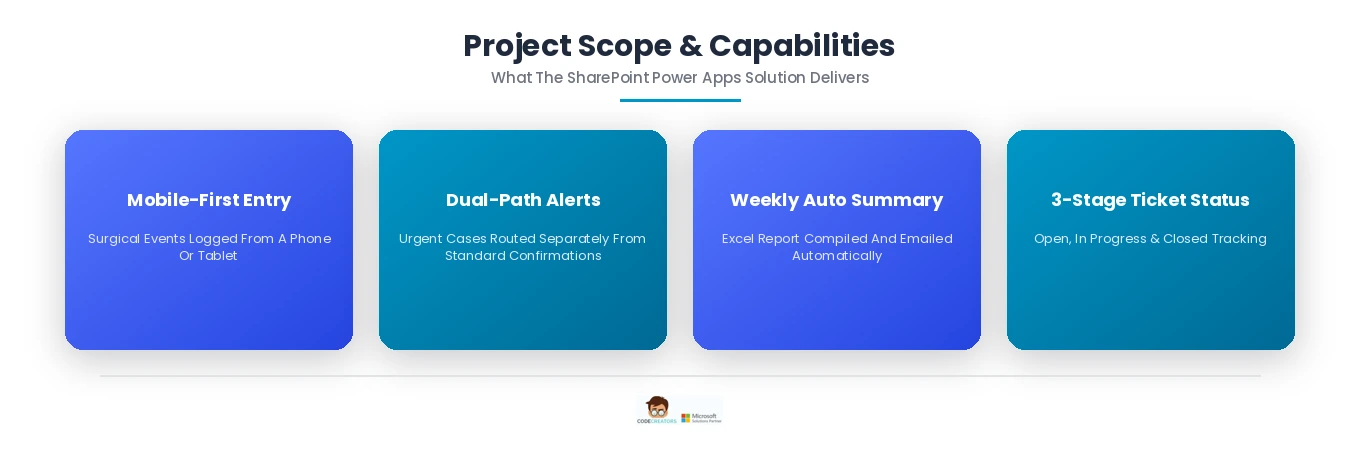
With the SharePoint home site configured as the hub, the Surgical Event App, and the New Ticketing App all in place, the group has one environment covering clinical event reporting and internal request tracking. Surgical events can be logged from a phone or tablet, urgent cases trigger a notification separate from routine confirmations, and a weekly summary is generated and sent by a Power Automate scheduled flow. HR, Benefits, and Payroll requests follow a structured path from submission to closure, with the requester notified automatically when the issue is resolved.
This case study does not report percentage improvements or time savings, because the engagement’s SOW contains no before-and-after measurements. Both apps write to structured SharePoint lists, so the group now has a searchable record of surgical events and internal tickets, which gives it the data foundation to measure logging time, report effort, and ticket turnaround going forward. This Power Apps SharePoint integration delivers the capabilities below.
Client Testimonial
“The Surgical Event App has made it so much easier for our anesthesia staff to log what happens during a procedure without stepping away from patient care. Knowing that urgent cases go out immediately, separate from the regular confirmations, gives our team real peace of mind. On the administrative side, having HR and payroll requests tracked in one place with automatic closure notifications has cut down on a lot of back-and-forth.”
Practice Administrator, Multi-Physician Anesthesia Group
Frequently Asked Questions
Clinical staff often need to record information in the moments around a procedure, not later at a desktop. A form built with Power Apps responsive design stays short and fast on a phone or tablet, so staff can log an event while the details are fresh. Entering it promptly also tends to make the record more accurate than reconstructing it from memory at the end of a shift.
The Power Automate flow checks whether the Priority Event is Urgent or a selected Notable Event is categorized as urgent, then emails a separate recipient group, independent of the submitter’s confirmation. It is an operational notification only. Email does not guarantee delivery or acknowledgement, so patient-safety events must still follow the client’s clinical escalation process.
Yes. A Power Automate scheduled flow runs weekly, collects that week’s entries from the SharePoint list, builds an Excel file, and emails it to recipients the client defines. The file should be stored in a restricted library, and the flow owner should enable failure notifications so a missed run is noticed quickly instead of going unseen.
Not automatically. Initials combined with surgery date, location, and event type may still identify a patient, so the list should be treated as sensitive health information. Restrict it to authorized reviewers, keep the weekly Excel file in a restricted library, and apply the retention and audit policy set by the client’s compliance owner.
A SharePoint list can act as a lightweight system of record for requests, statuses, and assignees inside the SharePoint environment staff already use. This Power Apps help desk approach is a practical Power Apps case management pattern for 3 ticket categories. A dedicated platform adds features such as service-level timers and advanced reporting that this build does not include.
Not in this build. Both apps send automated email notifications through Power Automate, covering confirmations, urgent alerts, assignee notifications, and closure notices. Power Apps push notifications, which appear directly on a device, are a separate capability that could be added in a later phase for recipients who want an on-device alert alongside the existing email.
Both apps open from quick links on the same SharePoint home site staff already use, and users sign in with their existing Microsoft 365 account, so there is no separate login. Access to each list is controlled through SharePoint permissions, which lets the client limit the Surgical Event list to authorized reviewers while the Ticket List serves the wider staff.
Code Creators provides post-development training for both apps, along with user and admin manuals and a SharePoint support guide. Scheduled online sessions walk staff through each app and answer questions directly, so submitters, Task Assignees, and administrators each learn the part of the workflow they use every day.