
Using a Mac in a Microsoft 365 workplace can become frustrating when Outlook setup fails, OneDrive folders do not sync as expected, or a document behaves differently from the version a Windows colleague is using. For users and IT teams, the real concern is not whether Microsoft 365 exists on macOS, but whether it works reliably enough for daily work without creating extra compatibility or management problems. The answer is yes. Apple devices support Microsoft 365, and Microsoft provides dedicated macOS versions of its major productivity apps. Microsoft also provides native Apple silicon support for core Office applications, so users do not need a Windows environment just to handle everyday Microsoft 365 work.
Through our work with Microsoft 365 environments at Code Creators, we regularly deal with the practical side of connecting users, applications, documents, and access policies across different devices. That experience shows that Mac-related issues usually come down to account setup, application compatibility, file synchronization, licensing, or device management rather than the Mac itself.
In this article, you will learn how Apple Microsoft 365 integration & support works, which Microsoft 365 services you can use on a Mac, how to set them up, how organizations can manage Apple devices, and which compatibility differences you should consider.
Does Apple Support Microsoft 365?
Yes. You can use Microsoft 365 on supported Mac computers and access its cloud services through macOS applications and web browsers.
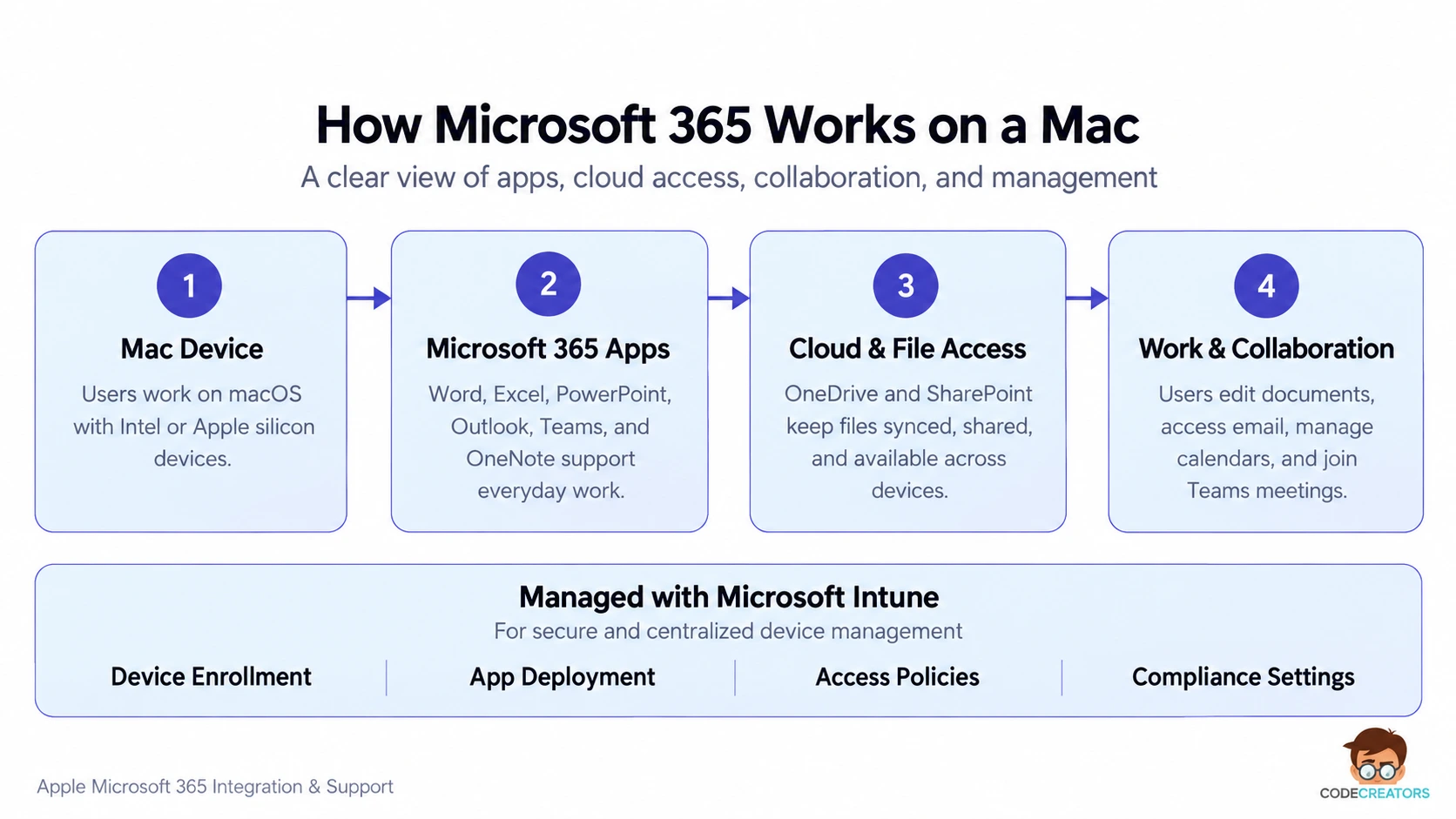
Microsoft provides Mac versions of applications such as Word, Excel, PowerPoint, Outlook, OneNote, Teams, and OneDrive. Organizations can also deploy Microsoft 365 apps to managed Macs through Microsoft Intune.
Current Office releases also support both Intel-based Macs and Apple silicon. Word, Excel, PowerPoint, Outlook, and OneNote use a Universal macOS binary that allows macOS to load the appropriate components for the Mac architecture.
However, operating system support still matters. Microsoft generally supports Office for Mac on the three most recent major versions of macOS. Therefore, keeping macOS updated is important if you want ongoing feature and security updates.
Which Microsoft 365 Apps Work on Mac?
Microsoft 365 for Mac covers most applications people need for everyday office work.
You can create and edit documents in Word, work with spreadsheets in Excel, build presentations in PowerPoint, manage email and calendars through Outlook, store notes in OneNote, collaborate through Teams, and synchronize files with OneDrive.
This means a mixed-device team does not need completely separate workflows for Mac and Windows users. In mixed-device Microsoft 365 environments, we commonly see Windows and Mac users working on the same Word files through OneDrive or SharePoint without changing the overall collaboration process.
Microsoft 365’s cloud-based structure makes this cross-platform workflow possible. Instead of tying documents and collaboration to one computer, services such as OneDrive and SharePoint keep the content accessible through the user’s Microsoft 365 account.
How to Set Up Microsoft 365 on a Mac
Setting up Microsoft 365 on macOS is straightforward, but you should first check that your Mac meets Microsoft’s current requirements.
Microsoft 365 supports recent versions of macOS, and Microsoft updates its supported operating systems as Apple releases new major macOS versions. Microsoft also lists 4 GB of RAM as the minimum memory requirement for Microsoft 365 home use on Mac.
Once compatibility is confirmed, sign in with the Microsoft account linked to your Microsoft 365 subscription and install the required applications. For a workplace account, your organization may provide the applications or deploy them directly to your Mac.
After installation, sign in to the applications with your Microsoft 365 account. The same account connects your apps to services such as OneDrive, SharePoint, Outlook, and Teams.
Organizations that manage Macs centrally may handle much of this process for employees through Microsoft Intune instead.
How OneDrive Integrates with macOS
OneDrive plays an important role in Microsoft 365 integration with Apple devices because it connects cloud-based Microsoft files with the macOS Finder experience.
With OneDrive Files On-Demand, you can view your OneDrive files in Finder without storing every file locally. Online-only files remain visible but use minimal local storage until you open them. You can also mark important files to remain available on the Mac for offline access.
This creates a more natural workflow for Mac users. Instead of opening a browser whenever you need a Microsoft 365 file, you can work with synchronized folders through Finder.
On newer versions of macOS, OneDrive uses Apple’s File Provider platform. As a result, the OneDrive folder and some synchronization behavior may differ from older macOS versions. Microsoft notes, for example, that OneDrive content can appear under the Cloud Storage location in Finder.
Therefore, if an older shortcut or recently opened file stops working after a macOS or OneDrive change, check the current OneDrive location before assuming that the file has disappeared.
Can Mac Users Work with Windows Microsoft 365 Users?
Yes. Microsoft 365 allows Mac and Windows users to collaborate on the same cloud-based files.
A Mac user can edit a document in Word and share it with a Windows user. Teams can work together on Excel files stored in SharePoint or OneDrive, while Outlook and Teams keep communication connected across devices.
However, Microsoft 365 compatibility with Mac does not mean that every feature behaves identically on macOS and Windows.
Some advanced features, add-ins, macros, organization-specific integrations, or workflows may depend on the operating system. A company that relies heavily on specialized Excel automation or Windows-specific software should test those workflows before moving users to Macs.
For standard document editing, email, presentations, meetings, cloud storage, and collaboration, Mac users can handle most everyday Microsoft 365 tasks without switching operating systems.
How Microsoft 365 Support for Mac Works in Businesses
For businesses, supporting Microsoft 365 on a Mac involves more than installing Word and Outlook. IT teams also need to manage access, applications, security policies, and device compliance.
Microsoft Intune provides macOS management capabilities for this purpose. Organizations can enroll both personal and company-owned Macs, configure device settings, apply compliance requirements, deploy applications, and manage access to organizational resources.
Intune can also deploy Microsoft 365 applications such as Word, Excel, PowerPoint, Outlook, OneNote, Teams, and OneDrive to managed Macs.
For company-owned devices, organizations can combine Microsoft Intune with Apple’s device management infrastructure. Microsoft documents support for syncing and managing Macs through Apple Business-related enrollment processes, including Automated Device Enrollment.
As a result, businesses with both Windows and Apple hardware can manage Microsoft 365 access without treating every Mac as an unmanaged standalone device.
What Should You Check Before Using Microsoft 365 on Mac?
The most important check is your macOS version. Running an unsupported version may eventually prevent you from receiving current Microsoft 365 updates, including security updates.
Next, review any workflows that depend on advanced Office functionality. Standard Word, PowerPoint, Outlook, Teams, and OneDrive usage usually transfers naturally to macOS, but specialized add-ins or internal applications deserve separate testing.
You should also check how your organization handles file storage. If your team uses OneDrive or SharePoint, signing in with the correct work account will help keep files synchronized and available across devices.
Finally, organizations should decide whether Macs need central management. If employees access company data from managed Apple devices, Intune can apply device settings, compliance requirements, security configurations, and application deployments rather than leaving each employee to configure the Mac independently.
Common Microsoft 365 Issues on Mac
Most everyday problems with Microsoft 365 on Mac come from account configuration, outdated software, OneDrive synchronization, or organization-specific policies rather than basic incompatibility.
One issue we often see on Macs is that users mistake online-only OneDrive files for missing files when the device is offline. Users who need certain documents offline can mark them to remain on the device.
Another issue can occur after changes to OneDrive’s macOS file location. Microsoft notes that previously pinned or recent files may stop opening when an old path no longer points to the current OneDrive location. Opening the document from its current OneDrive folder can resolve this type of problem.
Keeping macOS and Microsoft 365 applications updated also reduces compatibility and security problems.
How Code Creators Supports Microsoft 365 on Apple Devices
A reliable Microsoft 365 experience on Mac depends on more than installing the right apps. Account setup, OneDrive synchronization, access permissions, device policies, and compatibility with existing business workflows all need to work together.
At Code Creators, our Microsoft 365 work includes helping organizations configure and manage environments where users rely on different devices, including Macs. This involves aligning Microsoft 365 applications, cloud storage, user access, and device management so employees can work without unnecessary platform-related friction.
If your organization is using Macs alongside Microsoft 365 and needs help with configuration, integration, or ongoing support, connect with us to build a Microsoft 365 environment that works consistently across Apple and Windows devices.
Conclusion
Apple supports Microsoft 365 well enough for Mac users to work directly within a Microsoft-focused workplace without maintaining a separate Windows computer for normal productivity tasks. Word, Excel, PowerPoint, Outlook, OneNote, Teams, and OneDrive all form part of the Mac Microsoft 365 experience, while current Office releases support both Intel and Apple silicon architectures.
For individual users, successful integration mainly depends on using a supported macOS version, signing in with the correct Microsoft account, and configuring OneDrive correctly. For businesses, the requirements go further. IT teams should verify application dependencies, establish device enrollment, define security and compliance policies, and manage Microsoft 365 applications through tools such as Intune where appropriate.
The real question, then, is not whether Microsoft 365 works on a Mac, but whether your Microsoft 365 environment is configured to give Mac users reliable access to the applications, files, and resources they need. A well-planned setup can reduce compatibility issues, improve collaboration, and create a more consistent experience across Apple and Windows devices. Our Microsoft 365 integration services can help you achieve that. Contact us today to discuss your integration requirements.