Good SharePoint permissions rest on three things: using the built-in permission levels instead of custom ones, assigning access through groups rather than individual users, and keeping inheritance intact unless you have a specific reason to break it. In our SharePoint governance work at Code Creators, almost every messy permission structure we’re asked to clean up traces back to one of those three rules being skipped early on, usually to solve a problem quickly rather than correctly. This guide walks through the core permission structures, the roles that manage them, and the practices that keep access clean as your tenant grows.
Why Enterprise Teams Require Structured Access Control
Relying on custom, item-level permissions across lists and libraries creates real administrative complexity. Over time, manual access grants lead to orphaned permissions, accidental data leaks, and security boundaries nobody can fully explain anymore.
Structured permissions pay off in ways that compound over time. Oversharing becomes rare, since users only see the files, folders, and sites their job actually requires. Onboarding and offboarding get faster, because revoking someone’s access through a central group removes it everywhere at once instead of requiring a site-by-site hunt. Compliance gets easier to demonstrate, since role-based access and clean audit trails hold up under review. And troubleshooting gets simpler, because a predictable structure is easier to reason about than a tangle of broken inheritance and one-off exceptions.
Phase 1: Understanding SharePoint Permission Levels
Before building any access model, it helps to know what SharePoint actually offers out of the box, since most permission problems come from working around these defaults instead of using them.
SharePoint Online ships with six default permission levels, plus one that gets assigned automatically. Each level is a named bundle of individual rights, so instead of granting dozens of granular permissions one at a time, you attach a level to a group and everyone in that group inherits it.
- Full Control. Complete administrative access: managing permissions, site settings, and content. Reserved for site owners and administrators.
- Design. Everything Edit allows, plus the ability to customize page layouts, apply themes, and work with content types. Rarely needed on modern sites, it’s largely a holdover from classic SharePoint.
- Edit. Add, edit, and delete list items and documents, and create or delete lists and libraries themselves. This is the default level for the Members group, and it’s more powerful than the name suggests, since it includes structural changes to the library, not just content edits.
- Contribute. Add and edit items, but without the ability to create or delete lists and libraries. Worth knowing: Contribute grants edit and delete rights across every item in a list by default, not just items a specific user created, restricting someone to their own items needs additional list-level configuration.
- Read. View pages and list items, and download documents.
- View Only. View content without the ability to download it. Useful for sensitive libraries where you want visibility without letting people pull copies locally.
- Limited Access. Assigned automatically, not something you grant directly. SharePoint applies it to a parent site or library when someone has direct access to a specific item inside it, so navigation still works even though they don’t have broader access.
In a modern team site, the three default SharePoint groups map cleanly onto these levels: Owners get Full Control, Members get Edit, and Visitors get Read. That default mapping covers most sites without any extra configuration, the moment you find yourself building custom permission levels, it’s worth asking whether the real fix is better group structure instead.
Phase 2: SharePoint Site Owner vs. Site Admin
This distinction causes more confusion than almost anything else in SharePoint permissions, and getting it wrong tends to either lock people out of work they need to do or hand out more authority than intended.
A site owner manages one specific site. They control that site’s membership, permissions, and content, and they hold Full Control over it. Whoever creates a modern team site automatically becomes its owner (or, for a Microsoft 365 group-connected site, the group owner takes this role).
A site collection administrator (Microsoft now calls this a “site admin” in the modern admin center) has Full Control across an entire site collection, meaning every site and subsite under it, not just one. This role also unlocks features a site owner can’t reach, like site collection audit reports and content type publishing, and it exists partly as a safety net: if a site owner accidentally strips all permissions from a site, a site collection admin can still get back in and fix it.
A SharePoint administrator or Global administrator sits above both. Their authority is tenant-wide, covering every site collection, external sharing policies, storage quotas, and the SharePoint Admin Center itself. Microsoft’s own guidance is to use the least-privileged role that gets the job done, reach for Global Administrator only in genuine emergencies, not as a default working role.
We consistently see one specific mistake during access reviews: someone gets added as a site collection admin to solve a one-time problem, and nobody ever removes that access afterward. It’s worth treating elevated roles as something you grant for a reason and revisit periodically, not a permanent convenience.
Phase 3: Structuring Groups and Managing Inheritance
Assign Permissions Through Groups, Never Individuals
Add users to SharePoint groups or Entra ID security groups, and assign permission levels to those groups rather than granting access to individual accounts directly. When someone changes roles or leaves the company, updating their group membership once updates their access everywhere that group is used, checking dozens of sites individually doesn’t scale, and it’s exactly the kind of task that gets skipped under time pressure.
Understand SharePoint Groups vs. Microsoft 365 Groups
These serve different purposes and it’s worth keeping them straight. SharePoint groups (Owners, Members, Visitors) exist at the site level and map directly to permission levels. Microsoft 365 Groups have only two roles, Owners and Members, without granular permission levels, but that membership carries across Teams, SharePoint, Outlook, and Planner simultaneously, and can even be managed dynamically through Entra ID rules based on department or role. Which one fits depends on whether you need SharePoint-specific granularity or cross-app consistency.
Keep Permission Inheritance Intact by Default
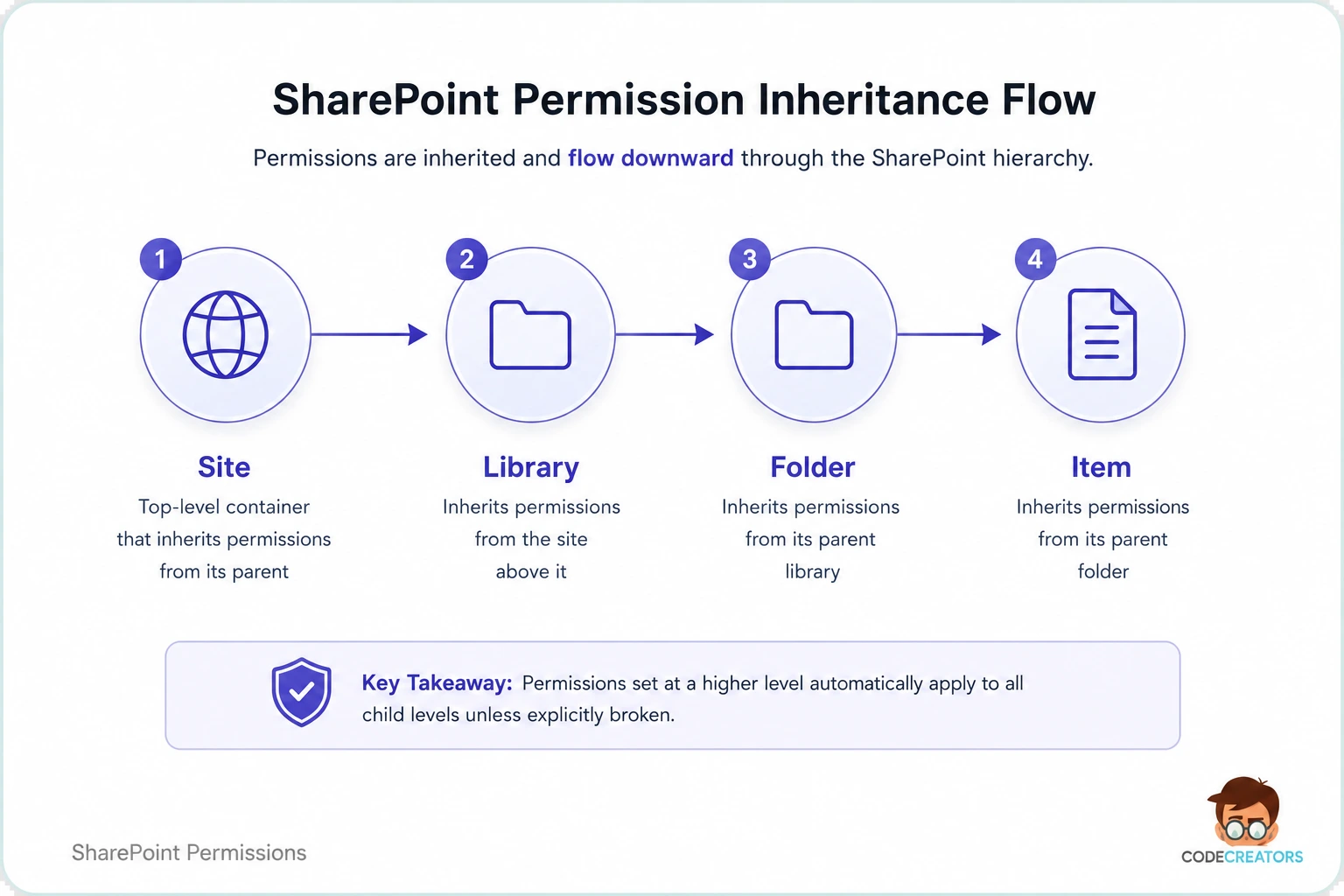
Breaking that inheritance to set unique permissions on a specific folder or file should be the exception, not the routine. Every broken inheritance point is one more place a future admin has to check individually during an audit, and it’s exactly where “why does this one file have different access than everything around it” questions come from months later. If you find yourself breaking inheritance often on a given site, that’s usually a sign the site’s structure doesn’t match how the content actually needs to be secured, and it’s worth reorganizing rather than patching around it.
If your organization is untangling years of broken inheritance and one-off permission grants, that’s exactly the kind of cleanup our SharePoint Management and Support Services team handles as a structured project rather than a slow manual audit.
Phase 4: Managing External Sharing and Sharing Links
Know Your Sharing Link Types
SharePoint offers several sharing link types, and picking the wrong default is one of the most common sources of accidental oversharing:
- Anyone (anonymous) links. No sign-in required. The broadest and riskiest option, reserve it for genuinely public content only.
- People in your organization. Anyone signed into your tenant can access the link, without needing to be added individually. Convenient, but still broader than most content actually needs.
- Specific people. Only the named individuals can access it, even if the link is forwarded. This is the tightest, safest default for most business content.
- Existing access only. Doesn’t grant new access at all, it just generates a link for people who already have it.
Most organizations get the most value out of setting “Specific people” as the tenant-wide default and requiring an explicit decision to broaden it, rather than defaulting to something wider and hoping people narrow it down themselves.
Regularly Audit External and Broad-Access Sharing
Run periodic reviews to flag sites and libraries shared with “Everyone except external users” or similar broad settings. These often start as a reasonable shortcut for a one-time collaboration need and quietly become permanent oversharing once nobody circles back to tighten them.
Document Library Permissions: Site-Level vs. Item-Level
Most libraries should inherit their permissions from the site rather than carrying their own unique settings. Break inheritance at the library or folder level only when a genuine business need exists, such as an HR document library that needs tighter access than the rest of an otherwise open intranet site.
When you do need unique permissions on a specific library, apply them at the library level rather than the individual file level wherever possible. Item-level permissions are the hardest layer to audit later, since there’s no single place to see every file with unique access across a large library, they should be a last resort, not a first instinct.
Strengthen Your Access Governance with Code Creators
Designing a permission structure that scales with your organization, without becoming an audit nightmare a year later, takes real SharePoint expertise. Getting it wrong doesn’t usually show up immediately, it shows up months later, as oversharing, orphaned access, or a compliance review nobody feels confident about.
At Code Creators, our certified Microsoft specialists help organizations design SharePoint permission structures that hold up as they grow. From auditing existing sites and consolidating group structures to building a governance model your team can actually maintain, we help you get ahead of the mess instead of cleaning it up later.
Schedule a Consultation for SharePoint Management and Support Services at Code Creators to build a permission structure that’s clean from the start.