
You publish a Power BI report, share the link with your team, and expect everyone to start using it. Instead, some users run into a licensing error, while others can open the report but don’t see the latest data. These are two of the most common challenges businesses run into when sharing Power BI reports, and they’re often caused by configuration or licensing settings that were overlooked during setup.
From our experience delivering Power BI solutions at Code Creators, we’ve found that most sharing problems have little to do with the report itself. They’re usually caused by workspace configuration, licensing, or data connections. Getting these areas right from the beginning makes reports easier to share, maintain, and refresh.
In this article, you’ll learn how to share Power BI report with free users, what to check before sharing, and how to connect to Power BI gateway data source so your reports stay accessible and continue displaying up-to-date information.
Can You Share a Power BI Report with Free Users?
Yes, but it depends on your workspace configuration and licensing setup.
If the report and its underlying semantic model are hosted in a workspace backed by Power BI Premium capacity or Microsoft Fabric F64-or-higher capacity, free users can view and interact with the report without needing a Power BI Pro license.
If the report is published in a workspace that uses shared capacity, each viewer needs either a Power BI Pro or Premium Per User (PPU) license.
The person publishing and sharing the report still needs a Power BI Pro or PPU license. Eligible capacity removes the paid-license requirement for viewers, but not for report authors who publish and distribute content.
| Workspace capacity | Can users with a free license view the report? | Viewer license required |
| Shared capacity | No | Power BI Pro or PPU |
| Power BI Premium capacity | Yes | Power BI Free |
| Microsoft Fabric F64 or higher | Yes | Power BI Free |
| Microsoft Fabric below F64 | No | Power BI Pro or PPU |
The report and its underlying semantic model must both be hosted in eligible capacity. Even when viewers use free licenses, the person publishing and sharing the content still needs a Power BI Pro or PPU license.
How to Share Power BI Report with Free Users
Once you’ve confirmed that your workspace supports Power BI Free users, you can start sharing the report. Before you do, make sure a few key settings are in place. A small configuration issue can prevent users from accessing the report, even if you’ve shared it correctly.
Publish the Report to an Eligible Workspace
Publish the report from Power BI Desktop to a workspace backed by Power BI Premium capacity or Microsoft Fabric F64-or-higher capacity.
Before sharing it, open the workspace settings and confirm that the correct capacity is still assigned. This is especially important when another administrator manages the Power BI environment, as capacity assignments may change over time.
If the workspace uses shared capacity, users with a free license will not be able to access the report, even if the report link and permissions have been configured correctly.
Share the Report
Open the report in the Power BI service and select Share.
Add the email addresses of the people who need access. If your organization uses Microsoft Entra ID security groups, it’s better to share the report with the appropriate group instead of granting access to each user individually. This makes permission management much easier as your team grows.
If you’re sharing reports with a larger audience, consider publishing them through a Power BI app rather than sending individual report links. Apps give users a single place to access approved reports and dashboards. Free users can access the app when its workspace is assigned to eligible Premium or Fabric capacity.
Review Access Permissions
Before sharing the report link, review the permissions you’ve assigned. Not every user needs the same level of access. Some users only need permission to view reports, while others may need Build permission to create their own reports from the underlying semantic model.
Giving users only the permissions they need keeps your Power BI environment secure and easier to manage. In our Power BI projects, we’ve seen teams begin by granting access to individual users, which may work for a small group but becomes difficult to maintain as adoption grows. Moving to Microsoft Entra ID security groups makes it easier to update access without changing permissions for every user separately.
Test the Report Before Sharing It Widely
Before rolling the report out to your entire team, test it with a Power BI Free account if you have one available.
A quick test confirms that users can open the report without licensing issues before you share it with everyone else. It’s much easier to fix a problem before sharing the report than to troubleshoot access requests after users start reporting issues.
Why Free Users Still Can’t Access a Shared Report
Start with the workspace capacity. If the report is hosted in shared capacity rather than Power BI Premium or Fabric F64-or-higher capacity, users with a free license will not be able to access it.
If the workspace is configured correctly, confirm that the user or Microsoft Entra ID security group has actually been granted access. Sending someone a report link does not automatically add the required permissions.
You should also check whether the workspace capacity has changed since the report was published. If eligible capacity has been removed or the workspace has been moved to shared capacity, users who previously had access may start seeing licensing prompts.
Finally, review semantic model permissions when users need to create their own reports. Read permission supports consumption of an existing report, while Build permission is required to create new content from the semantic model.
Why Data Connections Matter After Sharing a Report
Giving users access to a report is only part of the process. They also need the data inside it to remain accurate and up to date.
When a report uses an on-premises or private-network source, such as SQL Server, Oracle, SAP, or a local Excel file, the Power BI service may not be able to access the source directly. An on-premises data gateway provides the connection required for scheduled or on-demand refreshes.
How to Connect to Power BI Gateway Data Source
Follow these steps to connect your semantic model to an on-premises data gateway and keep scheduled refreshes running.
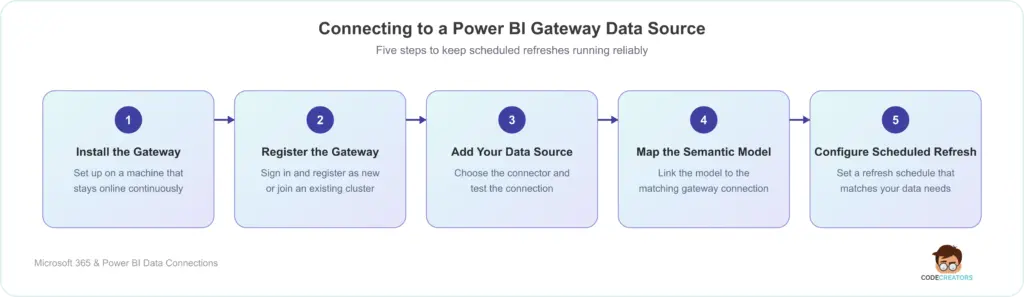
Install the On-premises Data Gateway
Download and install the on-premises data gateway on a machine that remains online and has continuous access to the required data source. If the machine is turned off or loses its network connection, scheduled refreshes will fail.
Register the Gateway
Once the installation is complete, sign in with the work or school account associated with your organization’s Power BI environment.
You’ll then have the option to register a new gateway or join an existing gateway cluster. If this is your first gateway, register it as a new one. If your organization already uses a gateway, your administrator may ask you to add the server to the existing cluster for improved reliability.
Add Your Data Source
Open the Power BI service and go to Manage connections and gateways.
Select your gateway and add a new data source. Choose the appropriate connector, such as SQL Server, Oracle, PostgreSQL, or MySQL, then enter the server details, authentication method, and credentials.
Test the connection before continuing. Fixing any connection issues now is much easier than troubleshooting failed refreshes later.
Map the Semantic Model to the Gateway
Open the settings for the semantic model you published earlier.
Under Gateway and cloud connections, select the gateway you’ve configured and map the semantic model to the matching data source.
After Power BI validates the connection, the semantic model is ready to refresh through the gateway.
Configure Scheduled Refresh
The last step is choosing a refresh schedule that matches how often your source data changes.
Some reports only need a daily refresh, while others support operational dashboards that require more frequent updates. Choose a schedule that reflects your business needs instead of refreshing the semantic model more often than necessary.
After saving the schedule, Power BI will automatically retrieve updated data through the gateway whenever a refresh runs.
Common Power BI Gateway and Refresh Problems
Even with the right setup, Power BI data refresh issues can still happen. Most of these problems are linked to gateway status, credentials, or connection mapping, and once you know where to look, they’re often straightforward to resolve.
If users can open the report but the data looks outdated, check the status of your on-premises data gateway. A gateway that’s offline or not running will prevent scheduled refreshes from completing successfully.
Refresh failures can also occur if the credentials for your data source have changed. For example, if the password for SQL Server or another connected data source is updated, you’ll need to enter the new credentials in Power BI before refreshes can resume.
Finally, make sure the semantic model is mapped to the correct gateway data source. Even with an active gateway, Power BI won’t refresh the data if the semantic model is linked to the wrong connection.
In most cases, reviewing these areas is enough to resolve the issue without republishing the report or rebuilding the semantic model.
Best Practices for Power BI Data Connections & Sharing
Sharing your reports is only part of the process. Following a few best practices will help you manage access, reduce refresh issues, and keep your Power BI environment easier to maintain as it grows.
Use Microsoft Entra ID security groups instead of assigning permissions to individual users whenever possible. This makes access easier to manage when employees join, leave, or move between teams.
If multiple departments use the same report, apply row-level security (RLS) so each user only sees the data they’re authorized to access. This allows you to maintain a single report without creating separate versions for different teams.
Review workspace permissions regularly to make sure only the right people have access. As projects change and team members take on new responsibilities, updating permissions helps keep sensitive business data secure.
If your reports rely on on-premises data, monitor your on-premises data gateway regularly. Checking gateway status, refresh history, and connection health can help you identify potential issues before they affect users.
How Code Creators Can Help
Every Power BI environment has different reporting requirements, which means the right setup depends on how your teams access and use data. At Code Creators, we help businesses configure Power BI workspaces, report sharing, security, gateway connections, and scheduled refreshes. Whether you’re deploying new reports or troubleshooting an existing environment, our team can help you build a setup that gives users reliable access to current data.
If you’re planning a new Power BI implementation or need help improving an existing one, feel free to get in touch with our team to discuss your requirements.
Conclusion
Sharing a Power BI report with free users depends on more than sending a report link. The workspace must be assigned to eligible capacity, the right users or security groups need access, and the report permissions must match how people are expected to use the content. Checking these requirements before rollout helps prevent licensing prompts and unnecessary access requests.
Once the report is available, keeping its data current becomes equally important. For reports connected to on-premises or private-network sources, a properly configured on-premises data gateway provides the connection needed for scheduled refreshes. The gateway must remain online, use valid credentials, and be mapped to the correct semantic model and data source.
By configuring licensing, workspace capacity, permissions, gateway connections, and refresh settings correctly from the start, you can reduce common sharing and refresh issues. This gives users more reliable access to reports and helps ensure they are making decisions based on current, trusted data.
For support with report sharing, workspace configuration, gateway setup, or refresh issues, explore our Power BI consulting services and speak with our team about your requirements.