A Zoho Mail migration can go wrong at the exact point when employees expect email to keep working normally. Some users may receive new messages in Microsoft 365 while others still get them in Zoho, older folders may not appear in the new mailbox, or a premature DNS change may interrupt incoming email altogether. These are the issues that turn a routine mailbox move into a business disruption. Through our work at Code Creators with Microsoft 365 environments, we have seen that these problems often come from the migration sequence rather than the email transfer itself. User accounts, domain verification, IMAP access, mailbox migration, and DNS changes need to happen in the right order. Otherwise, even a technically successful transfer can leave users dealing with missing mail or inconsistent delivery.
If you want to migrate Zoho Mail to Microsoft 365, you can use Microsoft 365’s IMAP migration process for email stored in Zoho mailboxes. However, IMAP migration transfers email rather than the complete Zoho workspace, so contacts, calendars, and other non-email data require separate handling.
In this article, you will learn how to prepare both environments, perform the Zoho Mail to Microsoft 365 migration, switch mail delivery, and verify that the new Microsoft 365 mailboxes work correctly.
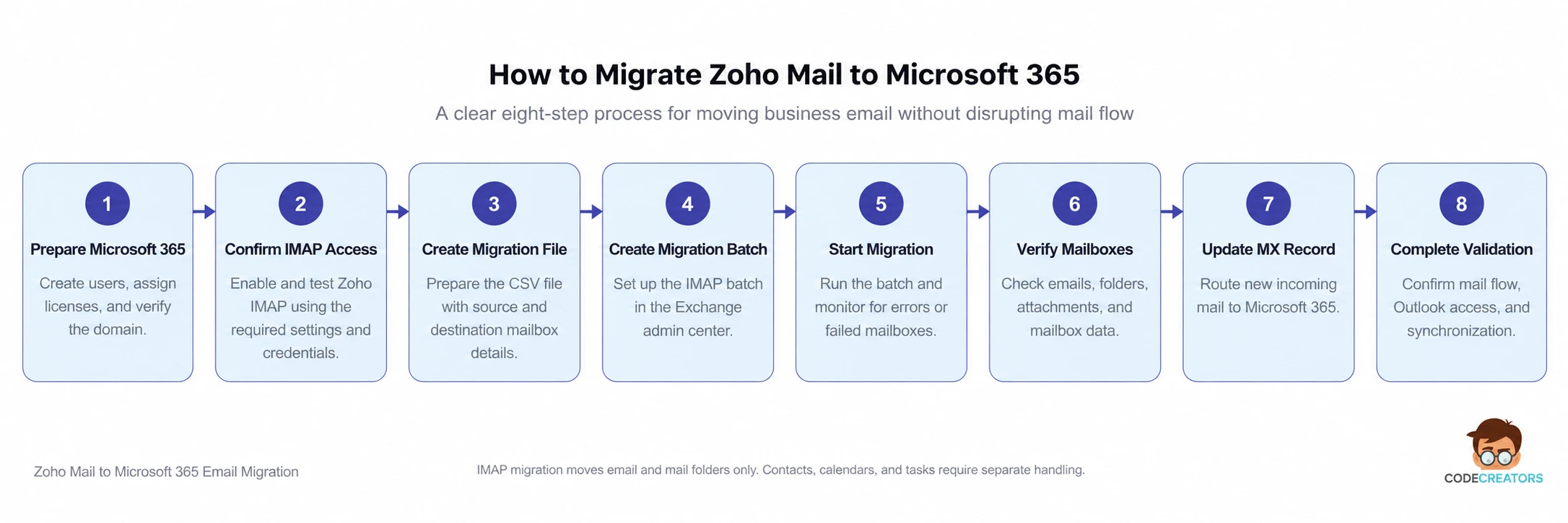
Step 1: Prepare Your Microsoft 365 Environment
Before moving any messages, create the destination environment in Microsoft 365.
Microsoft requires the target users and their Microsoft 365 mailboxes to exist before you start an IMAP migration. Therefore, create each user account and assign the appropriate Microsoft 365 license before configuring the migration.
You should also add and verify your organization’s email domain in Microsoft 365. In migrations we have worked with, domain verification has been one of the first checks before mailbox transfer because Microsoft 365 must recognize the same business domain that users already use in Zoho Mail.
Do not change the MX record yet. At this stage, Zoho should continue receiving incoming email while you prepare and migrate the existing mailbox content.
Before moving forward, confirm that:
- Every Zoho Mail user has a corresponding Microsoft 365 mailbox.
- Users have the correct Microsoft 365 licenses.
- Your business domain has been added and verified in Microsoft 365.
- You have the required Zoho mailbox credentials or another supported authentication method.
Completing these checks first prevents avoidable errors once the migration batch starts.
Step 2: Confirm IMAP Access in Zoho Mail
Microsoft 365 can migrate mail from another provider when the source email system supports IMAP. Therefore, you need working IMAP access for the Zoho accounts that you plan to migrate.
Zoho supports secure IMAP access over port 993 with SSL. However, the exact settings and account access can depend on your Zoho organization and security configuration.
Before starting the migration, test whether the required accounts can connect through IMAP. If your organization uses multi-factor authentication or other sign-in restrictions, review how those settings affect the credentials used for migration.
This check matters because Microsoft 365 needs to connect to the source mailbox before it can copy messages. If authentication fails, the migration batch cannot process the affected mailbox.
Step 3: Create the User Migration File
For an IMAP migration, Microsoft 365 needs a mapping between each Microsoft 365 mailbox and its corresponding source mailbox.
Prepare the required CSV migration file with the users you want to migrate. Microsoft describes the IMAP migration process as using mailbox information such as email addresses, usernames, and the required source credentials so that Microsoft 365 can connect to each mailbox.
Check the file carefully before uploading it. Even a small difference in an email address or username can cause a user’s migration to fail while other mailboxes continue successfully.
For larger organizations, it is often safer to migrate a small group first. A pilot migration lets you verify the connection, folder structure, mailbox access, and migration behavior before moving every employee.
Step 4: Create the Zoho Mail to Office 365 Migration
Once the destination mailboxes and source access are ready, open the Exchange admin center and begin creating an IMAP migration batch.
Select the option for migrating from an IMAP-based email service. Then provide the source connection details for Zoho Mail and upload the migration file containing your users.
Microsoft 365 will attempt to establish a connection with the source email environment. If the connection succeeds, you can continue with the migration configuration.
At this point, review the migration settings rather than rushing through them. Confirm that the correct users appear in the batch and that Microsoft 365 can authenticate with their source accounts.
If the system reports a connection error, check the Zoho IMAP settings, credentials, SSL configuration, and account access before starting the batch again.
Step 5: Start the Migration and Monitor Its Status
After Microsoft 365 accepts the migration configuration, start the batch.
Microsoft 365 will begin copying the users’ email from Zoho into their new mailboxes. An IMAP migration can copy messages from the inbox and other mail folders, but it does not migrate contacts, calendar items, or tasks.
This distinction is important. If users depend on Zoho Contacts or Zoho Calendar, plan a separate process for that information instead of assuming the IMAP batch will include it.
While the migration runs, monitor the migration status in the Exchange admin center. Look for failed mailboxes, skipped items, or authentication problems.
Do not switch your domain’s mail flow simply because the batch has started. First, confirm that the existing email has reached Microsoft 365 successfully.
Step 6: Verify the Migrated Mailboxes
Verification should happen before you change where new email is delivered.
Open several migrated Microsoft 365 mailboxes and compare them with the corresponding Zoho accounts. Check recent messages, older messages, folders, attachments, and other email that users need for normal work.
For a business migration, test more than one mailbox. A successful migration for one account does not guarantee that every account has the same result.
Pay particular attention to users with large mailboxes, unusual folder structures, or accounts that showed warnings during migration.
This validation gives you a clear point at which you can decide whether the environment is ready for the mail-flow change.
Step 7: Change the MX Record to Microsoft 365
Once you have confirmed that the existing email has migrated correctly, redirect new incoming messages to Microsoft 365.
You do this by changing your domain’s MX record at the DNS hosting provider. Microsoft specifically identifies the MX-record change as the step that begins routing new email directly to Microsoft 365 instead of the previous mail system.
Microsoft 365 provides the DNS values required for your domain. Use those values when updating the record rather than copying settings from another organization or an old guide.
DNS changes may not appear everywhere instantly. Therefore, keep the Zoho environment available while you confirm that new external email now arrives in Microsoft 365.
Send test messages from an outside email account and confirm that they reach the correct Microsoft 365 mailboxes.
Step 8: Complete the Migration and Stop Synchronization
After the MX record points to Microsoft 365, continue monitoring mail delivery.
Microsoft recommends verifying that email now routes to Microsoft 365 before ending the migration synchronization. Once you have confirmed the new mail flow, you can remove the migration batch and stop synchronization with the old source environment.
Do not close or cancel Zoho services immediately after switching the MX record. Give your team enough time to verify that the required mailbox data exists in Microsoft 365 and that users can send and receive email normally.
You should also confirm Outlook access, mobile device setup, aliases, distribution addresses, and any business applications that previously sent email through Zoho.
What Does Not Move Through IMAP Migration?
One of the most important parts of a Zoho Mail to Office 365 migration is understanding what IMAP does not transfer.
IMAP primarily handles email messages and mail folders. Microsoft states that contacts, calendars, and tasks do not migrate through the standard IMAP method.
Therefore, if you need to transfer Zoho Mail to Microsoft 365 as part of a wider business migration, create a separate plan for these items.
You should also review shared addresses, aliases, forwarding rules, signatures, distribution groups, and application-generated email. These settings may need to be recreated in Microsoft 365 because copying mailbox messages does not automatically rebuild the surrounding mail configuration.
How Do I Migrate My Email From Zoho Mail to Office 365?
The practical process is to create and license the destination users in Microsoft 365, verify your domain, confirm Zoho IMAP access, prepare the mailbox migration file, and create an IMAP migration batch in the Exchange admin center. After the messages migrate, verify the destination mailboxes and then change the domain’s MX record so new email goes to Microsoft 365. Finally, confirm mail flow and complete the migration batch.
For contacts, calendars, tasks, and configuration settings, use a separate migration method because the standard IMAP process does not transfer them.
Migrate Zoho Mail to Microsoft 365 with Code Creators
Email migration can quickly become complicated when mailbox data, user accounts, DNS settings, and mail flow need to move without disrupting daily communication. At Code Creators, our experience with Microsoft 365 environments helps us approach these migrations with the right sequence, checks, and validation so businesses can reduce errors during the transition.
Whether you need help preparing Microsoft 365, configuring the migration, updating DNS records, or verifying mail delivery after the move, the process should be planned around your existing environment and users.
Planning to move from Zoho Mail to Microsoft 365? Contact Code Creators today to discuss your migration requirements and get expert support for a smooth and controlled transition.
Conclusion
To migrate Zoho Mail to Microsoft 365 successfully, treat the change as two connected tasks: moving existing mailbox content and redirecting future email.
First, prepare the Microsoft 365 users, licenses, and domain. Then verify Zoho IMAP access and migrate existing email through the Exchange admin center. After checking that the mailbox data arrived correctly, update the MX record and test new mail delivery before ending synchronization with Zoho.
The order matters. Moving the MX record too early can split messages between systems, while skipping mailbox verification can leave users discovering missing data after the change. A controlled migration keeps Zoho available until Microsoft 365 has both the historical email and the new incoming mail flow working as expected.
If your team is ready to move from Zoho Mail, explore our Microsoft 365 migration services to plan the transition, reduce migration risks, and make sure your email environment is configured correctly from start to finish.