SharePoint to Microsoft Fabric integration moves data from SharePoint lists, libraries, and Dataverse tables into OneLake, using Dataflows Gen2, Data Pipelines, or OneLake shortcuts, so you can build real analytics without pulling everything through slow, throttled desktop queries. In pipelines we’ve built and debugged, the failures almost never come from the transformation logic itself, they come from teams skipping the indexing and incremental refresh setup up front, then hitting SharePoint’s throttling limits the first time real production volume hits the pipeline.
This guide walks through how to architect, configure, and secure data movement between Microsoft 365 and Microsoft Fabric: ingesting data, avoiding API throttling, and automating the analytics workflow around it.
Why Enterprise Teams Connect SharePoint and Dataverse to Microsoft Fabric
Relying on traditional Power BI desktop files to pull raw SharePoint data creates real operational problems. Querying large lists directly through standard desktop reports causes slow load times, List View Threshold errors, and heavy API throttling across the tenant.
Ingesting Microsoft 365 data directly into Fabric pays off in a few concrete ways. Data silos disappear, since operational SharePoint records, financial ERP tables, and CRM logs can live inside one unified OneLake lakehouse. Query throttling stops being a daily problem, since data lands in a Fabric Lakehouse instead of hammering active production lists with repeated API calls. Analytics get faster, since converting raw list data into Delta Parquet format lets Direct Lake mode process large volumes without a traditional import step. And security stays centralized, since Entra ID governance, row-level security, and Purview sensitivity labels carry through the pipeline.
Phase 1: Core Architectural Framework for Fabric Data Ingestion
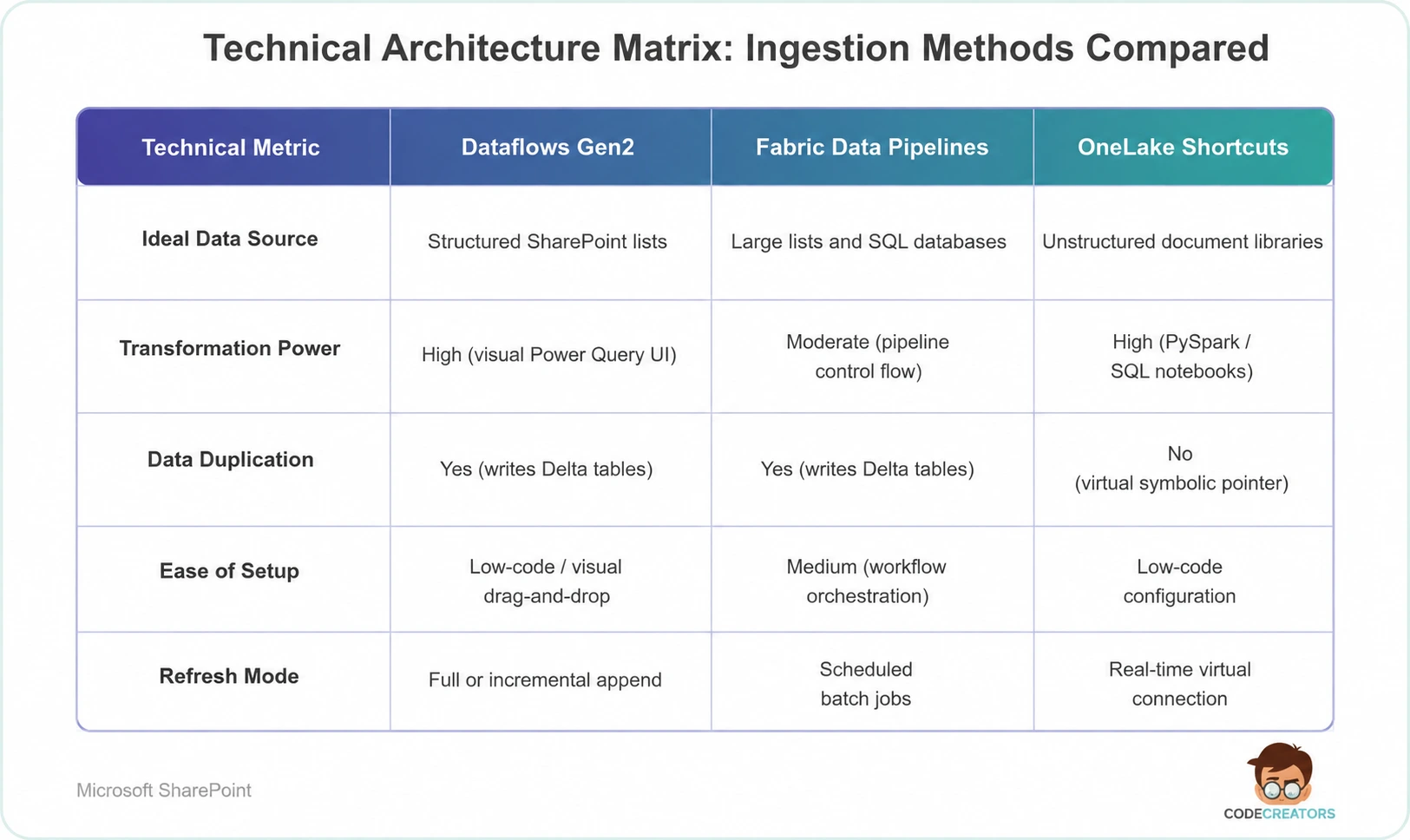
Architecting a pipeline between SharePoint and Fabric means choosing the right ingestion pattern based on data size, update frequency, and storage structure.
Two tools cover most scenarios: Dataflows Gen2, a low-code Power Query interface built for small to medium structured datasets, column cleaning, and staging, and Data Pipelines, built for scheduled orchestration, high-volume batch loads, and complex enterprise ETL with cross-database copy activity.
1. Ingesting Small to Medium Datasets via Dataflows Gen2
Dataflows Gen2 provides a low-code interface powered by the Power Query engine. To connect a SharePoint list to Microsoft Fabric this way, data engineers clean, transform, and map fields visually:
- Native connectors. Connect using standard SharePoint Online List or SharePoint Folder connectors authenticated via organizational accounts.
- Data transformation. Filter unneeded system columns, expand complex choice or lookup fields, and set explicit data types (integers, strings, timestamps).
- Destination mapping. Map cleaned query outputs directly into a Fabric Lakehouse Delta Table or Data Warehouse destination.
2. High-Volume Ingestion via Fabric Data Pipelines
For large enterprise repositories containing hundreds of thousands of files or millions of list items, use Fabric Data Pipelines:
- Batch orchestration. Schedule automated ingestion runs during off-peak operational hours.
- Incremental refresh. Ingest only newly created or modified records by filtering against the SharePoint Modified system date column.
- Copy Activity. Stream data efficiently into OneLake files without running into local browser timeout limits.
Phase 2: Step-by-Step Data Pipeline Implementation
Setting up an automated ingestion flow means configuring authentication, mapping columns, and writing output files into your Fabric Lakehouse. The overall sequence runs, establish a service principal or user auth connection to SharePoint, configure a Dataflow Gen2 query that filters out unneeded system fields, transform choice and person columns into flat text strings, stage and write the transformed data into a OneLake Delta Table, then build a Direct Lake Power BI semantic model on top for reporting.
Step 1: Establish Secure Source Credentials
Navigate to your Fabric Workspace, select New Item, and create a Dataflow Gen2. Add a new source connection using the SharePoint Online List connector. Enter your tenant site collection URL and authenticate using an organizational account or an Entra ID service principal with explicit Read rights to the site.
Step 2: Clean and Transform List Records
SharePoint returns numerous hidden system metadata fields (for example, GUID, FileSystemObjectType, ServerRedirectedEmbedUrl). Perform essential cleaning tasks:
- Select Choose Columns and keep only business-critical fields (for example, Title, Status, Category, Amount, Created).
- Expand complex record fields, such as Person or Lookup columns, to extract plain text values like Author.Email or Category.Value.
- Set explicit column types to prevent schema drift when writing to Delta tables.
Step 3: Configure Destination Delta Tables
Click Add Destination at the bottom right of the query editor and select Fabric Lakehouse. Select your target workspace and lakehouse, specify a table name (for example, fact_sharepoint_expenses), and choose Update Method: Replace or Append. Click Save and Publish.
We’ve watched more than one team burn a full afternoon debugging a schema drift error that traced straight back to skipping step 2’s explicit type-setting, it’s a small step that’s easy to rush past, and one of the more expensive shortcuts to take. If you’re planning a more involved integration connecting SharePoint to downstream ERP or CRM systems alongside Fabric, the SharePoint Integration Services team can help you scope that architecture properly before you build.
Phase 3: Optimizing Performance with Fabric OneLake Shortcuts
For unstructured document libraries containing PDFs, images, or Office files, running traditional ETL pipelines creates unnecessary storage duplication. OneLake shortcuts let Fabric index files virtually instead.
SharePoint and OneDrive shortcuts in OneLake reached general availability in mid-2026, so this is now a fully supported production pattern, not a preview feature you need to plan around cautiously. One limitation worth knowing: shortcuts currently connect at the folder level only, not the individual file level, and they only work against enterprise SharePoint sites and OneDrive for Business, not personal or on-premises SharePoint. If your organization needs structured SharePoint list data mirrored directly into OneLake rather than just files, Microsoft has also started previewing SharePoint list mirroring separately, worth watching if that’s closer to what you actually need.
Understanding OneLake Shortcuts
Shortcuts act as symbolic links that point directly to external storage locations without copying physical bytes into Fabric. Creating shortcuts to SharePoint document libraries gives data engineers instant access to unstructured data:
- PySpark file processing. Read raw CSV or Excel files stored in SharePoint using Python scripts running inside Fabric Notebooks, without manual file downloads.
- Document processing with AI. Pass PDF documents stored in SharePoint directly to Fabric AI skills and Cognitive Services to extract text automatically.
Handling API Limits and Delegation
To avoid SharePoint API throttling when syncing millions of rows into Microsoft Fabric, index your key filter fields (such as ID or Modified Date) directly within SharePoint list settings and implement incremental refreshes using timestamp parameters (e.g., Modified >= LastRefreshDate). While pipelines often pass initial tests on small sample datasets, production-scale queries quickly hit SharePoint’s 5,000-item List View Threshold and trigger aggressive throttling if these essential fields are left unindexed.
Additionally, maintain realistic performance expectations regarding Direct Lake mode in Microsoft Fabric. Although Direct Lake reads Delta tables directly from OneLake to deliver fast, import-like speeds, query performance still depends heavily on your Fabric capacity SKU and table optimizations. If a query exceeds your capacity’s memory guardrails, Fabric automatically falls back to slower DirectQuery mode, making proper capacity sizing critical for handling large data volumes.
Best Practices for Enterprise Fabric Data Governance
Maintaining clean data governance across your Microsoft 365 and Fabric tenant keeps analytics secure and compliant.
Enforce Entra ID Service Principal Authentication
Avoid using personal employee credentials to connect Fabric dataflows to SharePoint. Personal accounts break whenever passwords change or staff leave the company. Configure an Entra ID App Registration (service principal) with least-privilege API permissions to handle background authentication securely.
Isolate Staging and Analytics Layers
Structure your Fabric Lakehouse using a standard Medallion Architecture:
- Bronze layer (raw). Ingest raw SharePoint data directly without altering column schemas.
- Silver layer (cleaned). Clean null values, deduplicate records, and map data types into structured relational formats.
- Gold layer (curated). Aggregate business metrics into star-schema joins optimized for direct Power BI reporting.
Monitor Tenant Capacity Consumption
Keep track of Fabric Capacity Unit (CU) consumption in the Fabric Capacity Metrics App. Complex Dataflows Gen2 transformations running over unindexed SharePoint lists consume high computational capacity, optimize Power Query steps to run transformations as early in the pipeline as possible.
We’ve seen more than one client’s capacity bill spike specifically from an unindexed list feeding a heavy transformation step, and the fix was almost always cheaper and simpler than the workaround someone had already started building around it.
Getting the Architecture Right the First Time
Connecting SharePoint and Dataverse to Microsoft Fabric pays off quickly once it’s set up correctly, but the setup details matter more than they look like they should. Indexing, incremental refresh, and capacity sizing are all easy to skip during a proof of concept and expensive to retrofit once a pipeline is running in production against real data volume.
If you’re scoping a Fabric integration and want a second opinion on ingestion pattern or capacity sizing before you commit, the SharePoint Integration Services team can review your architecture before a throttling error shows up in production instead of after.