3 Power Apps and a 5-Stage Approval Workflow Automate Purchase Order, Invoice, and Travel Expense Processing for a Regional Land Claims Organization

Executive Summary
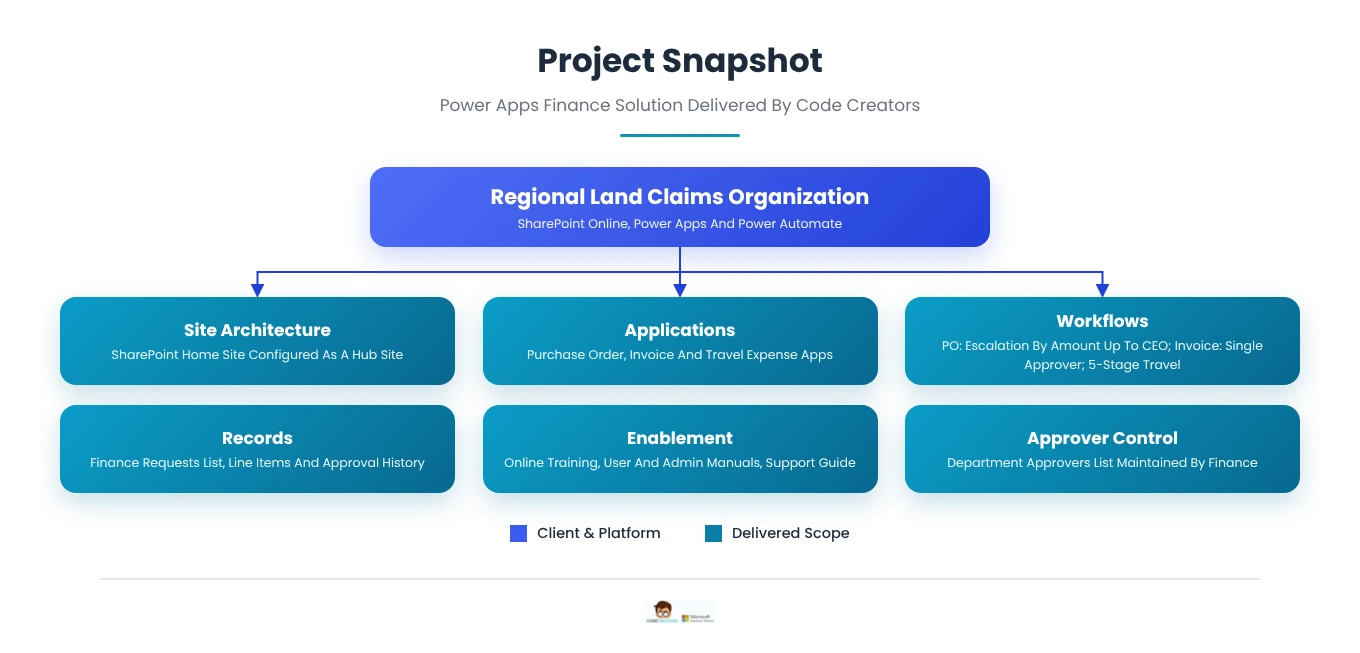
A regional land claims organization needed to move purchase requests, vendor invoices, and staff travel claims, three of its most repeated paper processes, onto one structured digital system. Code Creators built a SharePoint home site hub with three connected Power Apps: Purchase Order, Invoice, and Travel Expense. Each runs an automated Power Automate approval workflow and logs to a SharePoint list. Purchase orders and invoices route to a designated or acting approver, and travel claims follow a 5-stage workflow ending in Finance per diem processing. Within 60 days of go-live, purchase order approvals fell from 6.5 to 1.5 business days, travel reimbursements arrived 13 days sooner, and every finance request followed one consistent, auditable SharePoint approval workflow.
Code Creators delivered a SharePoint approval workflow platform that moves purchase orders, vendor invoices, and staff travel expense claims through one hub, three Power Apps, and automated Power Automate approvals.
About the Client
The client is a regional land claims organization in northern Canada. It acts as the legal representative of the beneficiaries of a modern land claims agreement, oversees how that agreement is implemented, holds governments to their obligations under it, and advocates for beneficiaries’ economic, social, and cultural well-being.
The organization operates with a team of roughly 75 staff across several regional offices and a southern office. Its departments manage a steady flow of purchasing for programs and operations, invoices from vendors, and staff travel between communities, many of which are reachable only by air.
That mix made finance approvals a daily operational dependency. Purchase requests, vendor invoices, and travel claims all needed sign-off from the right manager and a clear record for Finance, while requesters and approvers often worked from different offices. Paper forms left the organization without a single place to see where a request stood, who had approved it, or which finance and project codes it was charged to.
The Problem: Three Repeated Finance Processes Without a Shared System
Purchase requests, vendor invoices, and staff travel claims were three of the organization’s most frequently repeated back-office processes, and all three ran on paper. Each followed its own route to approval, so Finance had no consolidated view of what had been requested, approved, or rejected.
For a team spread across several offices, paper-based approvals carried clear operational risks:
- Slow approvals. A form had to physically reach its approver, so requests waited whenever an approver was travelling or based in another office.
- Manual calculation errors. Totals split across several project and finance codes were added up by hand.
- Incomplete or lost records. Forms could be misplaced between offices, and quotes and receipts were kept apart from the request they supported.
- Limited Finance oversight. Finance saw a request only once the paper reached its desk, with no earlier view of its status.
The numbers showed the cost. The organization handled about 120 purchase orders, 210 vendor invoices, and 65 travel claims every month. A purchase order took an average of 6.5 business days to approve, invoices took 9, and a travel reimbursement took 21 days from return to payment. Roughly one form in eight came back for correction, and Finance spent about 30 hours a month chasing signatures and re-keying totals.
The organization engaged Code Creators’ SharePoint consulting team to replace these paper processes with one digital system offering a single entry point, controlled approver routing, calculated totals, and a searchable record of every request and decision.
What We Discovered
Code Creators began with discovery sessions and clickable Figma mockups of the home site and each form, reviewed with the organization’s stakeholders before development. The forms started from generic metadata, and every field, approval step, and status was finalized with the client before release.
Mapping Approval Roles
The team mapped who initiates, reviews, and approves each request type. Purchase orders and invoices need one designated approver per request, with a named backup for absences. Travel claims need two manager decisions, one before the trip and one after expenses are submitted, followed by Finance processing.
Working with Finance, the team built an Approvers list in SharePoint that maps each of the organization’s departments to its primary approver and permitted acting approvers. Both dropdowns on every form read from that list, filtered by the department the requester selects.
Validating Finance and Project Codes
Purchases and invoices are often charged to more than one code, so each form captures line items with project code, finance code, description, and amount, rolled up into one calculated total.
Finance exported its active codes into two SharePoint lists, Finance Codes and Project Codes. Both line-item fields became dropdowns showing only active codes, which removed miskeyed codes at the source. Closed codes are marked inactive and kept, so older requests still reference them correctly.
Defining the Purchase Order to Invoice Link
Finance needed to trace each vendor invoice back to the purchase order that authorized it, so the Invoice form includes a Purchase Order ID field with an optional lookup.
The team agreed that only approved purchase orders appear in the lookup. A text field stays available for purchase orders raised on paper before go-live; those invoices are tagged Unmatched PO and routed to Finance for review.
Deciding Required Fields and Statuses
Required fields were set by what an approver needs to decide: vendor, amount, reason, and quote for purchases; invoice number, date, and amount for invoices; purpose, traveller, and days for travel. Statuses mirror each workflow, from submitted through approved or rejected, with travel claims adding expense submission and Finance processing.
Purchase orders and invoices move through Submitted, Pending Approval, and Approved or Rejected. Travel claims use Trip Submitted, Trip Approved, Expenses Submitted, Final Approval, Finance Processing, and Closed, with Rejected available at both manager stages.
What the Findings Meant for the Build
All three processes share one pattern: initiator, approver, recorded decision. That shared pattern made a single SharePoint hub with three connected Power Apps, feeding one consolidated forms list, the right fit.
The Solution: A SharePoint Hub Connecting Three Power Apps
Code Creators built the platform on SharePoint Online through its Power Apps development practice: a home site configured as a hub site, three connected Power Apps, and an automated Power Automate approval workflow for each app.
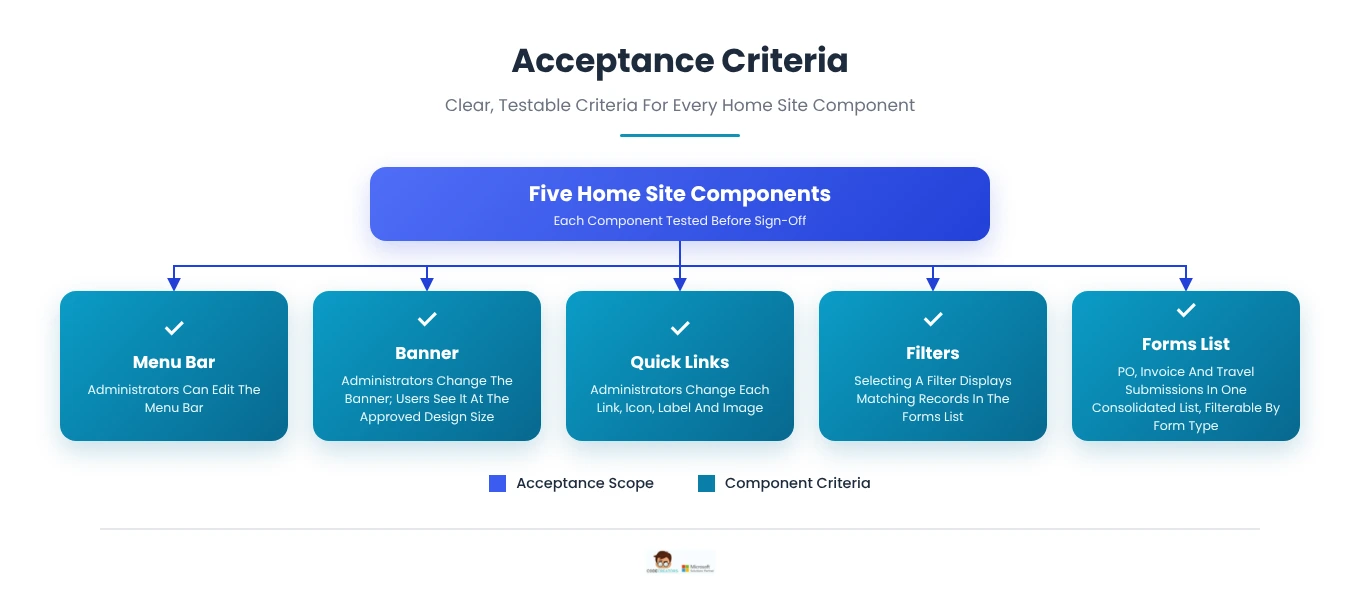
The home site includes five components:
- Dynamic menu bar with tabs and links to the organization’s SharePoint sites, editable by administrators.
- Responsive banner that highlights organizational stories and reflects its vision and mission.
- Quick Links to the Purchase Order, Invoice, and Travel Expense apps and other key resources. Administrators can add or edit links, icons, and labels, and target content to specific users.
- Filters that narrow the forms list by form type and other metadata.
- Forms list that shows submissions from all three apps in one place.
How Requests are Stored
As set out in the scope of work, all three apps write to one consolidated SharePoint forms list, with metadata columns for each form’s details and approval status. The home site’s filters narrow that list to purchase orders, invoices, or travel claims, so the hub works as a SharePoint purchase order system, invoice register, and travel claims log in one place.
The main list, Finance Requests, holds one item per submission. Line items for purchase orders and invoices sit in a related Line Items list, and every approval decision is written to an Approval History list. This keeps the main list fast to filter while preserving full detail behind each request.
How Approvers are Controlled
The approver and acting approver fields are dropdowns, so requesters choose from designated approvers and cannot route a request to any person in the organization.
Both dropdowns read from a Finance-maintained Approvers list that maps each department to its primary approver and permitted backups. The flow rejects any request where the requester names themselves as approver, and only the Finance administrators group can change approver assignments.
Audit Trail and Access
Every approval or rejection emails the initiator and updates the request’s status in the forms list. The travel form’s manager review, final approval, and Finance stages each include a comments field, and attachments stay with the request. SharePoint also records who created and last modified each item and when, and list version history can retain earlier versions of each item.
At each decision, the flow writes the approver’s name, decision, timestamp, and comments to the Approval History list. Version history is enabled on Finance Requests, and once a request reaches final approval, the flow sets it to read-only so any later edit needs a Finance administrator. Item-level permissions control visibility: requesters see their own requests, approvers see requests assigned to them, and Finance sees all requests and attachments.
Power Apps Purchase Order Form and Approval Workflow
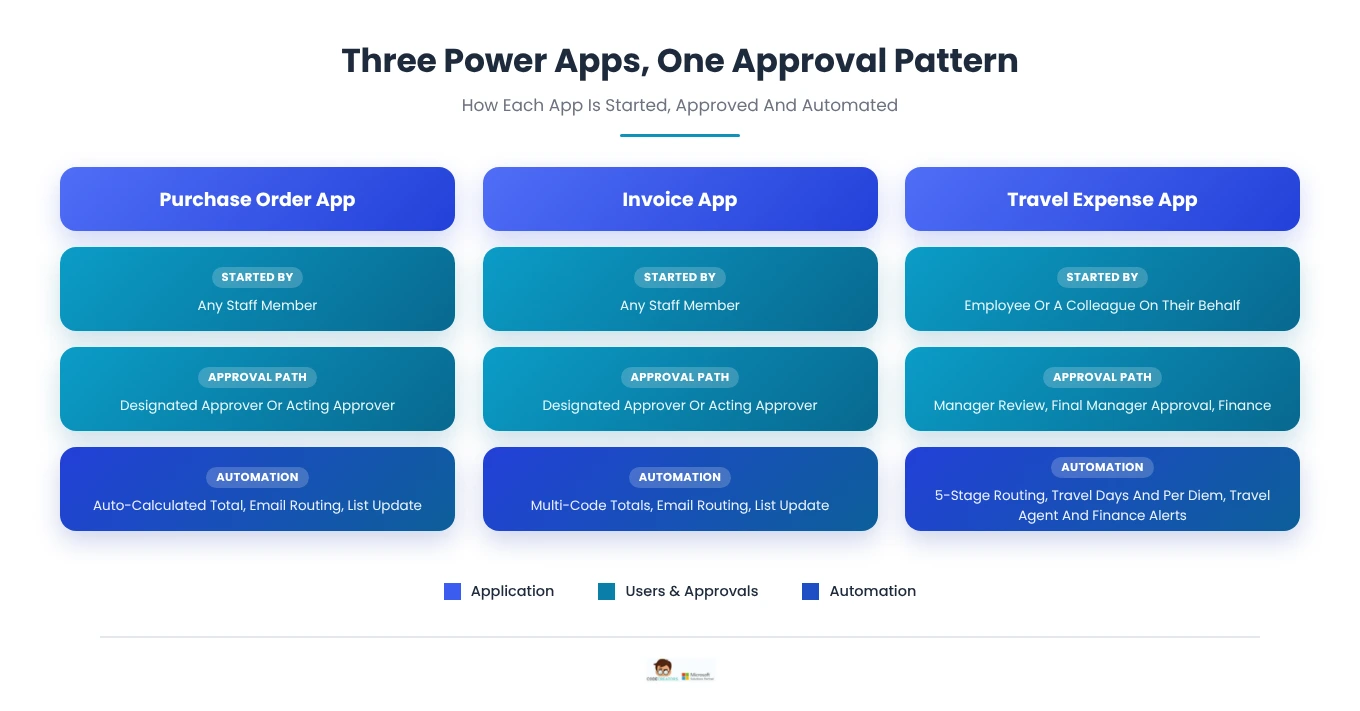
The Power Apps purchase order form captures everything an approver needs in one submission and calculates the total automatically.
What the initiator enters
- Vendor name, selected from a dropdown when the vendor toggle is on, or typed as text
- Items, approximate total value, reason for purchase, department, and date
- Approver, plus an acting approver field that appears when its toggle is enabled
- Quote or inquiry attachment, and comments or details
- Line items with project code, finance code, description, and amount, rolled up into an auto-calculated total
How the purchase order approval workflow runs
- The initiator opens the form from Quick Links on the home site and submits it.
- Power Automate sends an email notification to the selected approver.
- The approver opens the request from the email link, with every field pre-filled from the initiator’s submission.
- On approval or rejection, the initiator receives an email with the decision.
- The SharePoint list updates with the request and its status.
The workflow is also built to scale with spend. Approvals can be configured to move sequentially through designated approvers, such as a manager, the CFO, and the CEO, based on the purchase order’s total amount.
The Power Apps purchase order form captures everything an approver needs in one submission and calculates the total automatically.
What the initiator enters
- Vendor name, selected from a dropdown when the vendor toggle is on, or typed as text
- Items, approximate total value, reason for purchase, department, and date
- Approver, plus an acting approver field that appears when its toggle is enabled
- Quote or inquiry attachment, and comments or details
- Line items with project code, finance code, description, and amount, rolled up into an auto-calculated total
How the purchase order approval workflow runs
- The initiator opens the form from Quick Links on the home site and submits it.
- Power Automate sends an email notification to the selected approver.
- The approver opens the request from the email link, with every field pre-filled from the initiator’s submission.
- On approval or rejection, the initiator receives an email with the decision.
- The SharePoint list updates with the request and its status.
Routing and notifications run on Power Automate flows designed by Code Creators’ Power Automate consulting team.
Approval amount and escalation. The auto-calculated line-item total sets the approval path. Purchase orders up to $5,000 go to the department manager, orders from $5,000 to $25,000 add the CFO, and orders above $25,000 add the CEO, with each approver notified in sequence.
Invoice Power App: Linking Vendor Invoices to Purchase Orders
The Invoice app gives vendor invoices the same structured SharePoint approval workflow as purchase orders, and can tie each invoice back to its originating purchase order.
What the initiator enters
- Invoice number, invoice date, invoice amount, and invoice details
- Vendor name and purchase order ID, each available as a dropdown when its toggle is enabled
- Approver and acting approver, plus supporting attachments and comments
- A Multiple Finance Codes toggle that opens line items for finance code, description, and amount, with an auto-calculated total
How the invoice approval runs
- The initiator opens the Invoice form from Quick Links and submits it.
- Power Automate emails the selected approver.
- The approver reviews the pre-filled invoice from the email link and approves or rejects it.
- The initiator receives an email confirming the decision.
- The SharePoint list records the invoice and its status.
How the purchase order link is controlled. With the lookup toggle on, the Purchase Order ID lists only approved purchase orders, tying each invoice to an authorized request. With the toggle off, used for purchase orders raised on paper before go-live, the invoice is tagged Unmatched PO and routed to Finance for review. Any invoice that differs from its purchase order total by more than 10 percent is flagged for the approver.
Travel Expense Power App: A 5-Stage Approval Workflow
The Travel Expense app works as a Power Apps expense report that carries each trip from the initial request through two manager approvals to Finance, in five automated stages.
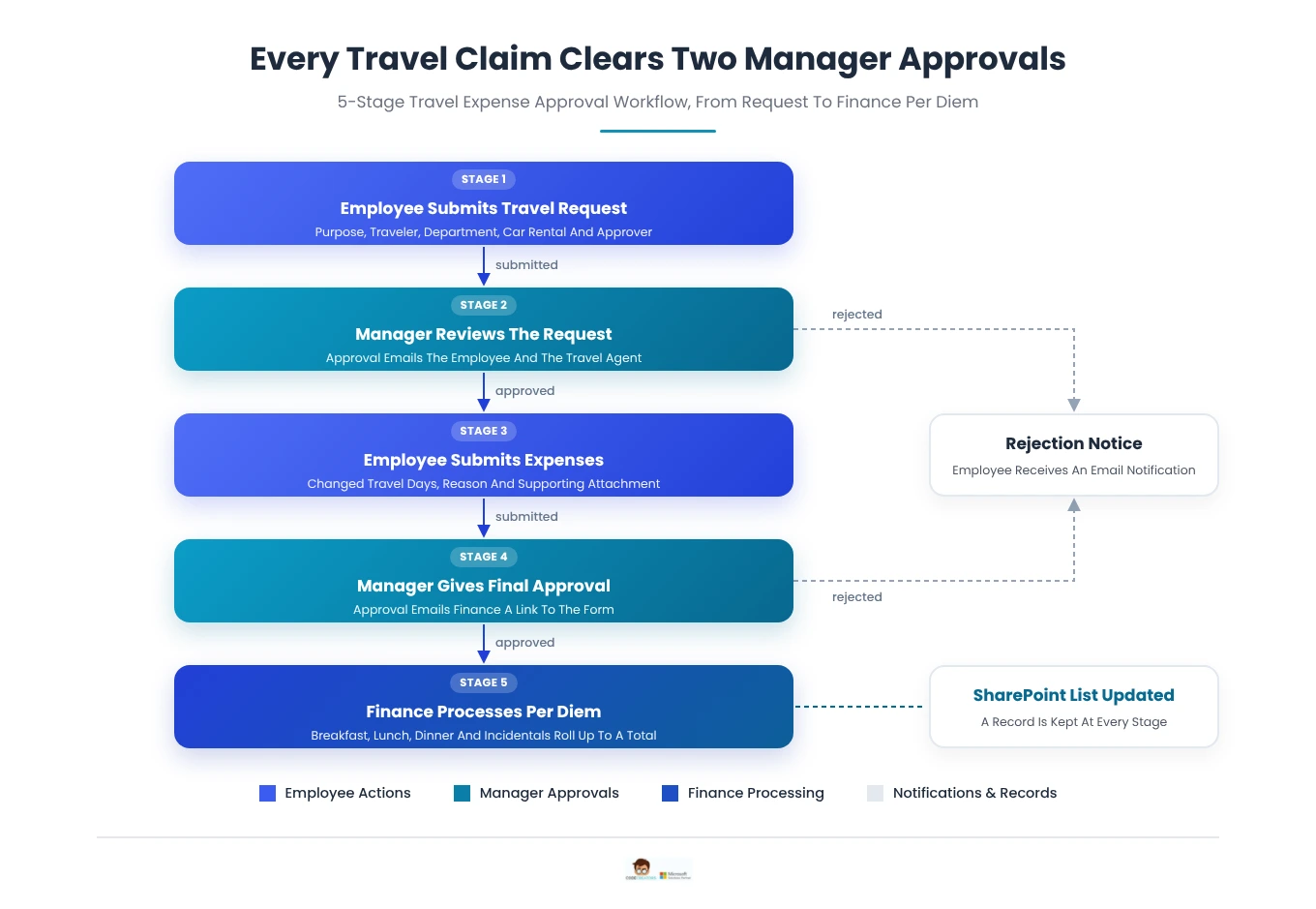 A rejection at either manager stage notifies the employee by email, and the SharePoint list updates with the latest information at every step.
What the travel form captures
- Request details: auto-filled email, submission date, and TEC number; purpose of travel, department, approver, acting approver, and bill-back selection
- Flexible submission: a toggle to submit on behalf of another traveler and a toggle for external travelers
- Car rental: make, model, and variant selections when a rental car is needed
- Trip entries: Add New buttons that open pop-up forms, with entries displayed in a list inside the form
- Day counts: personal days entered by the employee and total travel days filled in automatically
- Manager stages: all initiator fields pre-filled, with a comments field for each review
- Finance Use Only: breakfast, lunch, dinner, and incidental amounts that roll up to an auto-filled total per diem
The travel agent is notified as soon as the manager approves the request, so bookings can begin while the claim continues through the rest of the workflow. This multi-stage design follows the same pattern Code Creators uses for other SharePoint workflows, where each stage hands a pre-filled record to the next person.
Challenges Overcome
- Keeping Approvals Moving During Absences: Approvers are not always available when a request arrives. Every form includes an acting approver, chosen from the same dropdown of designated approvers, so requests reach a backup without delay.
- Capturing Costs Across Multiple Codes: Purchases and invoices are often charged to several project or finance codes. Line items for each code roll up into an auto-calculated total, removing manual math from every submission.
- Handling Travel Before and After the Trip: A travel claim needs approval before the trip and again once actual expenses are known. One form carries all five stages, keeping the full history on a single record.
- Supporting Claims for Colleagues and External Travelers: Travel is sometimes arranged by a colleague or involves someone outside the organization. Toggles let staff submit on another person’s behalf and record external travellers in the same workflow.
- Refining Fields and Workflows With the Client: Forms and approval steps were first scoped from a high-level view of each process. Code Creators launched with generic metadata, then refined fields, workflows, and mockups with the client through a change management process.
- Matching Approvals to Spending Thresholds: Larger purchases call for more senior sign-off. The purchase order workflow routes each request by its calculated total, adding the CFO above $5,000 and the CEO above $25,000.
Training, Documentation, and Acceptance
Code Creators prepared staff and administrators to run the platform independently through scheduled online training and a full documentation set.
- Online training sessions for staff, demonstrating each app, the home site, and how to manage them, with time for questions
- Stakeholder sessions on the SharePoint features built for the organization, scheduled around the client’s availability
- Detailed user manuals for staff submitting and approving requests
- Detailed admin manuals and a SharePoint support guide for administrators
For changes after launch, such as new form fields, approval steps, or reporting views, organizations can draw on Code Creators’ Power Apps maintenance services.
The home site was accepted against clear, testable criteria:
 Results and Impact: Faster Approvals and Full Finance Visibility
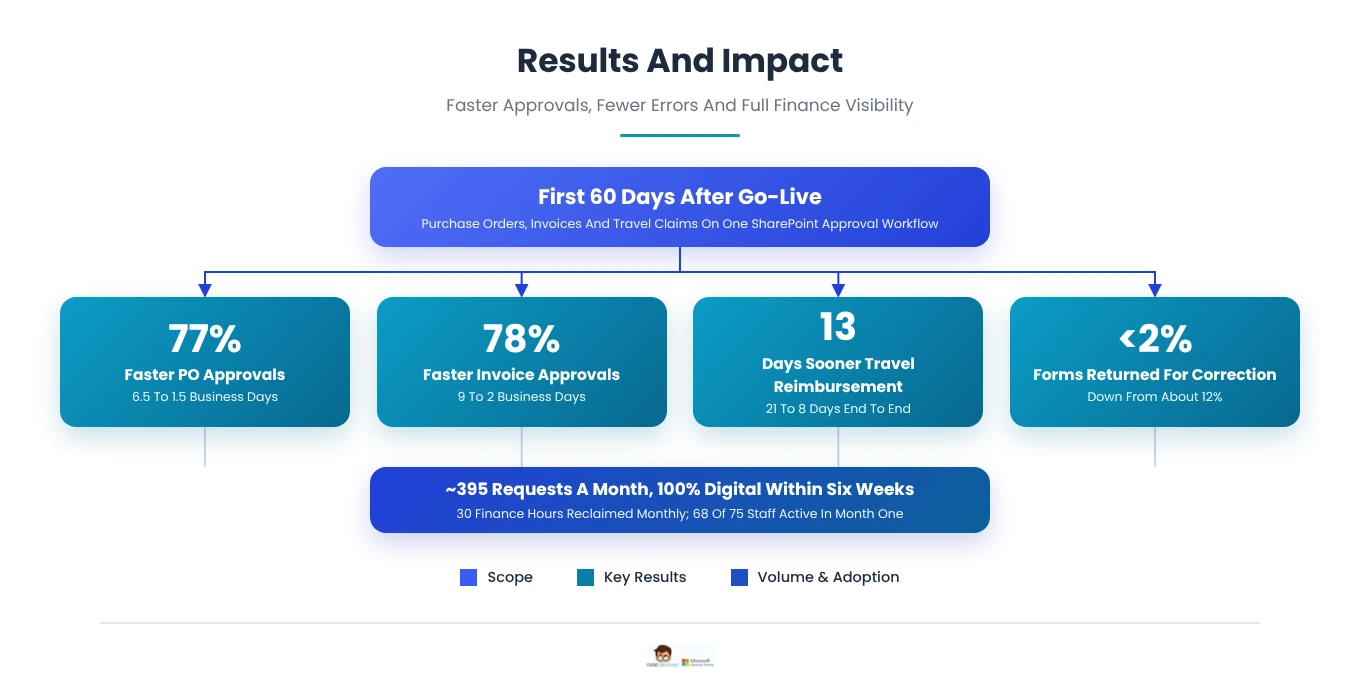
Within 60 days of go-live, every purchase request, vendor invoice, and travel claim was moving through the SharePoint approval workflow, and approval times dropped across all three processes.
- Purchase orders: average approval time fell from 6.5 to 1.5 business days, 77% faster.
- Invoices: average approval time fell from 9 to 2 business days, 78% faster.
- Travel claims: reimbursement now takes 8 days from return to payment, down from 21.
- Accuracy: forms returned for correction fell from about 12% to under 2%, driven by calculated totals and code dropdowns.
- Finance time: roughly 30 hours a month moved from chasing signatures and re-keying totals to review and reporting.
- Adoption: 68 of 75 staff submitted at least one request in the first month, and paper forms were retired after six weeks.
What changed for each group
- For staff: all three forms open from Quick Links on the home site, with totals, travel days, and per diem calculated by the form.
- For approvers: each request arrives by email with its details pre-filled, and a designated acting approver covers absences.
- For Finance: travel claims reach Finance only after two manager approvals, invoices reference their purchase orders, and every request sits in one filterable forms list with its status.
- For administrators: menus, banners, and Quick Links are managed directly in SharePoint, supported by admin manuals and a support guide.
Operational change by process
 Alt Text: Before and after comparison of purchase requests, invoices, travel claims and oversight after moving to SharePoint approvals
What the Client Says
“Before this project, a purchase order could sit in someone’s inbox tray for a week, and Finance often learned about a travel claim only when the receipts arrived. Now every request lands in one place, goes to the right approver automatically, and shows us exactly where it stands. Our managers approve from their phones while they are travelling between communities, and the calculated totals mean we rarely send a form back. The approval history alone has changed how we prepare for audits. Code Creators took the time to understand how our departments actually work, and the training meant staff were comfortable within the first couple of weeks. We retired our paper forms six weeks after launch.”
Director of Finance, Regional Land Claims Organization
Frequently Asked Questions
A SharePoint approval workflow is an automated process that moves a request from the person who submits it to the person who approves it. A Power Apps form captures the request, Power Automate routes it to the right approver and sends email notifications at each decision, and a SharePoint list stores the request with its status and metadata. In this project, the Purchase Order, Invoice, and Travel Expense apps all follow this pattern, and all submissions flow into one consolidated forms list on the SharePoint hub, where staff and administrators can filter and track them.
Yes. The purchase order approval workflow reads the order’s total and routes it through the approval levels set in the organization’s delegation of authority policy. Every organization sets its own limits based on its size, budget, and funding or audit requirements, and we configure the thresholds to match the client’s policy. For instance, for the organization discussed above, the orders up to $5,000 go to the department manager, orders from $5,000 to $25,000 add the CFO, and orders above $25,000 add the CEO, each notified in sequence. Because the form calculates the total from its line items, the workflow always routes on an accurate amount, and the thresholds can be updated later if the policy changes.
Every form includes an acting approver field that appears when its toggle is enabled. The initiator selects a designated backup, and Power Automate sends the approval email to that person, who reviews the pre-filled request and approves or rejects it through the same link. This keeps purchase orders, invoices, and travel claims moving during vacations, travel, or leave, and the SharePoint list still records the decision for the audit trail.
The Travel Expense app moves each claim through five stages. The employee submits the travel request; the manager reviews it, and approval notifies both the employee and the travel agent. After the trip, the employee submits actual expenses, including any changed travel days, a reason, and attachments. The manager then gives final approval, which sends Finance a link to the form, where breakfast, lunch, dinner, and incidental amounts roll up into an auto-filled per diem total. A rejection at either manager stage emails the employee, and the SharePoint list updates at every step.
Yes. A Submit for Another Person toggle lets a staff member select the traveler from a dropdown and complete the claim on their behalf, which suits administrative staff who arrange trips for colleagues. A separate External User toggle records travelers from outside the organization. In both cases, the claim follows the same 5-stage workflow, approvals, and notifications as any other travel request.
No. Administrators manage the home site directly in SharePoint: they edit the menu bar, change the banner, and add or update Quick Links, including each link’s icon, label, image, and target audience. Code Creators provided detailed admin manuals, a SharePoint support guide for administrators, user manuals for staff, and online training sessions, so the organization’s team can maintain content and support users on their own.
Bring Your Finance Approvals Into SharePoint
Code Creators designs SharePoint hubs, Power Apps, and Power Automate workflows that give purchase orders, invoices, and expense claims a clear, trackable path to approval. Explore our Power Apps consulting services to map your approval process and plan your build.