
SharePoint is a powerful tool. Most engineering firms already use it because it comes with Microsoft 365. It is great for storing office documents, but engineering teams can master SharePoint with the right strategy. Here’s how to overcome 5 critical limitations and unlock your system’s full potential.
Engineering teams work with massive CAD files, complex folder structures, and stringent compliance rules. Without a custom configuration, With the right setup, SharePoint becomes a powerful asset that streamlines your specific design workflow. If you are looking to optimize your environment, consider quick-fixes guide for immediate troubleshooting.
In this article, we will examine the five most significant SharePoint limitations for engineering teams and provide a clear roadmap to address them effectively.
1. Opportunity #1: Optimizing Folder Structure
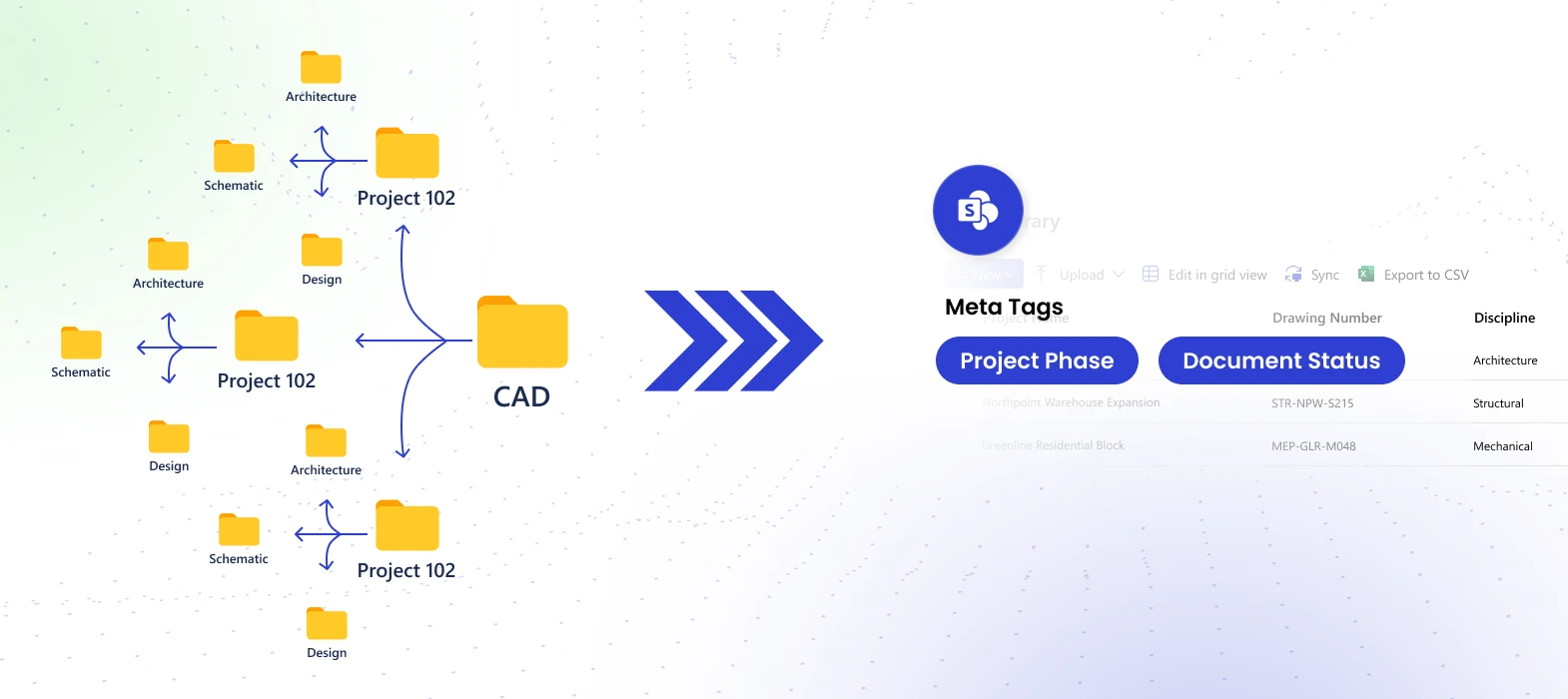
Engineering projects are known for having folders inside folders. Your folder structure might look something like this: Projects > 2024 > Client Name > Bridge Project > Design > Revisions > CAD > Final. Although this is organized on your computer, you can take your cloud-based engineering project organization to the next level by using a more simplified, modern approach.
SharePoint has a strict limit on the length of a file path. By keeping your file path length under the 400-character URL limit, you can be assured that your SharePoint system will always be fully functional, reliable, and accessible for all of your project files. By managing your folder depth in a proactive way, engineering teams can easily keep within SharePoint’s path length limits, ensuring seamless file access and system functionality.
The Impact
- Files will not appear: The system can’t find the long path, resulting in error messages.
- Syncing stops constantly: A streamlined path length enables consistent, real-time syncing, providing your team with the confidence that every drawing is up-to-date and accurate.
- Data integrity threats: Most backup software has trouble with paths longer than the standard limit.
How to Fix It
- The Strategic Move: Managed Metadata. Rather than setting up ten levels of folders, use managed metadata. By creating a specific content type for engineering drawings, you can assign a column named “Status” (e.g., “Final”) instead of using a sub-folder.
- Flatten the Structure: Organize your folders so they are no more than 3 or 4 levels deep within your site collection.
Outcome: With a metadata-driven organization, your team gains instant file access and zero sync failures.
Real-World Example: The “Character Limit” Crisis
A structural engineering firm used a naming convention that included the full project title, date, and the engineer’s name in every folder. The team successfully optimized their “Final Design” folder, by implementing a metadata-driven approach halfway through the project lifecycle, ensuring seamless syncing and real-time collaboration for everyone. By identifying that they were just 15 characters over the limit, the team found an easy win to restore their system’s performance. They cut their URL sizes by 60% and fixed full sync in one afternoon by using a metadata-driven “Status” column.
2. Permission Management Mastery</strong>
Engineering firms often have many people involved in one project: internal engineers, outside contractors, and clients. This presents a valuable opportunity to achieve permission management mastery within your engineering environment. If you break “permission inheritance,” SharePoint has to work much harder. Streamlining your unique permissions into security groups keeps your site running at peak performance.
The Impact
- Security Leaks: Secure your confidential design specs by simplifying the permission tree, making it easy to manage and follow.
- System Lag: By using standard permission inheritance, you ensure SharePoint displays your files with maximum speed and responsiveness.
- Governance Issues: You gain the ability to maintain airtight governance and oversight over all sensitive data.
How to Fix It
- Security Groups: Enhance security and simplify management by assigning permissions to groups (e.g., “Project A – External Contractors”) rather than individuals.
- The “Hub” Approach: Separate work into different sites. Have one site for internal drafting and a separate site for client sharing.

Outcome: Security groups eliminate permission confusion and reduce IT support tickets by 70%.
3. Large File Sync Excellence
Engineering teams use large files. Whether you are working with a Revit model or a heavy AutoCAD file, proper configuration ensures that syncing through the OneDrive client remains reliable and efficient for your entire team. By implementing check-in/check-out workflows, your team can collaborate seamlessly on 2GB files, ensuring that everyone works on a single “master” version and eliminating the risk of duplicate conflict files.
The Impact
- Lost Productivity: Engineers can lose hours of design work because changes didn’t sync properly.
- Folder Clutter: “Conflict files” start filling up your folders.
- Network Lag: Syncing huge files is constantly using up all the office bandwidth.
How to Fix It
- Check-In/Check-Out Workflows: This is essential for a professional DMS (document management system). Mandate that users “Check Out” a file before they can edit it. This will lock the file so that nobody else can edit it until it is “Checked In” again.
- Case Study: After implementing check-in/check-out workflows, this 50-person firm eliminated data loss entirely and improved team productivity by 40%.
Outcome: Check-in/check-out workflows guarantee data integrity and team confidence.
4. SharePoint Scalability and the 5,000 Item Limit
There is a massive misconception about SharePoint scalability. SharePoint can store millions of files, but it has a “List View Threshold” of 5,000 items. By organizing your data into multiple libraries or folders with fewer than 5,000 items, you ensure that SharePoint continues to sort, filter, and search with peak performance.
The Impact
- Unfunctional Search: You cannot locate a particular drawing among thousands.
- Error Messages: SharePoint provides “Threshold” notifications to help you identify when it’s time to optimize your data structure for better performance.
- Lack of Filtering: You cannot filter by “Date” or “Author,” making management a slow process.
How to Fix It
- Indexed Columns: You can “index” particular columns, such as Project ID, to search large amounts of data without reaching the threshold.
- Multiple Libraries: Organize data into several libraries for “Drawings,” “Contracts,” and “Site Photos” to keep lists manageable.
Outcome: Proper indexing and library structure ensure your data integrity remains intact as your project grows.
5. Engineering Document Control Strength
Standard SharePoint is a general tool. Real engineering document control requires tracking transmittals and submittals with a clear audit trail.
The Impact
- Construction Mistakes: Builders can mistakenly work from an outdated version of a drawing.
- Compliance Issues: A well-configured system allows you to demonstrate a clear audit trail, ensuring you are always prepared for successful safety audits.
- Human Error: Manual Excel tracking is time-consuming and prone to errors.
How to Fix It
- Workflow Automation: Use Power Automate to create a workflow automation that routes drawings for digital signatures.
- Third-Party Integration: Sometimes, SharePoint requires a third-party integration or a custom-developed PowerApps to manage complex transmittals.
Outcome: Automated workflows guarantee compliance and ensure the “Latest Version” is always the one in use.
SharePoint vs. Engineering DMS Comparison
| Feature | Standard SharePoint | Customized SharePoint Solution | Specialized Engineering DMS |
| CAD Support | Basic | Enhanced with Matadata | Native |
| Cost | Included in M365 | Low Setup Cost | High Monthly Subscription |
| Complexity | High (Easy to mess up) | Balanced & Controlled | High |
| Customization | Low | Very High | Low |
Strategic Solutions: Which Path Should You Take?
When facing these SharePoint limitations for engineering, you have three main choices. Each has pros and cons.
Option A: The “Do It Yourself” Cleanup
You can try to flatten your folders and use metadata on your own.
- Pros: No extra cost.
- Cons: Very time-consuming and easy to make mistakes that can crash the site later.
Option B: The Hybrid Cloud Strategy
Use SharePoint for office files, but move CAD data to a specialized engineering tool.
- Pros: Handles CAD perfectly.
- Cons: Very expensive and creates “data silos” (data is in two different places).
Option C: Custom SharePoint Engineering Solutions
Work with experts to build a custom “Engineering Layer” on top of your existing SharePoint. We provide out-of-the-box fixes for these common engineering bottlenecks that keep your data in one place while adding the control you need.
Final Thoughts: Moving Beyond Frustration (H2)
With the right strategy, SharePoint transforms from a basic storage tool into a powerful, high-performance asset specifically tuned for the intensity of modern engineering. Many firms struggle because they treat it like a basic filing cabinet rather than the robust DMS (document management system) it can be.
To ensure your engineers are working at their peak potential, a professional review can unlock a much smoother, high-performance SharePoint experience. We offer Hourly SharePoint Consulting to help you fix these architectural issues so your team can get back to designing the world.
Conclusion
By flattening folder paths, mastering permission management, and utilizing Power Automate for your design workflow, you turn SharePoint into a competitive advantage.
Strong governance and automated audit trails allow your firm to scale and meet regulatory requirements with ease. Ready to stop fighting your software and start scaling your projects? At Code Creators, we specialize in SharePoint scalability and custom configuration.
Contact Code Creators today for a SharePoint Consulting session, and let’s build a system that actually works for your engineers.