
When SharePoint runs smoothly, your engineering team collaborates with confidence and projects move forward without delays. Everything feels lighter, faster, and more controlled. And even when things slip out of alignment, the great news is this: most SharePoint challenges have simple, fast solutions that remove collaboration bottlenecks and instantly improve your project workflow.
This guide gives you a clear diagnostic checklist and 10 proven fixes for the most common SharePoint issues in engineering environments. Every solution is practical, quick to apply, and designed to strengthen document control, protect data integrity, and boost team productivity.
The Quick Diagnostic Checklist for SharePoint Problems
SharePoint questions don’t have to slow you down. A quick diagnostic saves time, builds clarity, and keeps your project workflow moving smoothly.
Ask yourself:
- Is your search missing files you know exist? → Issue #1 (Win in 5 minutes)
- Are users unsure what they can access? → Issue #2 (Clarity in 10 minutes)
- Are large files taking longer than they should to upload? → Issue #3 (Solved in 5 minutes)
- Are pages loading slower than expected? → Issue #4 (Speed boost in 15 minutes)
- Do your files need more reliable syncing? → Issue #5 (Back on track in 10 minutes)
- Is metadata not as consistent as it should be? → Issue #6 (Improved in 20 minutes)
- Are versions not staying perfectly organized? → Issue #7 (Locked in 10 minutes)
- Are previews not displaying as quickly as you’d like? → Issue #8 (Fixed in 5 minutes)
- Do mobile users need a better experience? → Issue #9 (Upgraded in 10 minutes)
- Are integrations not flowing smoothly yet? → Issue #10 (Aligned in 15 minutes)
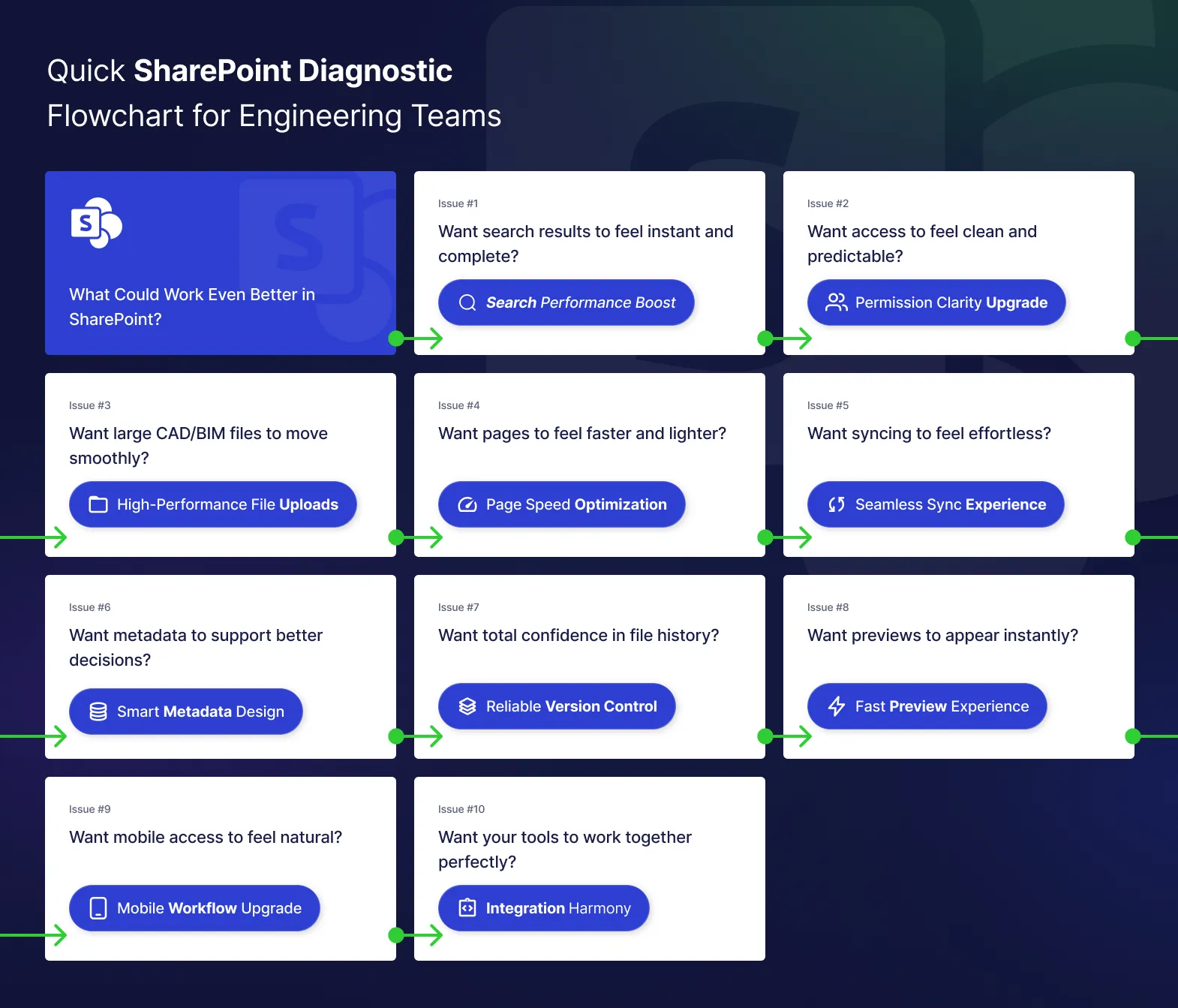
10 Common SharePoint Issues & Their Quick fixes
Each fix below is designed to restore momentum. Follow the steps and you’ll strengthen stability, accuracy, and smooth collaboration for your technical teams.
Issue #1: Search Not Working Proper
Symptom
Your file exists, and with the right tuning, SharePoint will find it instantly. Let’s restore full search power in minutes.
Quick Fix
- Navigate to Site Settings → Search and Offline Availability.
- Enable search for the library.
- Click Re-index site to refresh the crawl.
Result
Your files become fully searchable and your team finds what they need without friction.
Issue #2: Permission Management Chaos
Symptom
Let’s bring clean, predictable access to your libraries.
Quick Fix
- Open the Library → Click Manage Access.
- Go to Advanced → Delete unique permissions.
- Restore permission inheritance.
Result
Access becomes consistent, secure, and perfectly aligned with your document control model. For a more permanent solution to permission chaos, read our comprehensive guide on SharePoint limitations.
H3: Issue #3: Large File Upload Failures
Symptom
You want CAD and BIM files to move fast and reliably.
Quick Fix
- Use the OneDrive sync client.
- Upload through the synced folder.
- Check Site Collection Storage Limits.
Result
Big files upload smoothly and your technical teams stay in flow.
Want to optimize your CAD and BIM file management? Learn best practices for engineering workflows.
Issue #4: Pages Can Load Even Faster
Symptom
Let’s turn your SharePoint pages into quick-loading workspaces.
Quick Fix
- Edit the page → Remove unused web parts.
- Simplify layouts.
- Keep embedded content lightweight.
Result
Pages load fast and your team stays focused on meaningful work.
Issue #5: Sync Can Be Seamless
Symptom
Your files deserve smooth, reliable syncing.
Quick Fix
- Update the OneDrive client.
- Shorten long paths.
- Restart the sync client.
Result
Files stay aligned everywhere and collaboration flows naturally.
Persistent sync issues often indicate deeper structural problems. Discover how strategic migration can eliminate them permanently
Issue #6: Metadata Can Work Smarter
Symptom
Strong metadata protects data integrity and improves document control.
Quick Fix
- Make key fields Required.
- Use dropdown choices.
- Apply consistently across libraries.
Result
Filtering works beautifully and your data stays clean and reliable.
Issue #7: Versioning Can Be Rock-Solid
Symptom
You want total confidence in your file history.
Quick Fix
- Go to Library Settings → Versioning Settings.
- Enable Check-in / Check-out.
- Turn on Version History.
Result
Your files stay accurate and your team never loses progress.
Issue #8: Previews Can Be Instant
Symptom
Let’s keep files viewable without extra steps.
Quick Fix
- Confirm supported formats.
- Clear browser cache.
- Refresh the page.
Result
Previews load correctly and your workflow stays fast.
Issue #9: Mobile Access Can Feel Natural
Symptom
Field engineers should work easily from anywhere.
Quick Fix
- Use modern pages.
- Avoid heavy layouts.
- Test in the SharePoint Mobile App.
Result
Mobile users enjoy a smooth, reliable experience.
Issue #10: Integrations Can Work in Harmony
Symptom
Your tools should talk to each other perfectly.
Quick Fix
- Verify app permissions.
- Reconnect with admin credentials.
- Test with admin access.
Result
Automation and collaboration tools flow together seamlessly.
Ready to automate your engineering workflows? Explore how SharePoint integrations and workflows can eliminate manual processes.
|
Issue # |
Opportunity |
Quick Win |
Positive Result |
Time |
|
1 |
Search can feel even smarter |
Enable search + re-index the site |
Files surface instantly and reliably |
5 min |
|
2 |
Access can feel clearer and safer |
Restore permission inheritance |
Clean, predictable document control |
10 min |
|
3 |
Large files can move faster |
Use OneDrive sync + check storage |
CAD/BIM files upload smoothly |
5 min |
|
4 |
Pages can feel lighter and quicker |
Remove unused web parts |
Fast, focused workspaces |
15 min |
|
5 |
Sync can feel seamless |
Update OneDrive + shorten paths |
Files stay aligned everywhere |
10 min |
|
6 |
Metadata can guide better decisions |
Make key fields required |
Clean, reliable data structure |
20 min |
|
7 |
Versioning can feel rock-solid |
Enable check-in & version history |
Total confidence in file history |
10 min |
|
8 |
Previews can appear instantly |
Confirm formats + refresh cache |
Zero-delay file viewing |
5 min |
|
9 |
Mobile access can feel natural |
Use modern pages + test the app |
Smooth field workflows |
10 min |
|
10 |
Integrations can work in harmony |
Reconnect apps with admin access |
Tools flow together seamlessly |
15 min |
When Quick Fixes Aren’t Enough: Building Long-Term SharePoint Strength
Most SharePoint improvements happen quickly with the steps above. If you’re ready to go even further, a strategic setup of your site collection, permissions model, metadata design, and document control framework creates lasting efficiency.
A smart redesign doesn’t just fix issues. It unlocks smoother collaboration, stronger data integrity, and a SharePoint environment your engineering teams actually enjoy using.
Want to take your system to the next level? Explore our deep-dive on SharePoint limitations and discover how to build a future-ready SharePoint experience.
Conclusion: Get Your Engineering Team Back on Track
Most SharePoint problems for engineering teams can be resolved quickly with the right diagnostic and troubleshooting steps.
When quick fixes aren’t enough, some issues require professional guidance. You can get immediate help from a SharePoint specialist to resolve complex problems efficiently, or leverage expert SharePoint consulting services for a strategic, long-term solution.
Need expert help now? Get expert help from a SharePoint engineering specialist to implement real-time dashboards and optimize your entire system.